Other protocols
Know where every other protocol is configured, what information you need to get from the equipment team for it, and what its support status is in the current version.
«طراحی سیستم» ← «مدیریت ساختار» ← «دستگاهها» ← فرم دستگاه ← زبانهٔ «پروتکلها» — «طراحی سیستم» ← «مدیریت ساختار» ← «دستگاهها» ← فرم دستگاه ← زبانهٔ «پروتکلها» — System Design → Structure Management → Devices → device form → the Protocols tab
Besides SNMP and Modbus, the "Protocols" tab in the device form has a separate section for several other protocols. If the model was selected from the catalog, only the protocols that model supports are shown; for a custom device, all sections are shown. Each section has an on/off toggle. This lesson reviews the key fields of each protocol and its support status, so you gather the right information before going on site.
Get to know the page
For a custom device, this note is shown above the tab: "This device was not selected from the catalog; all protocols supported by the system are shown. Enable the ones the device actually uses." In other words, a section being shown does not mean that specific piece of equipment supports it.
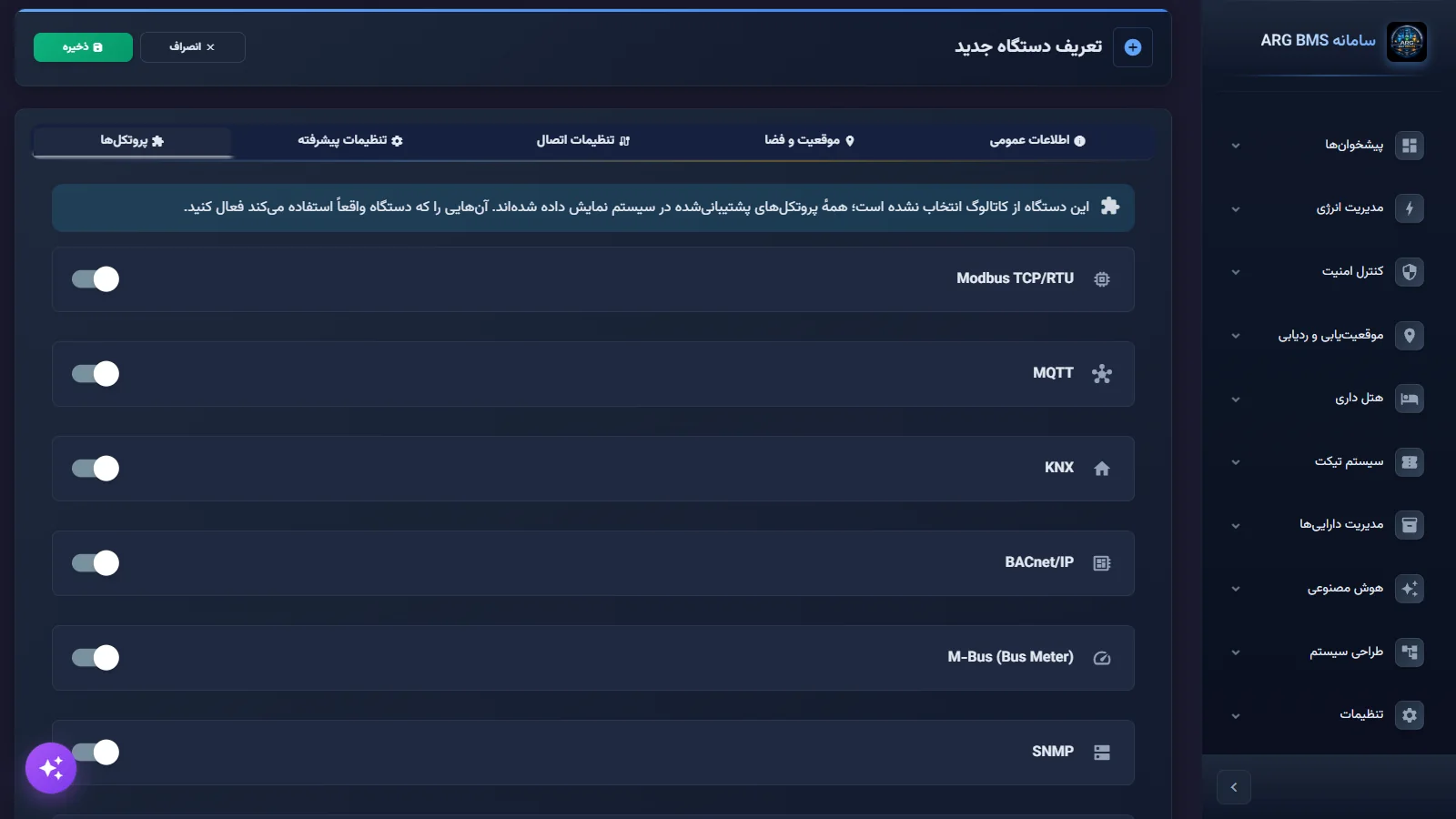
| Protocol | Section title | Status in the current version |
|---|---|---|
| SNMP | SNMP | Set up automatically after saving (lesson B3) |
| Modbus TCP/RTU | Modbus TCP/RTU | Via the catalog profile (lesson B4) |
| MQTT | MQTT | Operational driver; activated in coordination with the implementation team |
| Redfish | Redfish (DMTF) | Operational driver; activated in coordination with the implementation team |
| BACnet | BACnet/IP | On request, as an integration package |
| KNX | KNX | On request, as an integration package |
| M-Bus | M-Bus (Bus Meter) | On request, as an integration package |
On the same tab, the sections ONVIF / RTSP (دوربین) (ONVIF / RTSP (ONVIF / RTSP (camera))), SSH / Telnet, and HTTP REST API are also shown; operational setup of these three is likewise done on request as an integration package.
Step by step: MQTT
- Turn on the MQTT section. On the پروتکلها (Protocols) tab, turn on the MQTT section's toggle.
- Enter the broker details. Enter the URL واسطه (URL (Broker URL)) (the organization's MQTT broker address), شناسه مشتری (Client ID) (unique per device), and the broker's username and password.
- Set the QoS and topic. QoS has three values: 0 (at most once), 1 (at least once, default), and 2 (exactly once). In موضوع (Topic), write the data-publishing path following the sample pattern, e.g.,
devices/{id}/telemetry.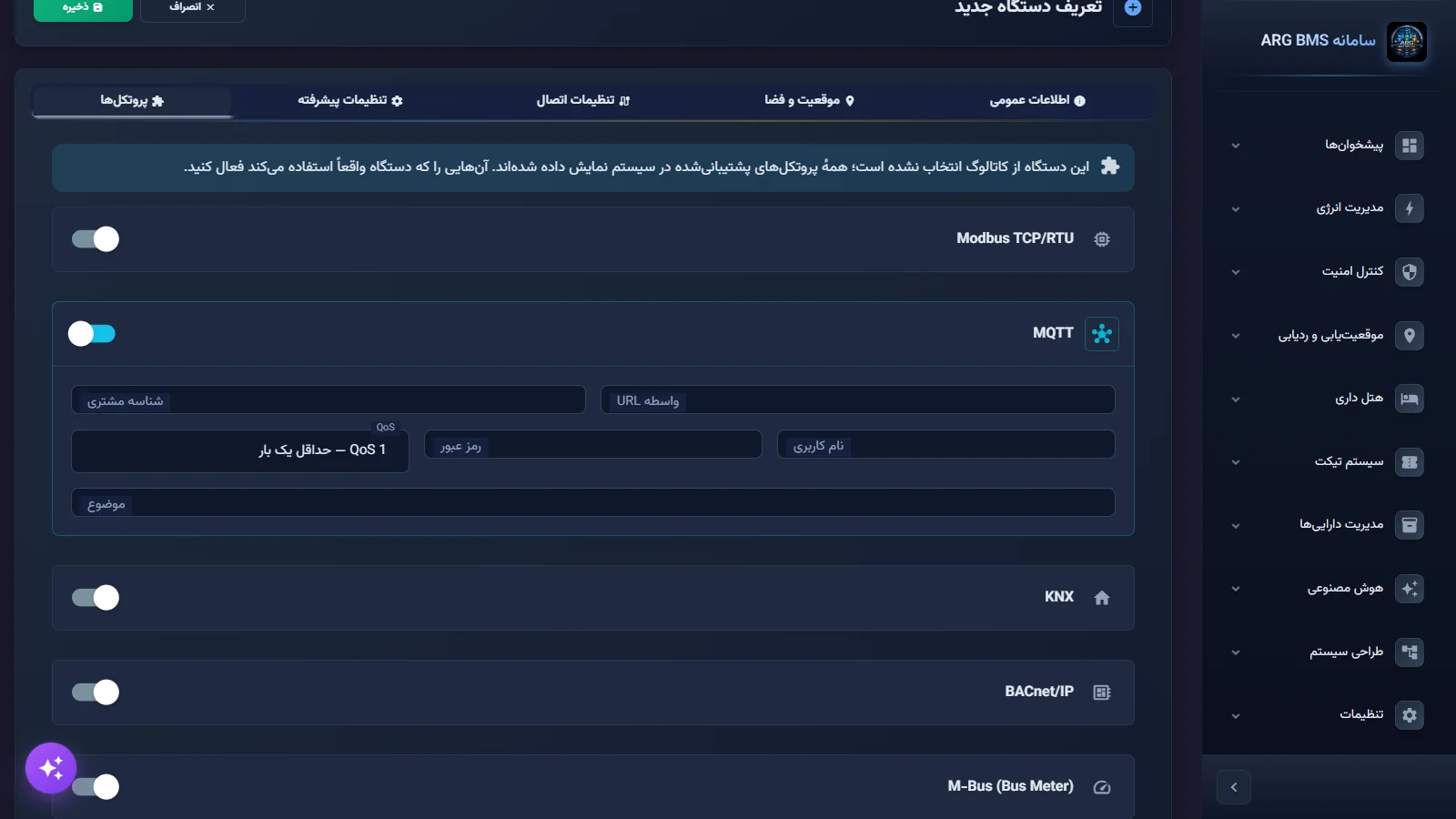
MQTT section · Client ID, broker URL, username, password, QoS, and topic - Save and coordinate. Click ذخیره (Save). The connection details are recorded alongside the device; in the current version, automatic connection setup after saving is done only for SNMP, so coordinate with the implementation team to start the MQTT subscription and map topics to data points.
Step by step: Redfish
- Turn on the Redfish (DMTF) section. This protocol is used to monitor servers through a management controller (such as iLO, iDRAC, or XClarity).
- Enter the management account. Enter the username (hint: "usually root or admin") and password. Preferably create a separate read-only account on the server's controller.
- Check the base path. مسیر پایه (Base Path) defaults to
/redfish/v1, which is the DMTF standard path and usually needs no change. Then save and coordinate for activation as with MQTT.
Protocols set up on request
The BACnet/IP, KNX, and M-Bus sections are shown on the protocols tab, but operational connectivity for these protocols in the current version is set up on request as an integration package, and filling in these sections alone does not read any data. The same applies to OPC UA, Beckhoff ADS, and Tuya. To prepare a request, gather this information:
| Protocol | Information to prepare | Standard port |
|---|---|---|
| BACnet/IP or MS/TP | Transport type (BACnet/IP or BACnet MS/TP), address, "device instance", object list (object type, object instance, PRESENT_VALUE property) | 47808 (0xBAC0) |
| KNX | "Gateway address", "connection mode" (tunneling or routing), "physical address" such as 1.1.1, group addresses such as 1/2/3 with DPT type | 3671 |
| M-Bus | TCP/IP or serial transport, each meter's "primary address", meter type, serial baud rate (usually 2400) | 10001 (TCP converter) |
| OPC UA | Endpoint address (opc.tcp://…), security policy, user account, node list | 4840 |
Which protocol to choose
If equipment offers several communication paths, the preference order in the current version is clear: first the catalog model (whichever protocol its profile is ready for), then SNMP for networked equipment such as UPSes, PDUs, switches, and environmental sensors, then Modbus TCP for meters and industrial equipment. MQTT is a good fit when the equipment or an intermediate gateway publishes the data itself and you are only the consumer. Redfish suits server hardware monitoring through a management controller and works without installing an agent on the operating system. For legacy building equipment that only has BACnet or KNX, or M-Bus meters, setup is done as an integration package; plan for this in the project schedule.
PLC controllers
Connecting PLCs (Siemens S7, Omron FINS, Mitsubishi MC, and EtherNet/IP) has no separate section in the device form and is configured as an integration package. Before requesting it, get these parameters from the controls team:
| Family | Key parameters | Standard port |
|---|---|---|
| Siemens S7 | Rack (usually 0), slot (usually 1), CPU type such as S7-1200, data-block addresses | 102 |
| Omron FINS | Destination node, source node, destination unit | 9600 |
| Mitsubishi MC | Network number (usually 0), station number (usually 255) | 5000 |
| EtherNet/IP | CIP slot, CIP path such as 1,0, tag names | 44818 |
9030, Redfish with 9011, BACnet with 9007, KNX with 9006, OPC UA with 9012, and Siemens S7 with 9024. The full table of bases appears in lesson B6.Tips and common mistakes
- On the "Connection Settings" tab, the KNX, M-Bus, and EtherCAT options only specify the physical medium; they do not activate a protocol.
- If the model was selected from the catalog and you don't see the protocol section you need, that model has not declared that protocol in the catalog; choose the correct model or use a custom device.
- For MQTT, a duplicate client ID causes the broker connection to repeatedly drop and reconnect.
- A protocol section being turned on in the form does not mean data is being received; always verify actual reception in the data-point list and their current values.
Summary
- All protocols are registered from the "Protocols" tab in the device form.
- MQTT and Redfish have operational drivers; activating them is coordinated with the implementation team.
- BACnet, KNX, M-Bus, OPC UA, and PLCs are set up as an integration package, on request.
- Before going on site, complete each protocol's parameter table with the equipment team.
Hands-on exercise on the live demo
On the public demo, do not save anything.
- In دستگاهها (Devices), click افزودن دستگاه جدید (Add New Device) and then دستگاه سفارشی (Custom Device).
- Go to the پروتکلها tab, turn on the MQTT and Redfish (DMTF) sections, and note the default QoS and "Base Path".
- For a hypothetical BACnet/IP device, complete the information table needed for an integration request (address, device instance, three sample objects).
- Exit the form with انصراف (Cancel).
Lesson check
Answer at least 3 of 4 correctly to pass.
- 1. Which protocol is set up automatically after saving the device form?
- 2. Which MQTT field determines the level of delivery guarantee for a message?
- 3. What effect does selecting KNX in "Communication Media Type" on the Connection Settings tab have?
- 4. What is Redfish's default base path in the form?