Limits, alerts, and notifications
Define a threshold limit with hysteresis for a continuous quantity, know exactly at what value an alert is raised and at what value it clears, and send a notification through a channel that actually works in practice.
«طراحی سیستم» ← «طراحی منطقی» ← «موتور قوانین و اتوماسیون» · دکمهٔ شناور «دستیار هوشمند ARG» · «تنظیمات» ← «تنظیمات پروژه» ← «تنظیمات اعلان» — «طراحی سیستم» ← «طراحی منطقی» ← «موتور قوانین و اتوماسیون» · دکمهٔ شناور «دستیار هوشمند ARG» · «تنظیمات» ← «تنظیمات پروژه» ← «تنظیمات اعلان» — System Design → Logic Design → Rules and Automation Engine · the floating 'ARG Smart Assistant' button · Settings → Project Settings → Notification Settings
An alert means turning a raw number into a state that someone must decide about. In the digital twin system, alerting is not the job of a single page; several complementary mechanisms exist, each with its own place. In this lesson you will learn to define a threshold limit with hysteresis for a continuous quantity (temperature, humidity, pressure), know exactly at what moment an alert is raised and at what value it clears, and send a notification through a channel that actually reaches the recipient in practice.
Three layers of alerting
Before anything else, be clear about which layer your alert is built in. The three layers differ in where they are defined, where and when they run, and how persistent they are:
| Mechanism | Where it's defined | Where and when it runs | Best for |
|---|---|---|---|
| Threshold limit with hysteresis | Via the smart assistant (the floating star button) | On the server, on every change to the point's value; notifies only on a band change | Persistent alerting on continuous, noisy quantities |
| A "multi-channel notification" action inside a rule | «موتور قوانین و اتوماسیون» ← «ویرایشگر بصری» (« » ← « » (Rules and Automation Engine → Visual Editor)) (lesson B12) | On the server, every time the rule's condition is met | Composite alerting: multiple points, a time window, a complex condition |
| In-browser notification | «تنظیمات» ← «تنظیمات پروژه» ← «تنظیمات اعلان» («» ← « » ← « » (Settings → Project Settings → Notification Settings)) | In the operator's browser, only while the page is open | Immediate awareness for a user sitting at the console |
Why hysteresis
A sensor that hovers near a threshold produces a flood of messages without hysteresis: 65.1 alert, 64.9 clear, 65.2 alert again. Hysteresis creates a return band: entry into the alert band happens on reaching the threshold, but exit only happens once the value crosses the threshold by the amount of the hysteresis.
| Setting | Entering alert | Clearing alert |
|---|---|---|
| High limit 65, hysteresis 5 | Humidity ≥ 65 | Humidity < 60 |
| Low limit 10, hysteresis 2 | Temperature ≤ 10 | Temperature > 12 |
Each limit can have up to four levels: lowLow, low, high, and highHigh. You don't need to fill in all four levels, but whichever levels you do write must be in ascending order.
Get to know the page
A threshold limit with hysteresis has no dedicated page; creating, listing, editing, and deleting it are all done through the smart assistant. The display and sending channels are project settings on the تنظیمات اعلان (Notification Settings) tab:
| Card | Main controls | What it does |
|---|---|---|
| Notification Display Settings | فعال بودن نوتیفیکیشنها (Notifications Enabled), پخش صدای آلارم (Play Alarm Sound), مدت زمان نمایش (Display Duration), حداکثر تعداد نوتیفیکیشن (Maximum Notification Count), میزان صدا (Volume), موقعیت نمایش (Display Position) | The behavior of in-browser messages |
| Telegram settings | فعال بودن ارسال به تلگرام (Telegram Sending Enabled), رمز ربات (Bot Token), شناسه های چت (Chat IDs), ارسال نام دستگاه (Send Device Name), ارسال لینک داشبورد (Send Dashboard Link), تست ارسال (Test Send) | The Telegram channel and message content |
| SMS settings | فعال بودن ارسال SMS (SMS (SMS Sending Enabled)), سرویسدهنده SMS (SMS (SMS Provider)), کلید API (API (API Key)), شمارههای مقصد (Destination Numbers) | The SMS channel through a provider |
| SMPP settings | فعال بودن SMPP (SMPP (SMPP Enabled)), نام حساب (Account Name), رمز عبور حساب (Account Password), نوع سیستم (System Type), آدرس منبع (Source Address), تست اتصال (Test Connection) | SMS via a direct carrier connection |
| Notification types to send | An alarm-type selection list | Determines which alarms go out to external channels |
At the top of this same page, the فقط محلی (Local Only) label and the text "System configuration saved in the browser" are shown: this tab keeps this specific browser's preferences. The system administrator configures the account and key for the server-side channels; if a test message doesn't go through, check this with them first.
Step by step
- Open the assistant. On any page in the system, the floating star button at the bottom of the page opens the دستیار هوشمند ARG (ARG (ARG Smart Assistant)) panel. This panel is the only UI path for creating, viewing, and deleting a threshold limit with hysteresis.
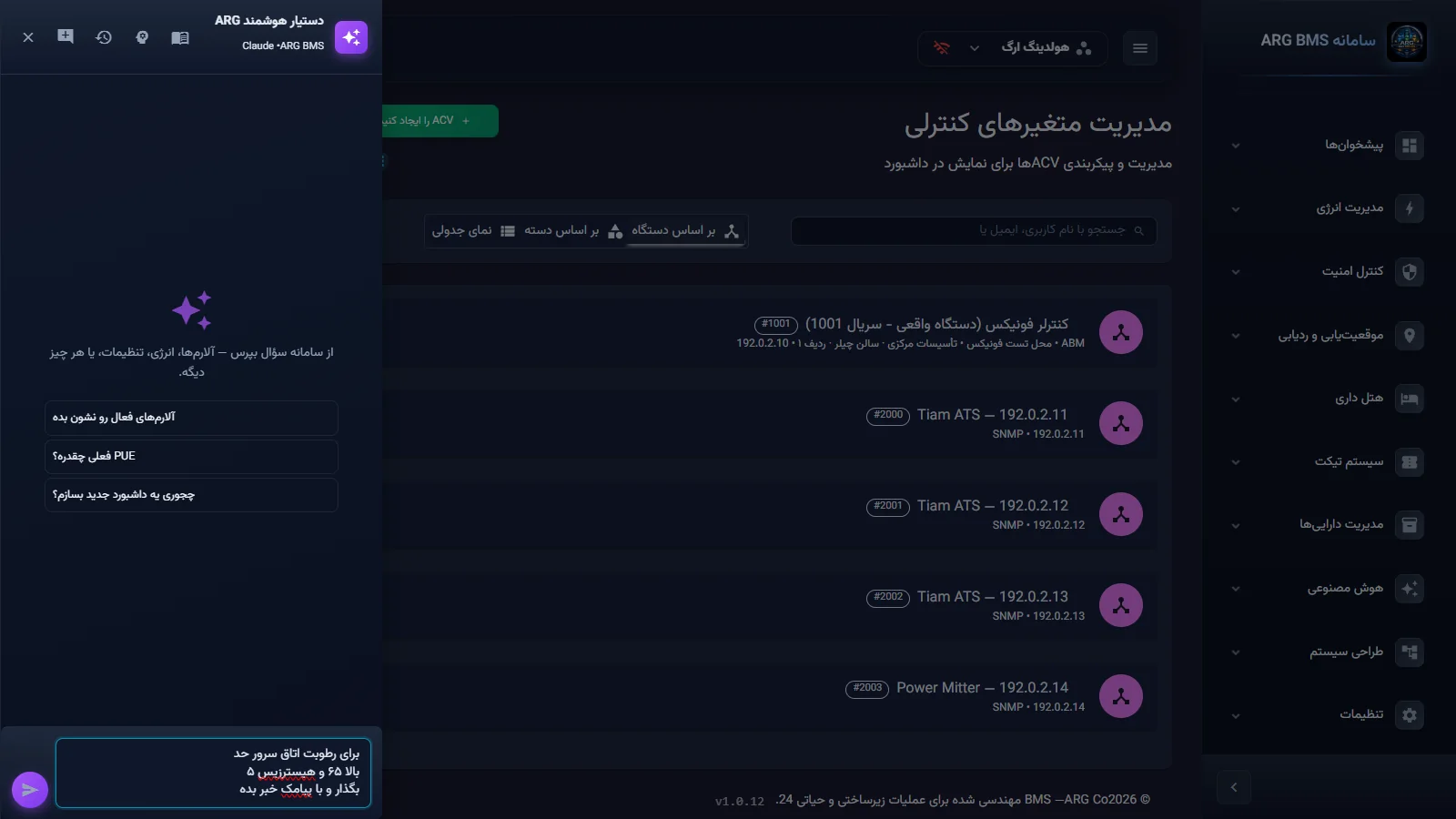
Smart assistant · The floating star button opens the panel; write your request in Persian - Write the request with five elements. The point's name, the level (high/low), the threshold value, the hysteresis, the channel, and the recipient. Example: "Set a high limit of 65 and hysteresis of 5 for the server room's humidity, and notify me by SMS at the number …". If you don't specify message text, the assistant builds a default text like ""Server Room Humidity" is high: {self} (limit 65)", and for the return it sends a message like ""Server Room Humidity" returned to normal range: {self}".
- Read the confirmation card and confirm it. Before writing anything, the assistant shows a confirmation card summarizing the limit (point, levels, hysteresis, channel, and recipient). Nothing is saved until you confirm. Compare the summary against what you had in mind, especially the unit and the decimal placement.
- List the limits. Ask the assistant to list the project's defined limits. This is the only way to fully review the server's limits, and it prevents duplicate work and conflicting limits before defining a new one. Deletion is also done through this same path.
- Configure the display channel. Go to «تنظیمات» ← «تنظیمات پروژه» ← «تنظیمات اعلان» and, in the تنظیمات نمایش نوتیفیکیشن (Notification Display Settings) card, set whether it's enabled, the sound, the display duration, and the display position.
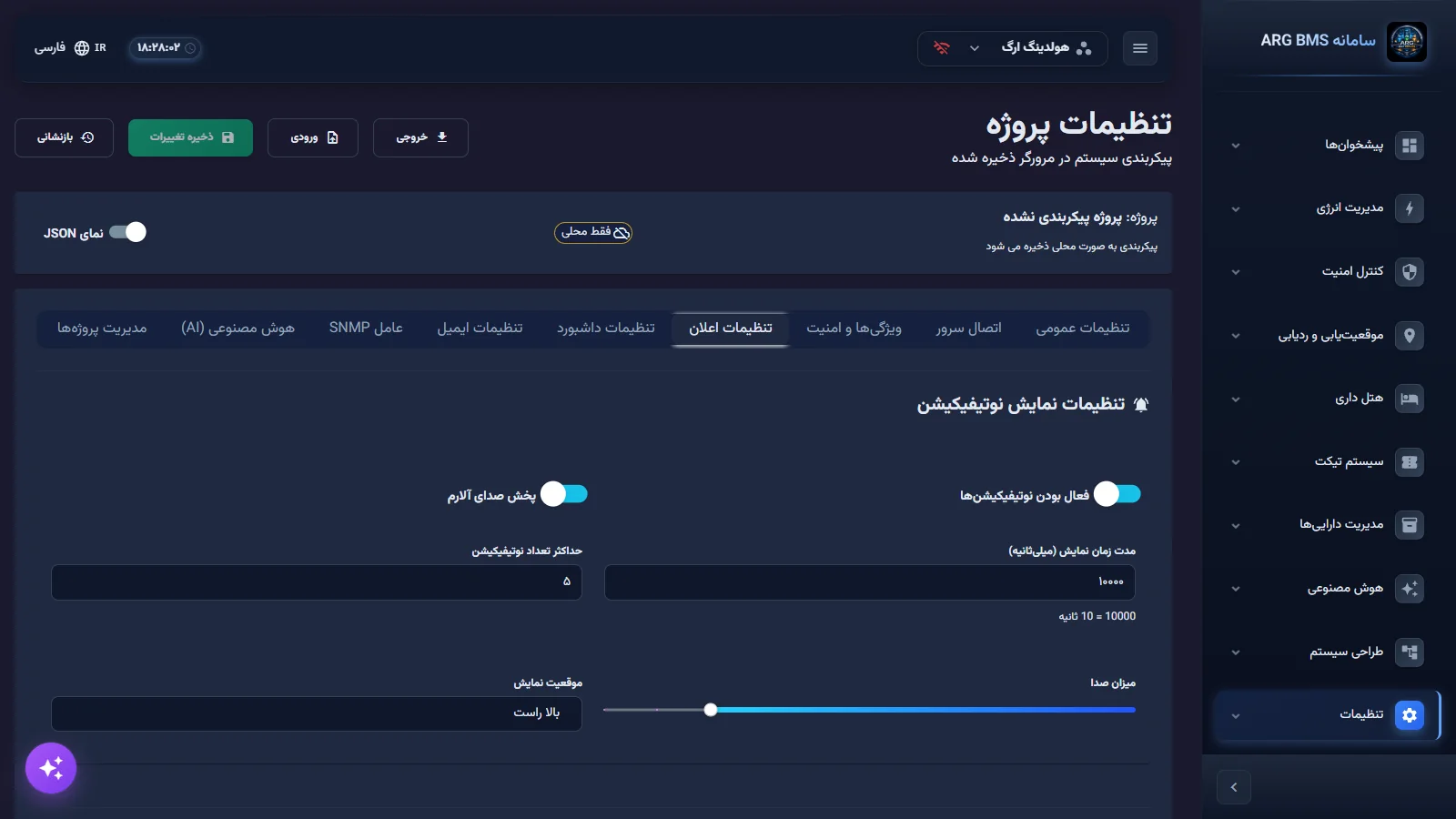
Notification Settings · The "Notification Display Settings" card and the "Local Only" label at the top of the page - Test an external channel. On the Telegram, SMS, or SMPP card, turn on the enabled toggle, fill in the fields, and click تست ارسال (Telegram) or تست اتصال (SMPP). A success message ("Telegram test succeeded!", "SMPP connection established successfully!") or an error is shown right away. Finally, click ذخیره تغییرات (Save Changes).
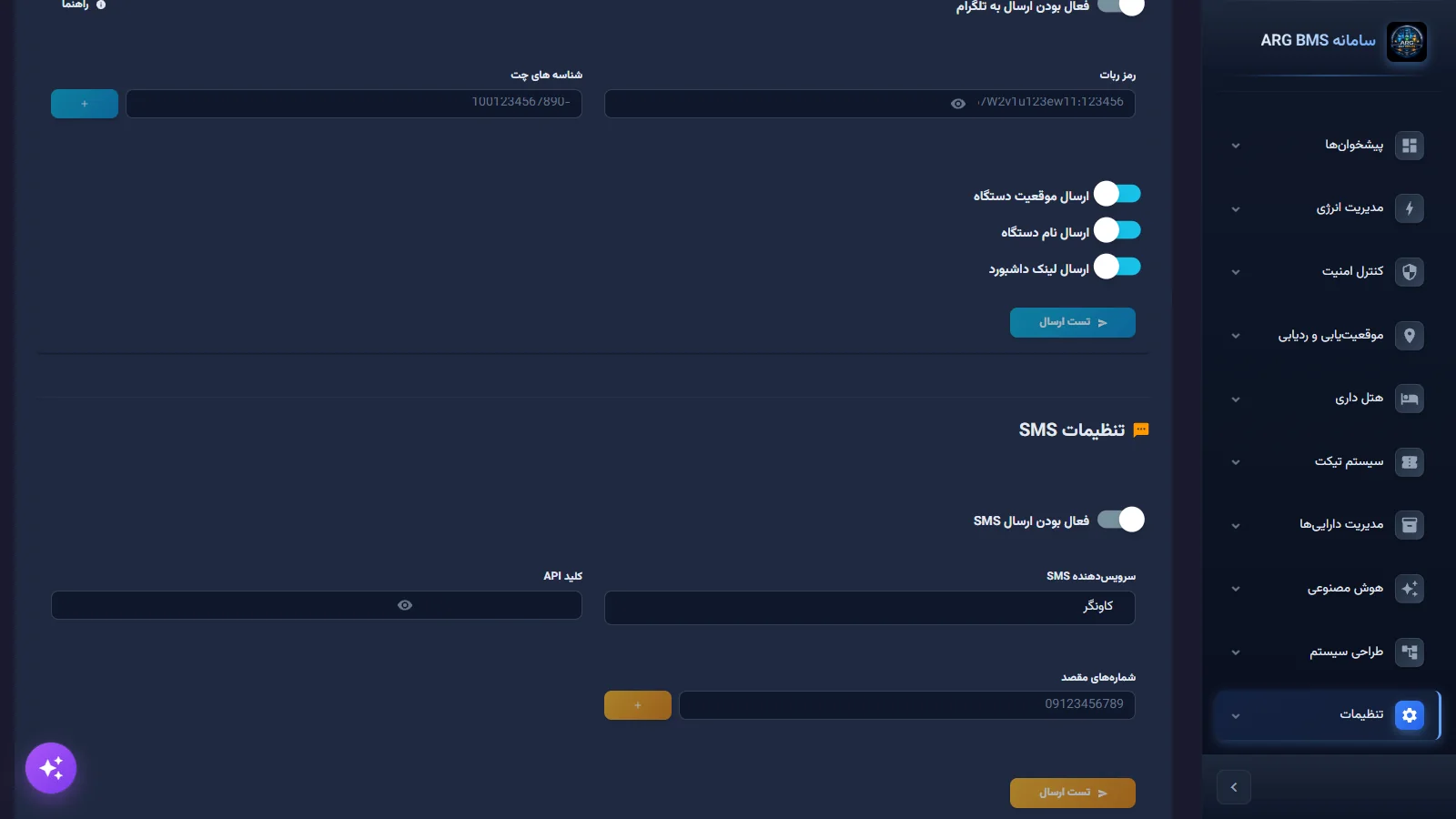
External channels · The enabled toggle, account fields, and test buttons
Tips and common mistakes
- The levels must be in ascending order; otherwise it is not saved, and you see the message "Limits must be ascending: lowLow < low < high < highHigh."
- Hysteresis does not accept a negative number ("hysteresis cannot be negative."), and a hysteresis of zero means the same noisy behavior as before.
- Every channel needs its own recipient: SMS without a number, email without an address, and Telegram without a chat ID are not saved.
- The allowed number format: with
+and 8 to 15 digits, or with0and 10 digits after it. Otherwise the message "The number … is not valid." appears. - In a limit's message text, the placeholder for the instantaneous value is
{self}(with curly braces). - Recipient groups, message templates, and an escalation policy have no UI page in the current version; write the recipient directly in the limit definition or in the rule's notification action.
- The Telegram and SMS checkboxes on the "Web Notifications" card of the point-definition form do not send an external message; external sending is the job of the threshold limit and the rule's notification action.
- The "Notification Settings" tab, labeled "Local Only", is stored in the browser; it must be set up again on another browser or device.
Summary
- Persistent alerting on a continuous quantity = a threshold limit with hysteresis, built with the assistant and run on the server.
- Entry into a band happens at the threshold, exit at "threshold ± hysteresis"; notification fires only at the moment of a band change.
- Levels must be ascending, and every channel needs a valid recipient.
- The point form's "Limits and Alerts" step is not evaluated in the current version; do not rely on it as an alerting mechanism.
- The "Notification Settings" tab configures display behavior in this same browser; the system administrator configures the server-side channels.
Hands-on exercise on the live demo
Work on the public demo (هولدینگ ارگ (ARG Holding)) and do not modify or delete any existing data.
- Open the assistant and ask it to list this project's defined threshold limits. Pick one and write down, on paper, at what value its alert is raised and at what value it clears.
- Go to تنظیمات اعلان and, without clicking ذخیره تغییرات, read which channels are enabled and which of their fields are empty. Guess which channel would actually send a message with this configuration.
- If the demo account allows writing, ask the assistant to define a high limit of 65 with hysteresis 5 and no notification for a humidity point; read the confirmation card carefully and do not confirm it. If the demo account does not allow saving, go as far as the preview step.
Lesson check
Answer at least 3 of 4 correctly to pass.
- 1. For a limit with "high limit 65" and "hysteresis 5", the point is in the high band. At what value does it return to normal status?
- 2. At what moment is a threshold limit's notification sent?
- 3. Which statement about the "Limits and Alerts" step of the point-definition form is correct?
- 4. Where is a threshold limit with hysteresis built and deleted?