Logic rules and scheduling
Build an "if ... then ..." rule in the visual editor, test it with no effect on equipment, and know which mechanism to use for scheduling recurring work.
«طراحی سیستم» ← «طراحی منطقی» ← «موتور قوانین و اتوماسیون» ← زبانههای «قوانین» و «ویرایشگر بصری» — «طراحی سیستم» ← «طراحی منطقی» ← «موتور قوانین و اتوماسیون» ← زبانههای «قوانین» و «ویرایشگر بصری» — System Design → Logic Design → Rules and Automation Engine → the Rules and Visual Editor tabs
A rule is the simplest form of automation in the system: "if these conditions are met, perform these actions". Rules run on the server, not in the browser; so once saved, the page being closed has no effect on whether they run. In this lesson you will build a complete rule in the visual editor, test it with no effect on equipment, and see which mechanism to use for recurring work (scheduling).
Get to know the page
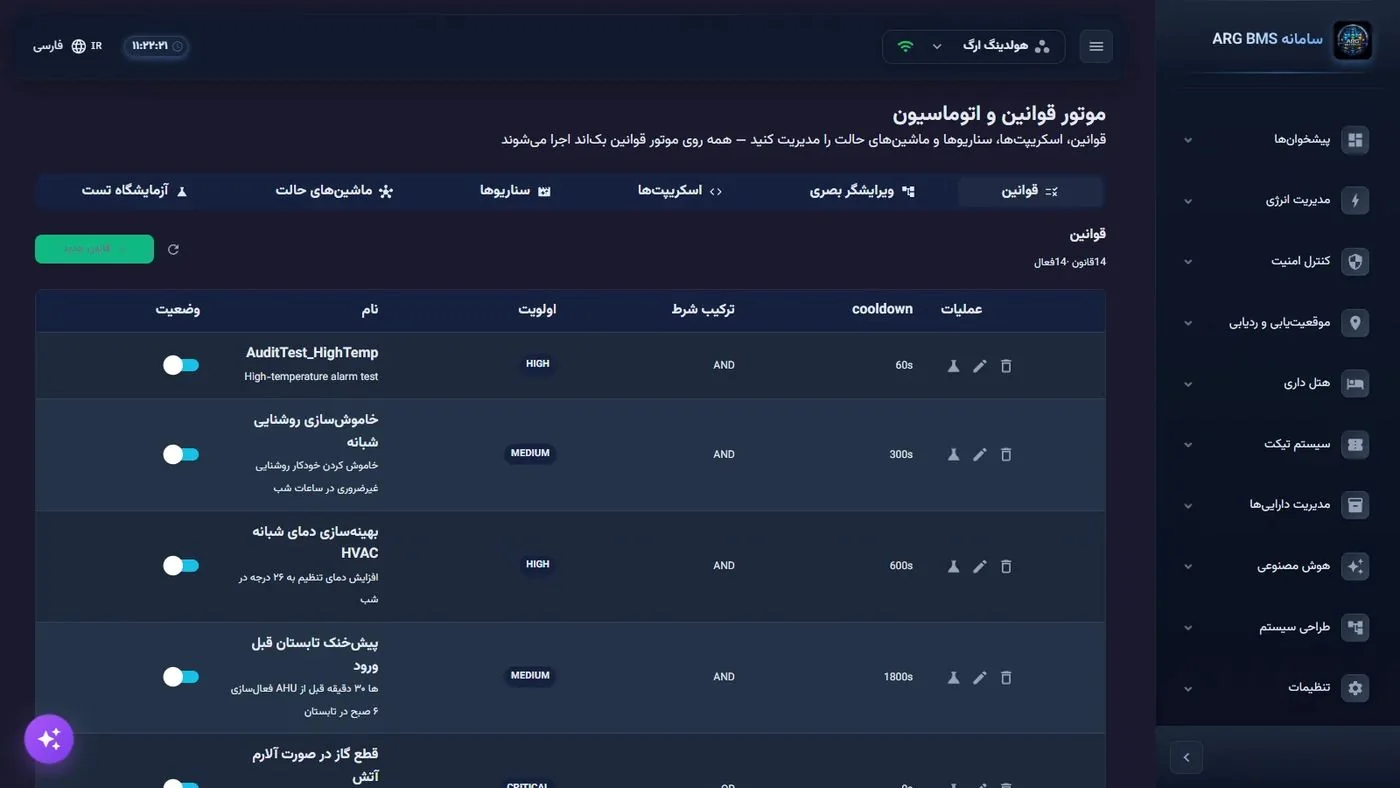
The موتور قوانین و اتوماسیون (Rules and Automation Engine) page has six tabs: four execution mechanisms and two tools:
| Tab | What it does | Lesson |
|---|---|---|
| Rules | Lists rules, turns them on/off, tests, edits, and deletes | This lesson |
| Visual Editor | Builds a rule graph with trigger, condition, and action nodes | This lesson |
| Scripts | A sequence of steps with an ACV trigger, a schedule, or manual execution | B13 |
| Scenarios | An activatable, reversible action bundle | B13 |
| State Machines | The states and transitions of a process | B13 |
| Test Lab | Evaluates conditions against simulator data, with no action execution | B13 |
On the قوانین (Rules) tab, a counter like "14 rules · 14 active" is shown above the table, and the table has these columns: وضعیت (Status) (an on/off toggle), نام (Name), اولویت (Priority) (CRITICAL, HIGH, MEDIUM, LOW), ترکیب شرط (Condition Combination) (AND or OR), cooldown in seconds, and عملیات (Actions). The Actions column has three buttons: تست (Test), ویرایش (Edit), and حذف (Delete).
On the ویرایشگر بصری (Visual Editor) tab, the page has three parts: a top bar (نام قانون (Rule Name), توضیحات (Description), اولویت, ترکیب شرطها (Condition Combination), a play button for testing, and a ذخیره (Save) button), the کتابخانه گرهها (Node Library) on one side, and the node inspector on the other. The empty canvas starts with the message "Drag and drop a node from the left panel".
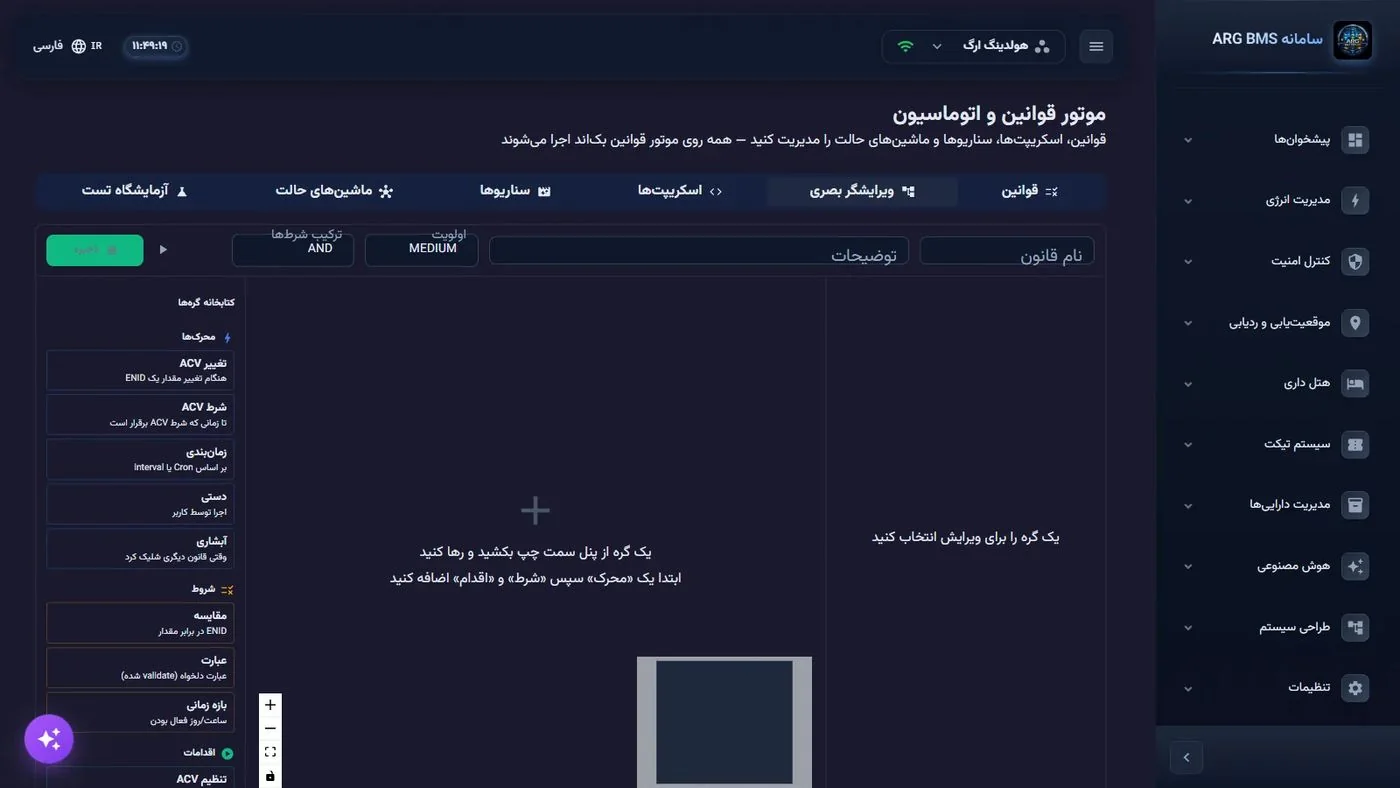
The library has three node categories:
| Category | Nodes |
|---|---|
| Triggers | تغییر ACV (ACV (ACV Change)), شرط ACV (ACV (ACV Condition)), زمانبندی (Schedule), دستی (Manual), آبشاری (Cascade) |
| Conditions | مقایسه (Compare), عبارت (Expression), بازه زمانی (Time Window) |
| Actions | تنظیم ACV (ACV (Set ACV)), تنظیم چند ACV (ACV (Set Multiple ACVs)), اعلان چندکاناله (Multi-channel Notification), ایمیل (Email), پیامک (SMS), تلگرام (Telegram), اجرای اسکریپت (Run Script), Webhook, ماشین حالت (State Machine), ثبت لاگ (Log Entry) |
The most important architectural point: a rule is evaluated on a change to the value of the points named in its conditions. So conditions are not just a "filter"; they are what determines when the rule is even checked at all.
Step by step
- Open a new rule. On the قوانین tab, click the green قانون جدید (New Rule) button to open the ویرایشگر بصری with an empty canvas. نام قانون is required; leaving it empty gives you the message "Rule name is required" on save.
- Fill in the rule's header. A descriptive name ("Cut fan at high temperature"), a short description, اولویت (default MEDIUM), and ترکیب شرطها (AND or OR). Priority determines the order in which rules are checked; CRITICAL is checked first.
- Add a trigger and a condition node. Drag an کتابخانه گرهها from the تغییر ACV onto the canvas, then a مقایسه. In the inspector, enter the point's ENID, the عملگر (Operator) (e.g., GREATER_THAN), and the مقدار آستانه (Threshold Value). A node that hasn't been configured shows a summary like "No ENID selected" on the canvas.
- Write a complex condition with the "Expression" node. To combine several points, place an عبارت node and write the points in the format
ACV['ENID']; example:ACV['0001000000010001'] > 28 && ACV['0001000000010002'] < 60. The allowed operators are&&,||, comparisons, and simple arithmetic, and functions such as HOUR, DAY_OF_WEEK, TIME_IN_RANGE, ABS, ROUND, MIN, MAX, and the historical functions AVG/MIN/MAX/SUM are available. - Add the actions. To write a value, use a تنظیم ACV node with a ENID هدف (ENID (Target ENID)), مقدار جدید (New Value), and, if needed, a تأخیر (ms) ((ms) (Delay)). To send a notice, use a اعلان چندکاناله node with عنوان (Title), متن پیام (Message Text), and گیرندگان (Recipients) (comma-separated; any recipient that is an email address is treated as email, and the rest as SMS).
- Connect the nodes. Drag from each node's output port to the next node's input: trigger ← condition ← action. An unconnected graph can be saved, but it will not produce the behavior you intend.
- Validate the expression before saving. The play button in the top bar, for an unsaved rule, checks only the عبارت node and shows "Expression is valid" or an error. If you have no expression node, the message "Save the rule first for a full test…" appears.
- Save — and know that it activates. Clicking ذخیره shows the message "Rule created and activated", and you return to the قوانین tab. The rule is active on the server from that instant. If its action is a command to real equipment, immediately turn off the وضعیت toggle and run the safe test first.
- Run the safe test. In the rules table, the تست button opens the آزمایش امن قانون (Safe Rule Test) window. Set منبع مقدار متغیرها (Variable Value Source) to شبیهساز (Simulator), change the input values, and click ارزیابی قانون (Evaluate Rule). The result is shown as a "Condition met" or "Condition not met" chip, along with each individual condition's status and a sentence like "n Actions detected · no Action executed".
Scheduling in practice
The زمانبندی trigger is shown in the node library, but in the current version the زمانبندی, دستی, and آبشاری triggers are only saved in the rule definition and do not change its execution behavior. For recurring work, these two paths work and are covered in lesson B13:
- A script with نوع محرک (Trigger Type) = SCHEDULE and a Cron expression; for example,
0 0 6 * * *for every day at 6 a.m. - A scenario with نوع فعالسازی (Activation Type) = SCHEDULE and the same Cron format.
Accepted format: a six-part Cron (second minute hour day month weekday), a five-part Cron (second is treated as zero), or INTERVAL:<milliseconds> with a minimum of 1000. All times are server time. For "when rule X runs", also build a script with an RULE_FIRED trigger or a scenario with a RULE activation.
Tips and common mistakes
- Saving means activating. A new rule runs immediately; for rules that command equipment, test first, then turn it on.
- A rule with no condition at all depends on no point and is effectively never evaluated; the test window also warns about this.
- In the عبارت node, only the format
ACV['ENID'](with single quotes) is recognized; the format shown in the field's inline hint with curly braces does not work. - To send email, use the اعلان چندکاناله node; the ایمیل node does not send a message in the current version.
- In the بازه زمانی node, the weekday numbering in the field's label does not match what the engine reads; until this is fixed, set the days field to all days (
1234567) and apply the day restriction with theDAY_OF_WEEKfunction in an expression node. - cooldown has no field in the visual editor and is only shown in the table; get the assistant's help to set it. A rule whose condition stays true for a long time will act again on every new sample without a cooldown.
- Testing with the شبیهساز source only works when the project has been synced in the simulator; otherwise the ارزیابی قانون button is disabled (lesson B13).
Summary
- A rule runs on the server and is evaluated on a change to the points named in its conditions.
- Build the graph with a trigger, condition, and action, and always run the safe test before relying on it.
- Save = immediate activation; the "Status" column toggle is how you turn it off temporarily.
- The format for referencing a point in expressions is
ACV['ENID']. - Build recurring work with a script or a SCHEDULE scenario, not with the rule's schedule trigger.
Hands-on exercise on the live demo
Work on the public demo (هولدینگ ارگ (ARG Holding)); do not modify, turn off, or delete existing rules.
- On the قوانین tab, find a rule with CRITICAL priority or an OR condition combination and write down its cooldown value. Explain how many messages per hour, in the worst case, this value allows.
- Click تست on that same rule and read the آزمایش امن قانون window; write down the list of inputs and the number of Actions detected. If the simulator was not synced, just review the window's text.
- In the ویرایشگر بصری, build a three-node graph: تغییر ACV ← عبارت ← ثبت لاگ, named "Exercise — your name". Validate the expression with the play button and do not save. If the demo account does not allow saving, go as far as this validation step.
Lesson check
Answer at least 3 of 4 correctly to pass.
- 1. After clicking "Save" for a new rule, what state is the rule in?
- 2. Which syntax correctly references a point in an "Expression" node?
- 3. When is a rule evaluated?
- 4. What is the correct way to automatically run a task every day at 6 a.m.?