A tour of the system
Real screens of the system, a working day seen by six roles, and the personal desktop that brings each person’s work to them.
A look at the system
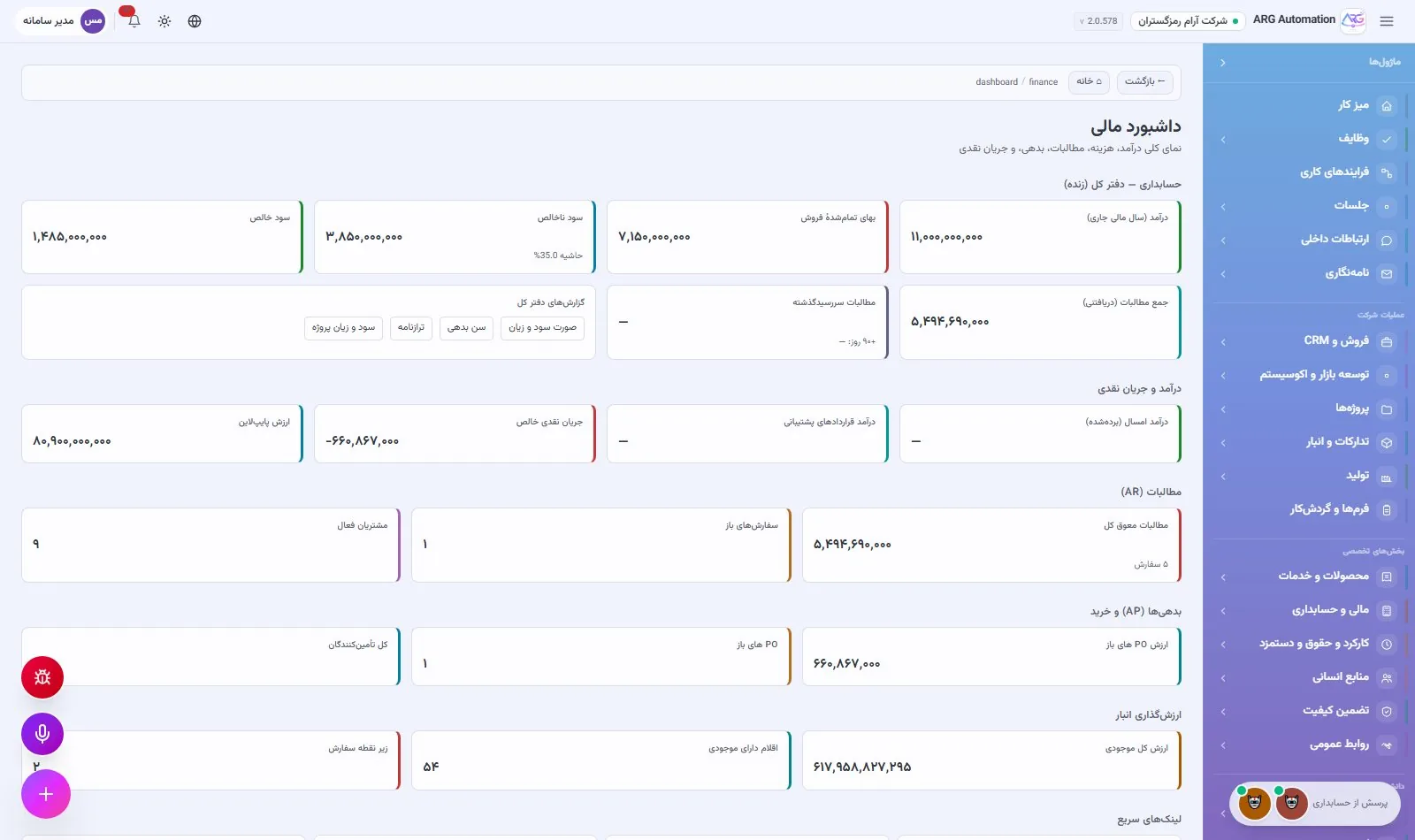
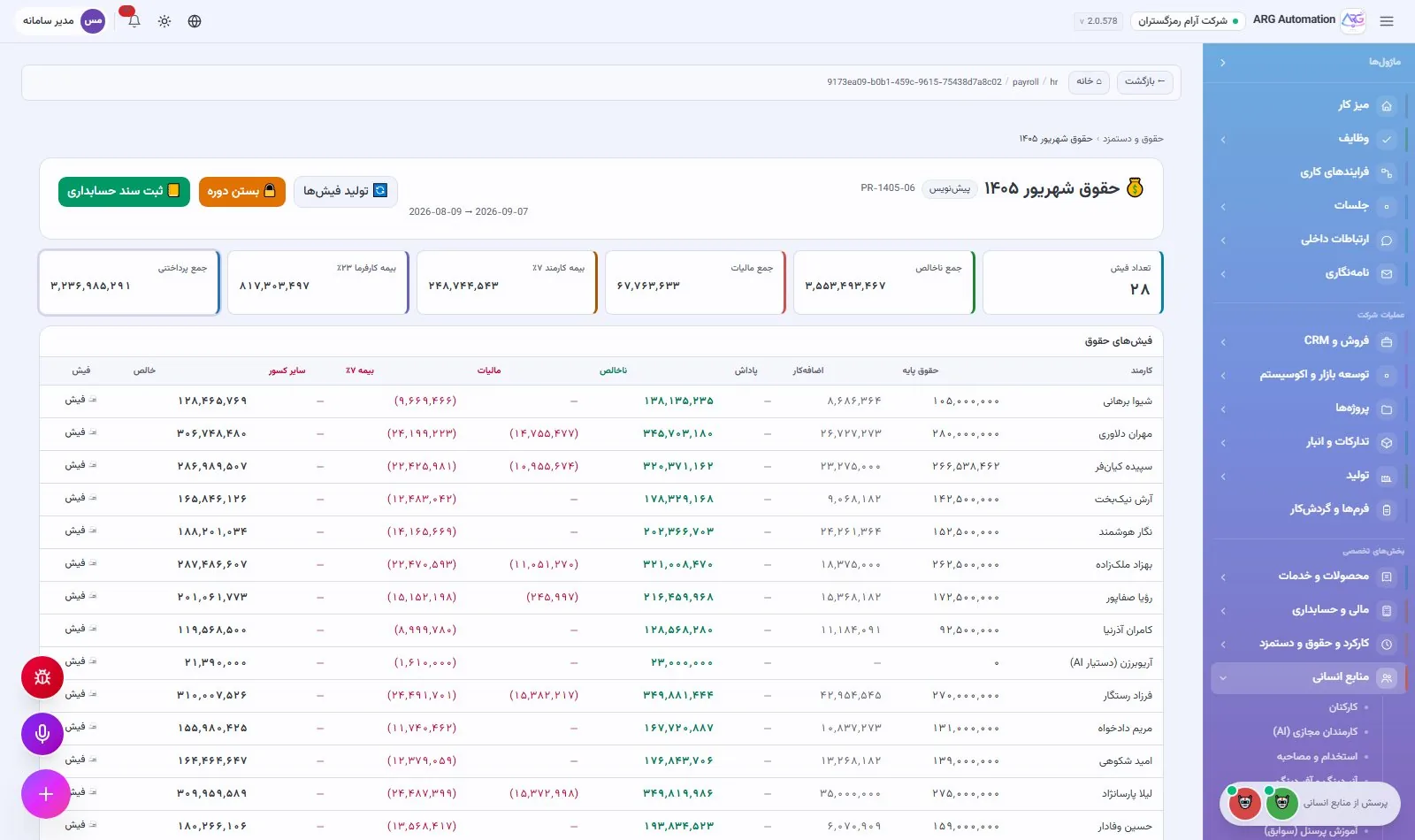
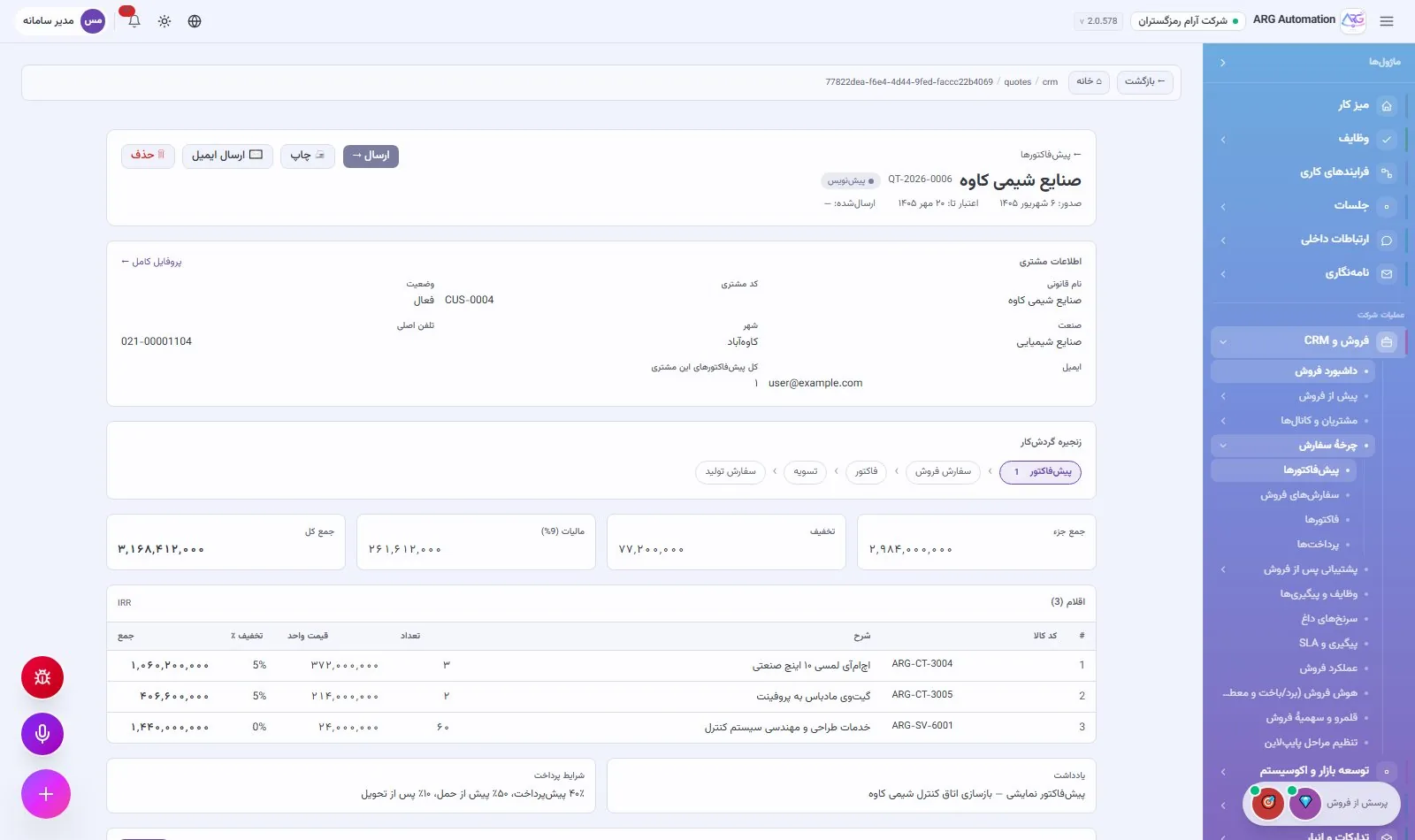
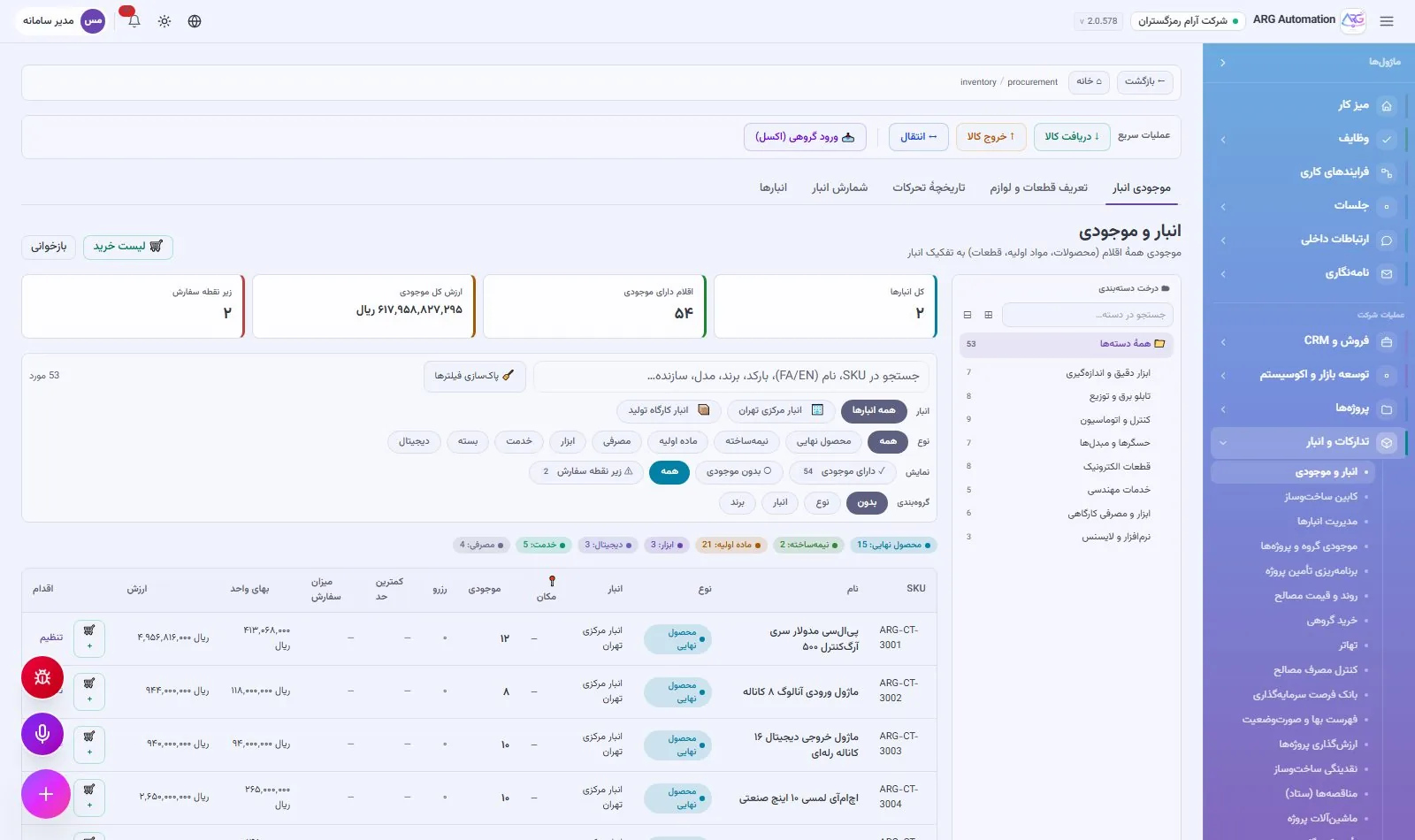
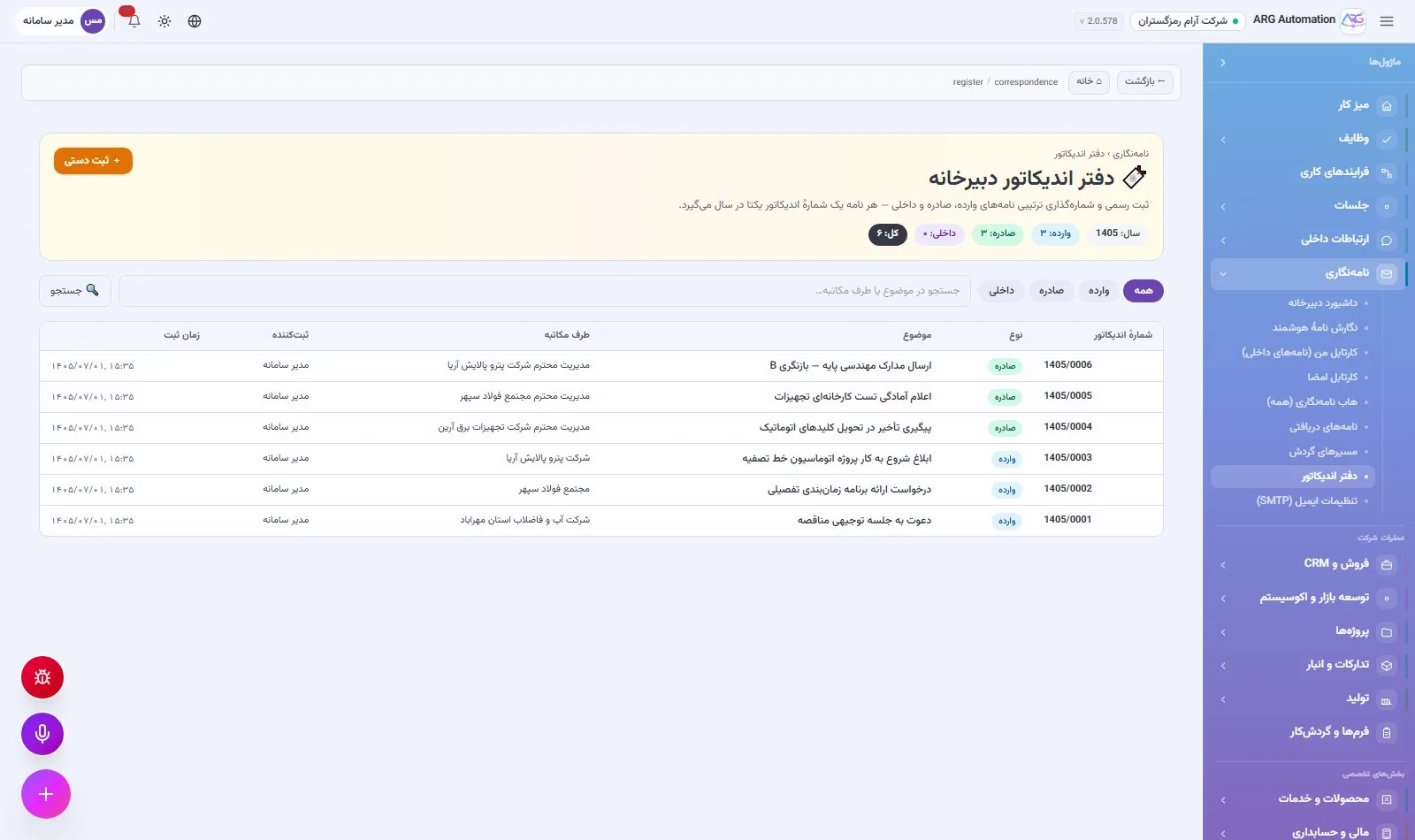
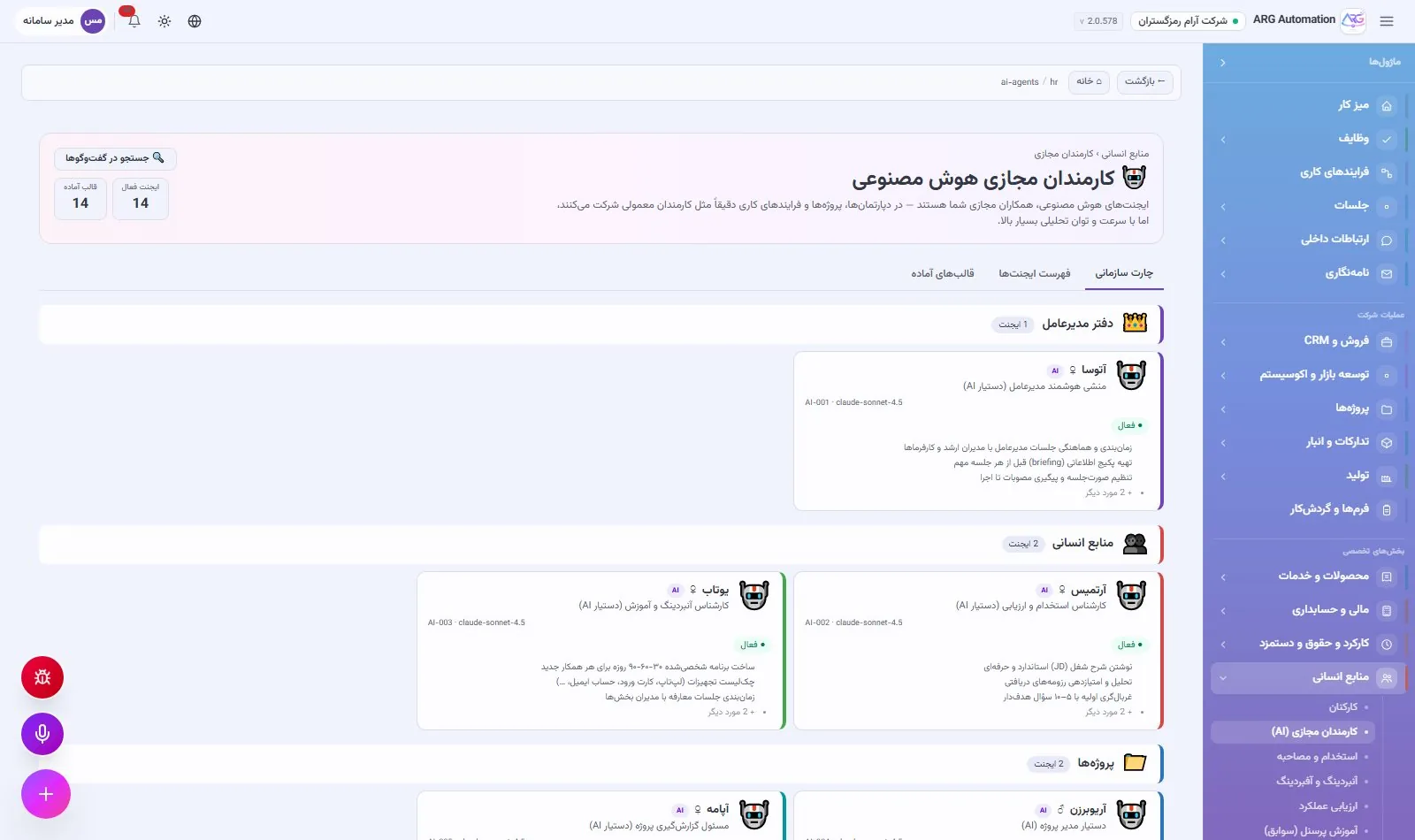
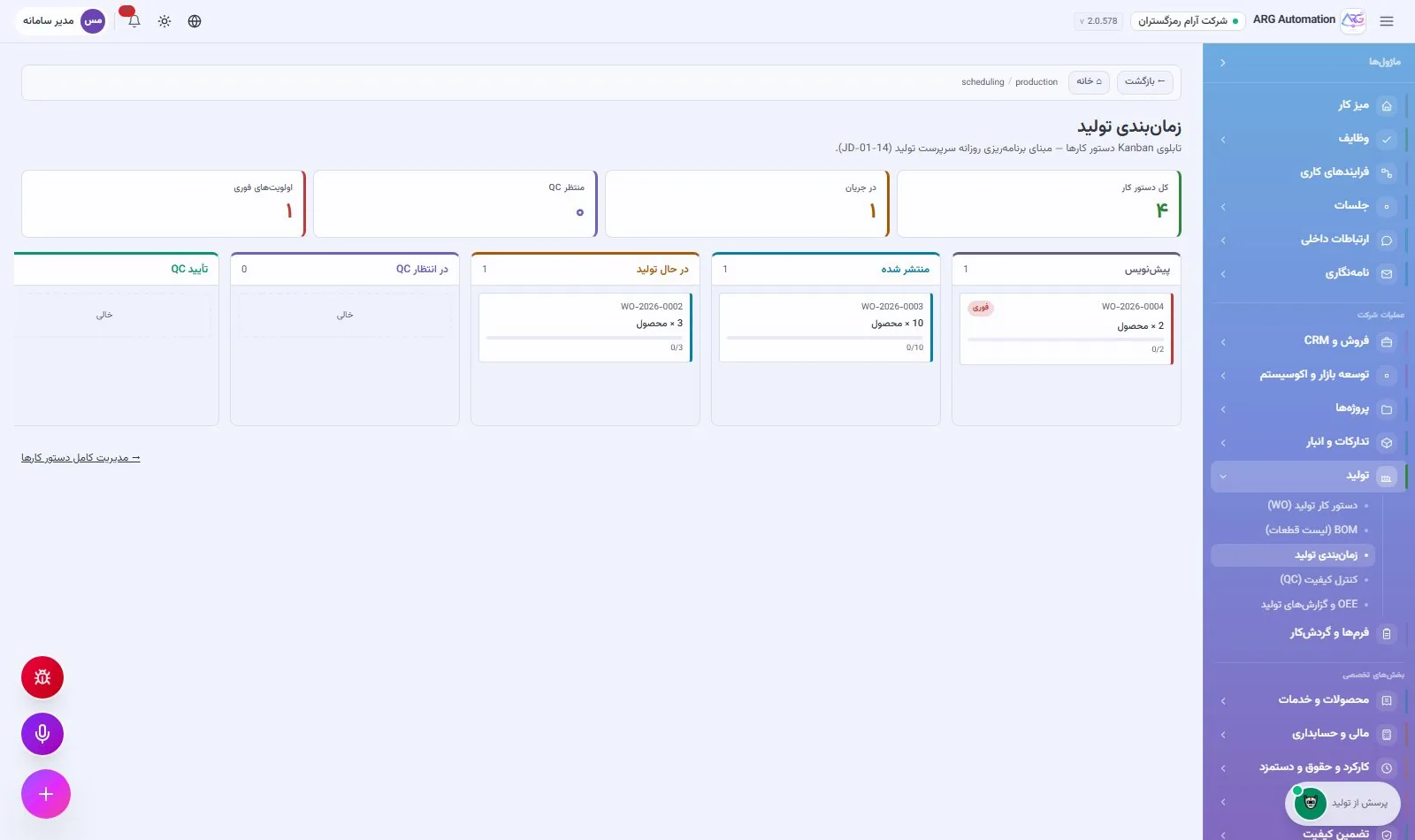
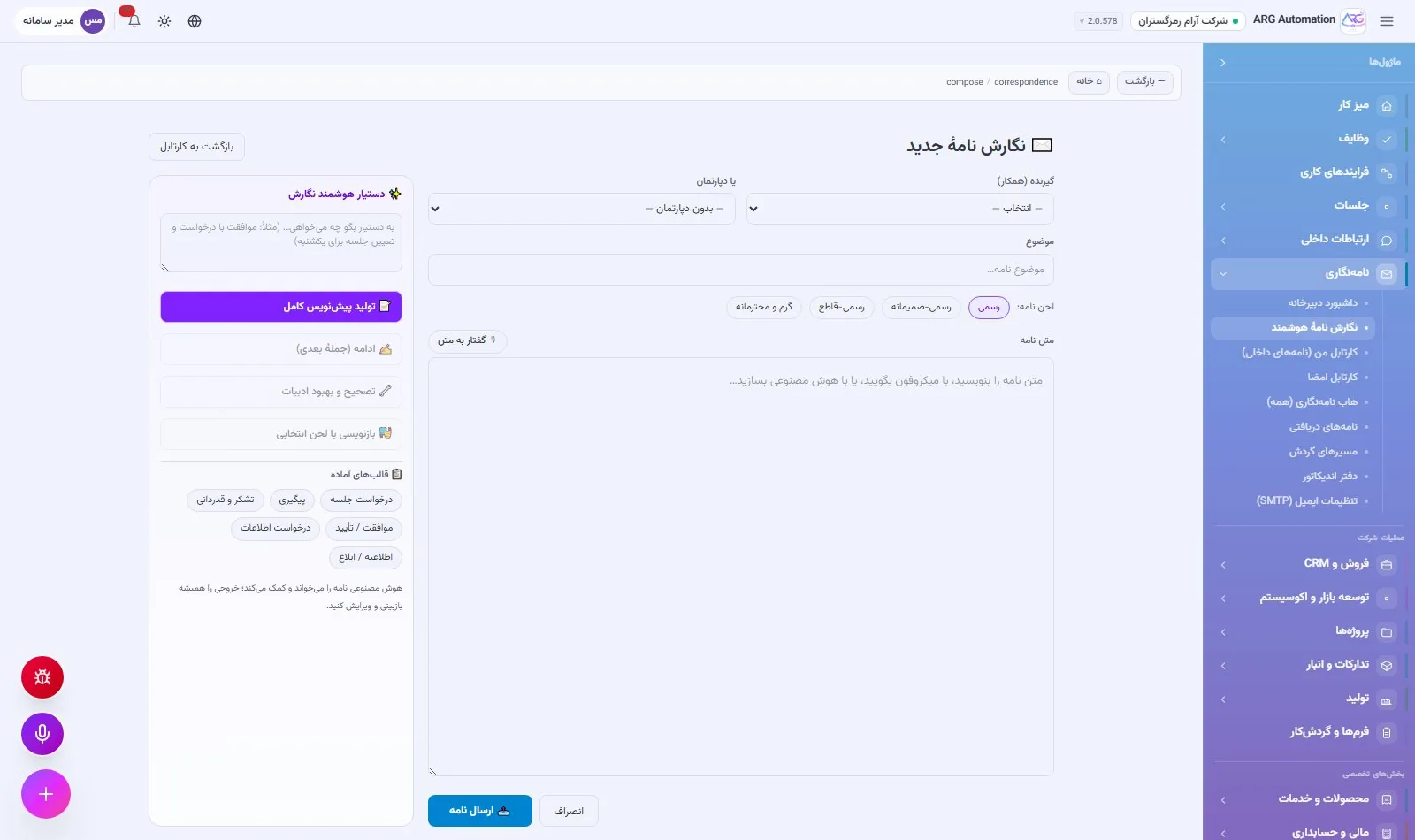
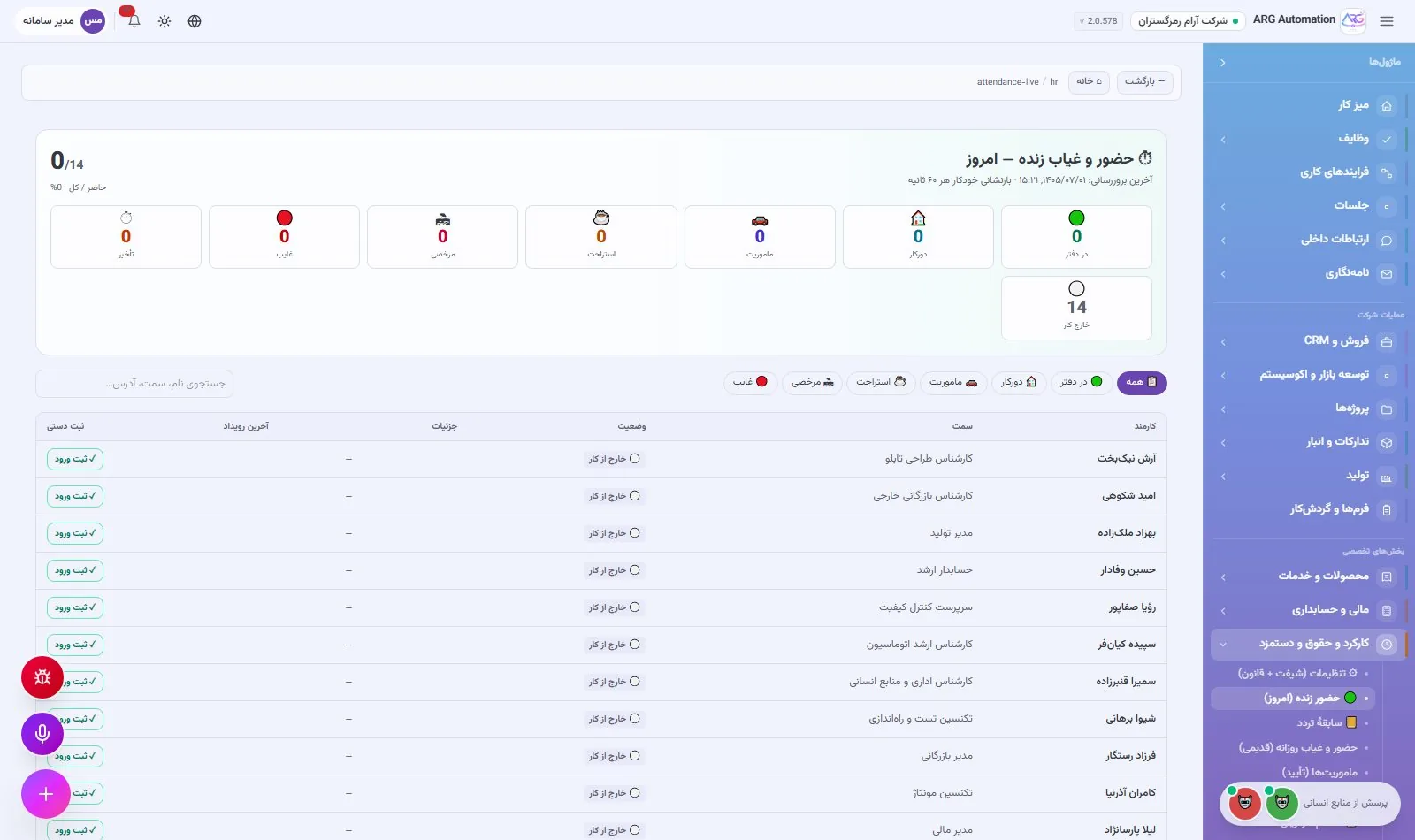
Before any explanation, look at a few screens of the system itself. Every image on these pages is taken from the real ARG ERP and shows the demo data of a sample engineering company.
A working day with ARG ERP
The best way to get to know a system is to watch a working day in it. Six people at a sample engineering company open the system in the morning. Each starts from their own desktop, and each person’s work connects to everyone else’s.
CEO
- Reads the morning digest: overdue tasks, work with no owner and processes waiting for action.
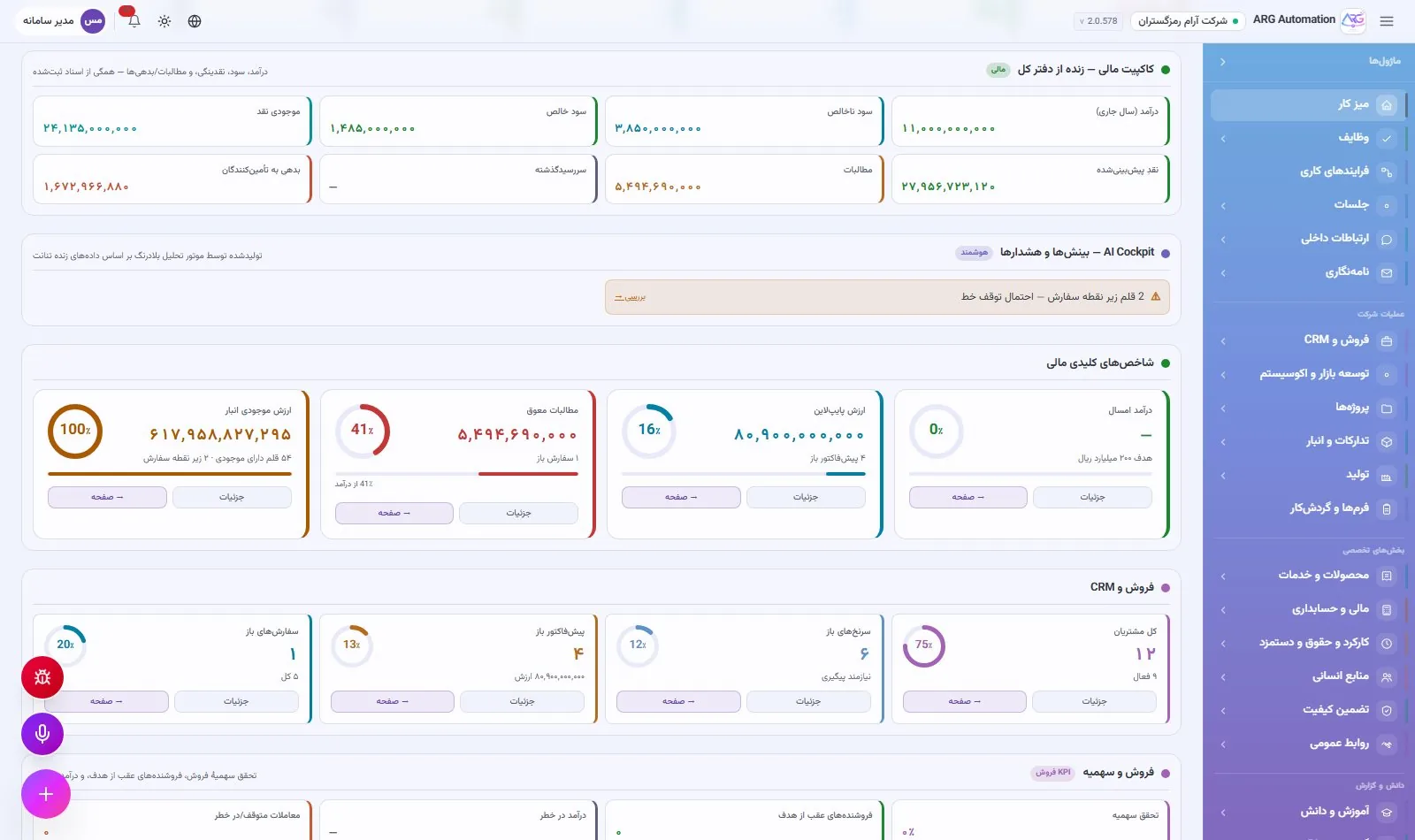
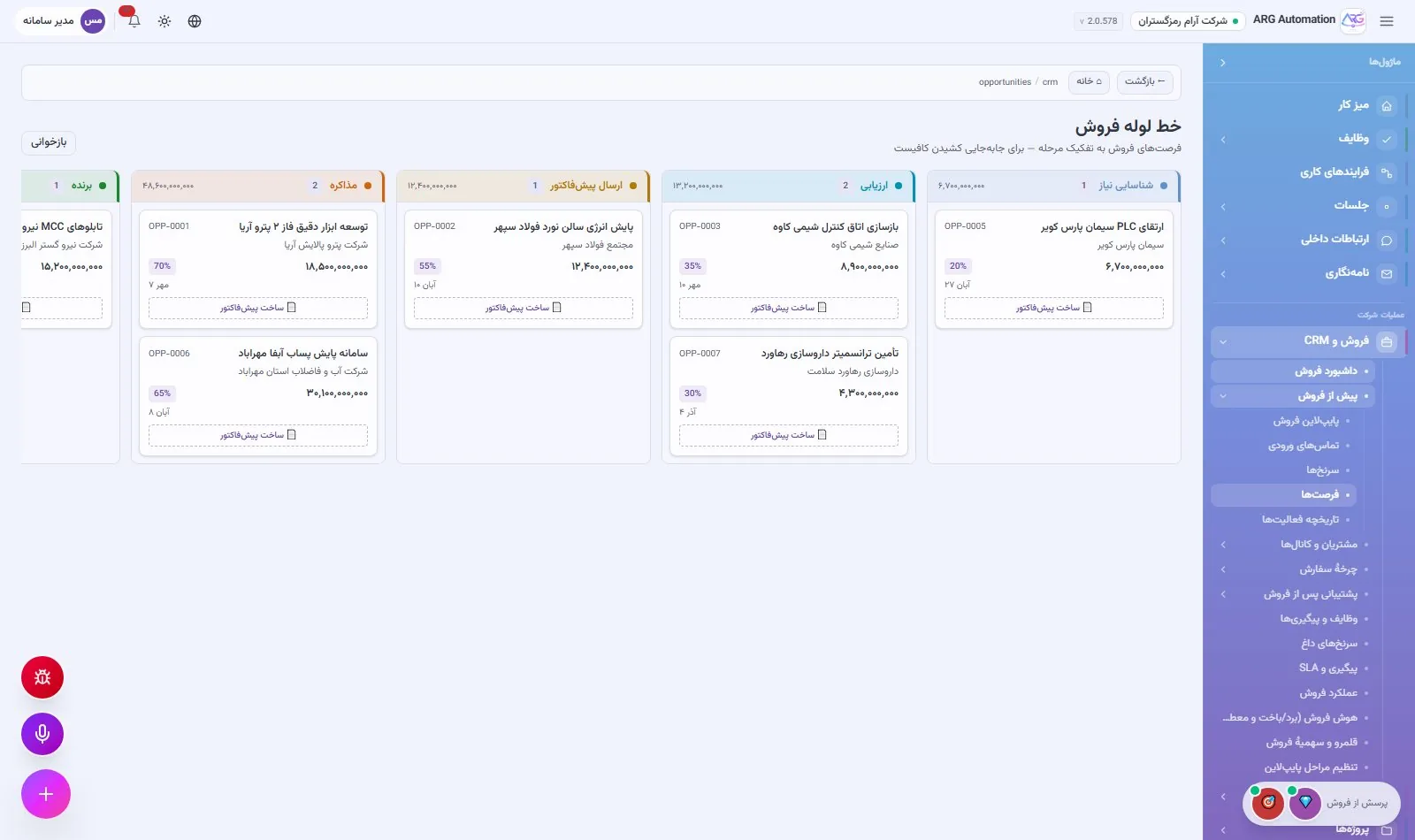
- Reviews the year’s revenue, profit, overdue receivables and the sales pipeline in the cockpit.
- Asks “Atousa”, the virtual secretary, to send a reminder for the weekly meeting and to draft a letter.
- Signs the leave request and the purchase request waiting for approval.
Sales manager
- Scores a lead recorded at yesterday’s exhibition and converts it into a customer and an opportunity in one step.
- Builds a quote from the item catalogue; discount and tax are calculated and the PDF goes out by email.
- Turns the accepted quote into an order with one button.
- Gets a report on this quarter’s opportunities from “Siavash”, the virtual sales specialist.
Warehouse and purchasing officer
- Sees the items below their reorder point on the stock page.
- The system creates a purchase order for each supplier from the stock shortages.
- Receives the delivered goods; stock and average cost update automatically.
- Ships the goods for a sales order and the issue from stock is recorded.
Accountant
- The issued invoice has created its own sales voucher; it is in the voucher list.
- Records the customer’s payment; the invoice balance and status update automatically.
- Reviews this week’s maturing cheques in the cheque book.
- Prepares the trial balance and balance sheet for the board meeting.
Project manager
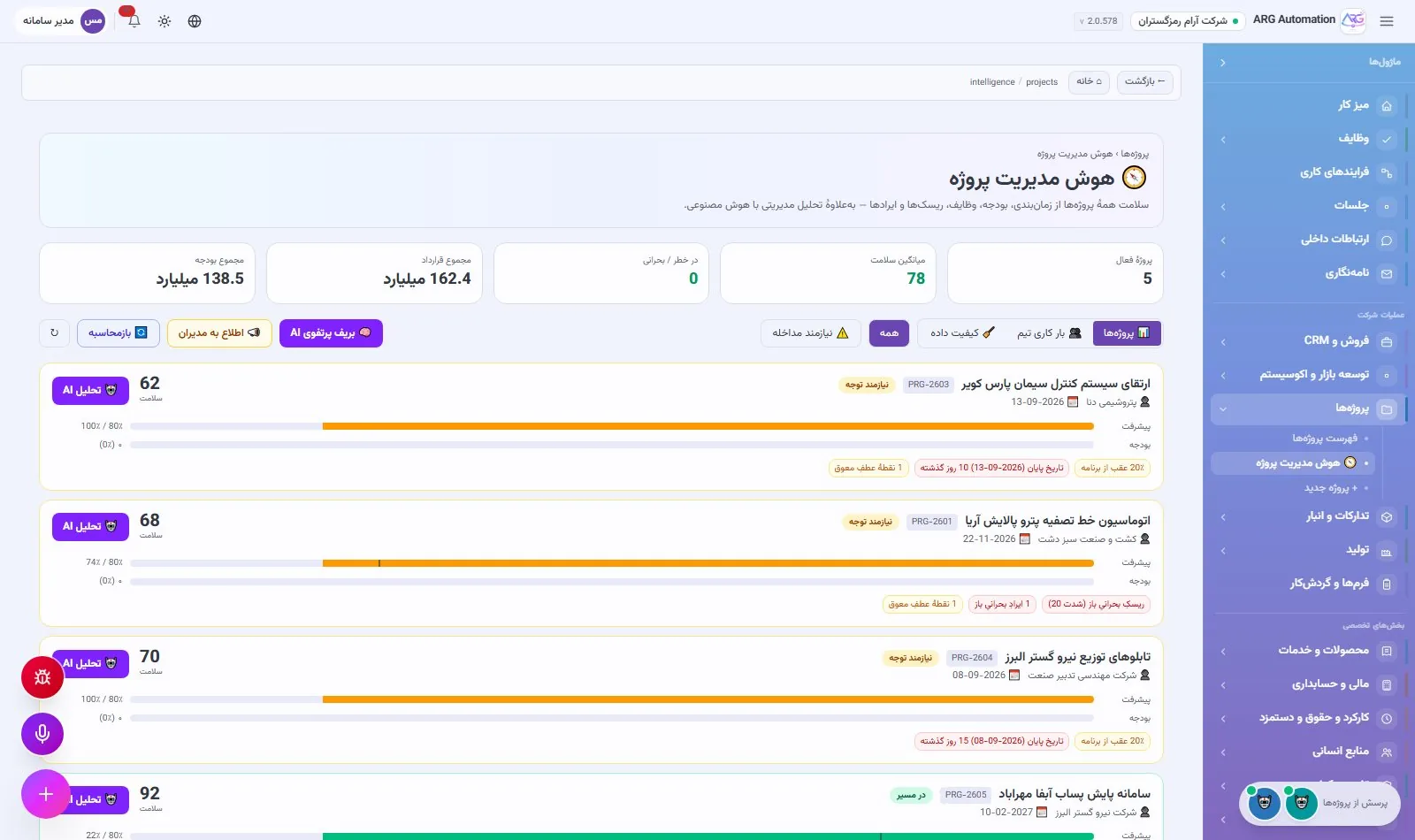
- Sees in “Project intelligence” that a project is behind schedule and its health score has dropped.
- Completes the current phase; the next phase activates automatically.
- Records a dispatch for the installation team and enters a new risk in the risk matrix.
- Turns the decisions of the progress meeting into trackable tasks.
Employee
- Clocks in on the phone; the location is matched against the office or project site boundary.
- Requests half a day’s leave and receives a notification of the approval.
- Sees today’s tasks on the desktop and records progress.
- At month end, views the payslip with the full calculation in the system.
The desktop and user experience
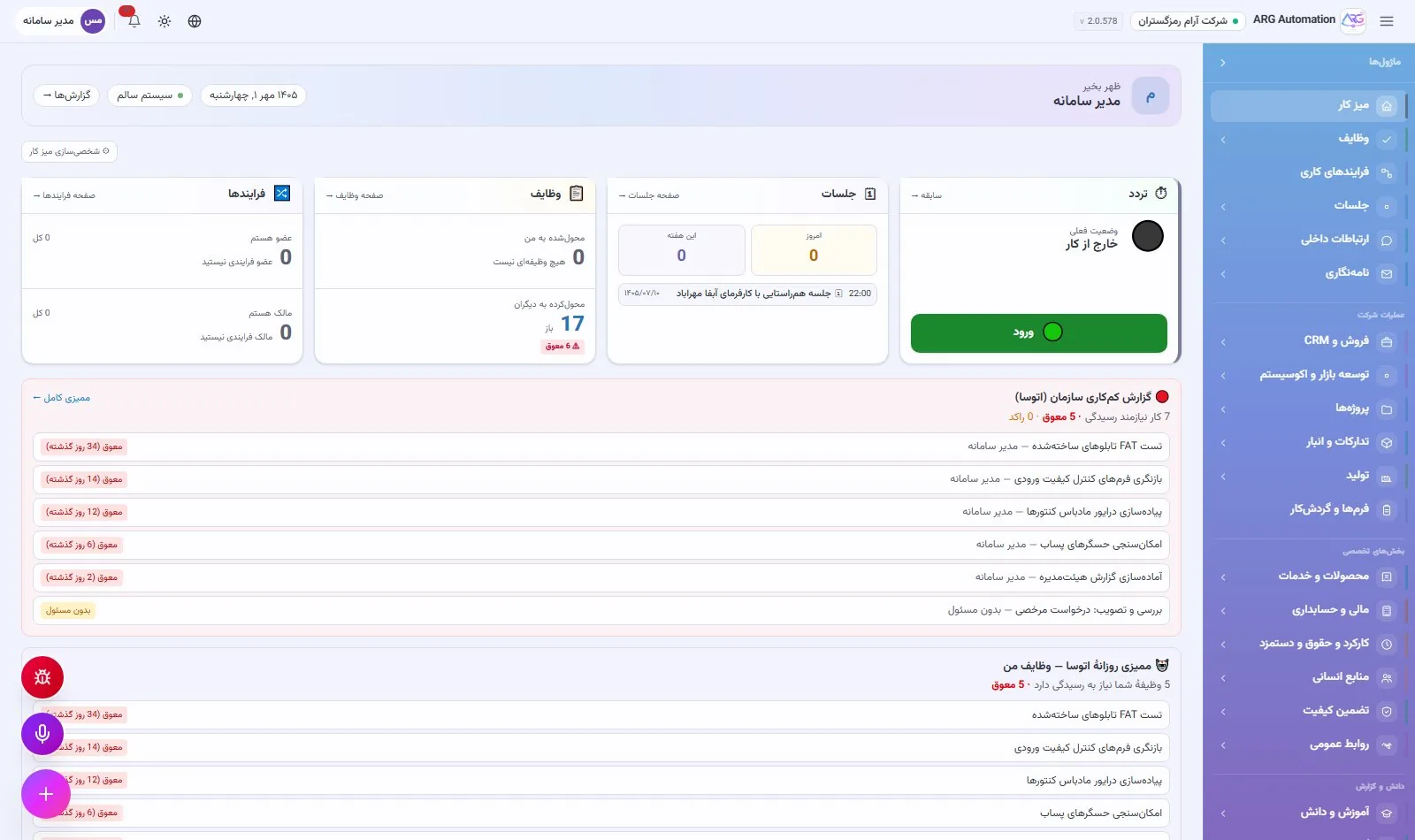
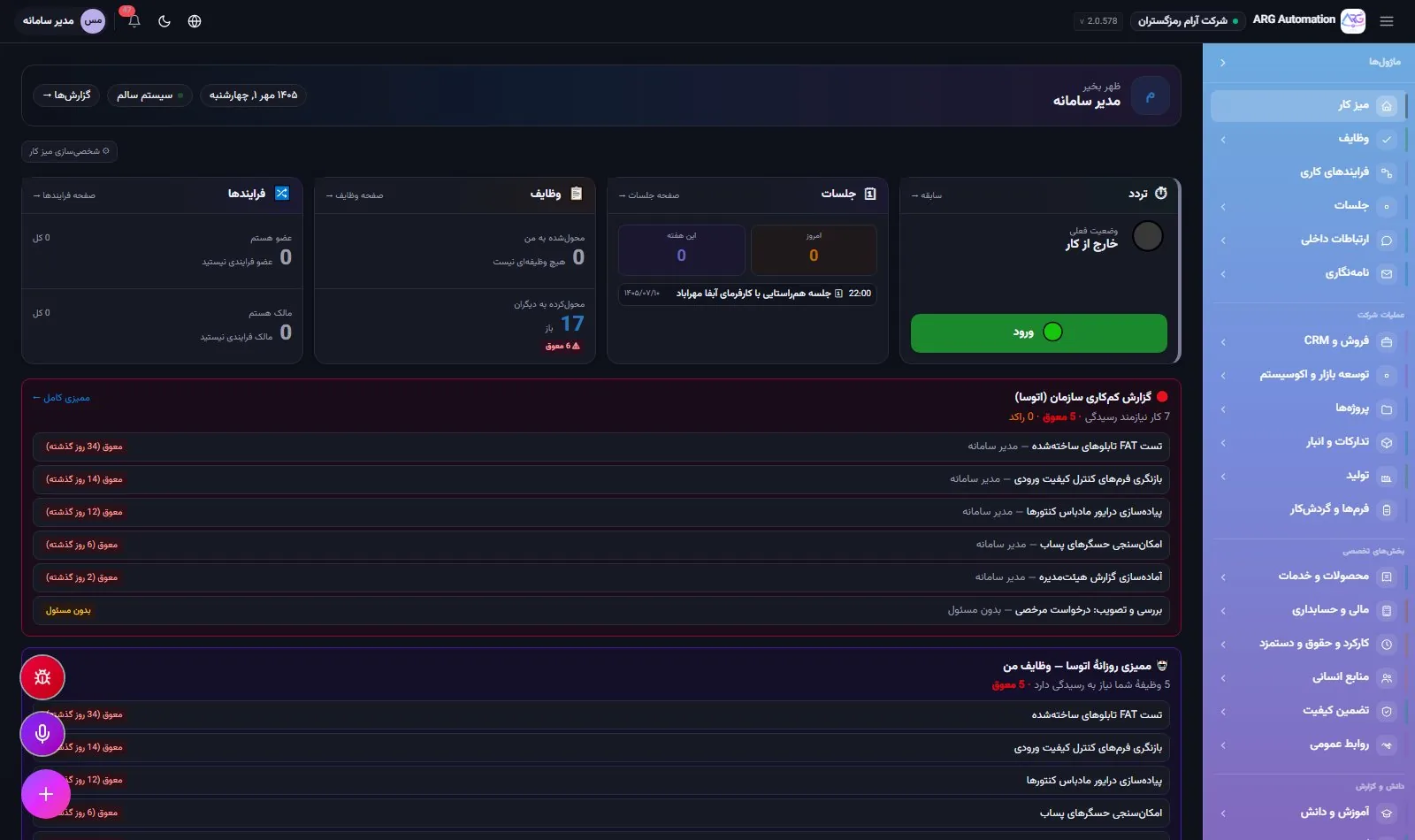
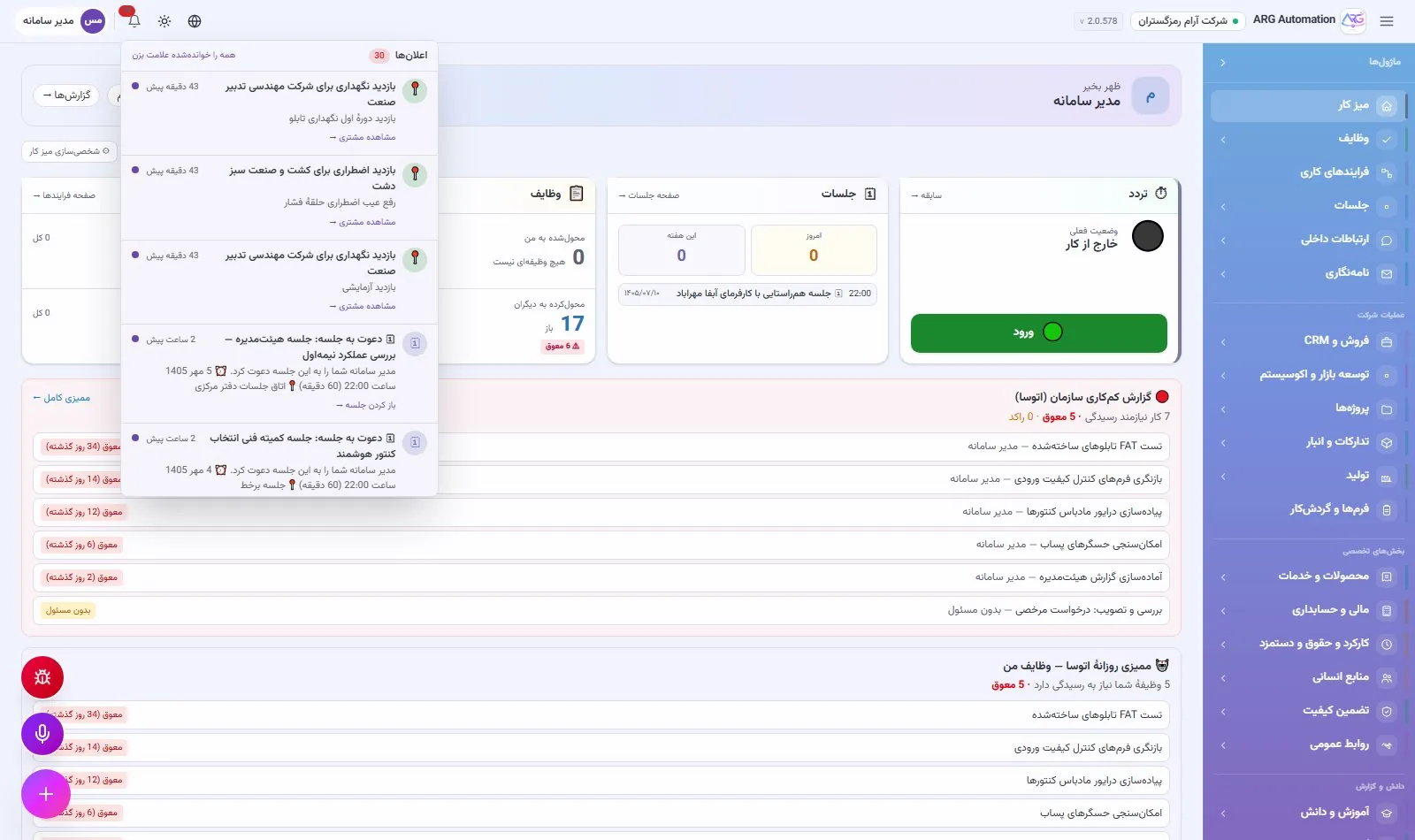
The first screen every user sees is their personal desktop. Today’s work, meetings, attendance status, processes waiting for them and the smart assistant’s alerts are all on one screen. Users do not have to go looking for their work; the work comes to them.
What is on the desktop
Attendance
Today’s status and the clock-in and clock-out button, right on the first screen.
Meetings
Today’s and this week’s meetings with time and subject.
Tasks
Work assigned to me and work I have handed to others, with the number overdue.
Processes
The business processes I take part in or own.
Daily audit report
Every day the smart assistant lists the organisation’s overdue and unowned work.
Executive cockpit
For managers: live finance, sales, HR and operations indicators.
Setting up the organisation with a checklist
A new organisation starts with a six-step checklist: the company’s legal identity, the type and structure of the organisation, the org chart and more. Each item shows its progress and links straight to the page that completes it, so setup moves ahead without a separate guide.
One pattern for every screen
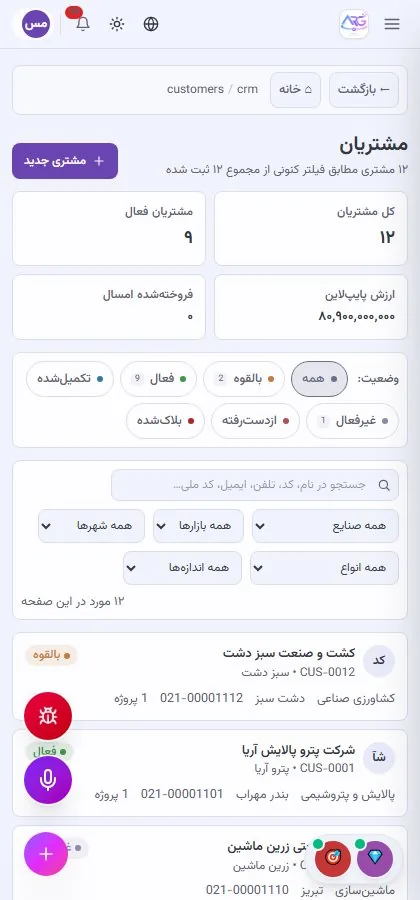
Every list in the system, from customers to assets, has the same shape: summary indicators at the top, a status filter, search and further filters, a table or cards, and one click into the detail page. A user who has learned one section already knows the rest.
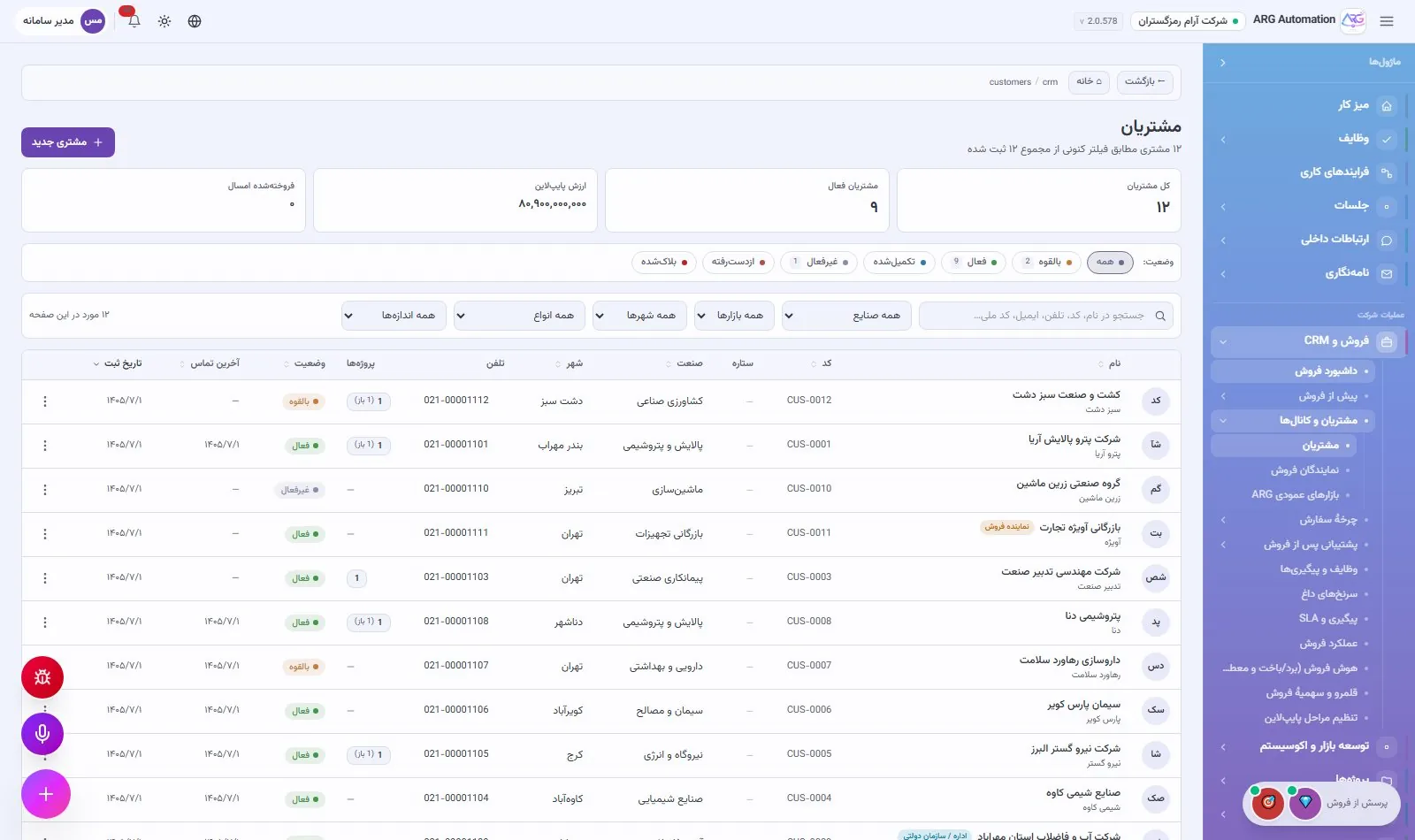
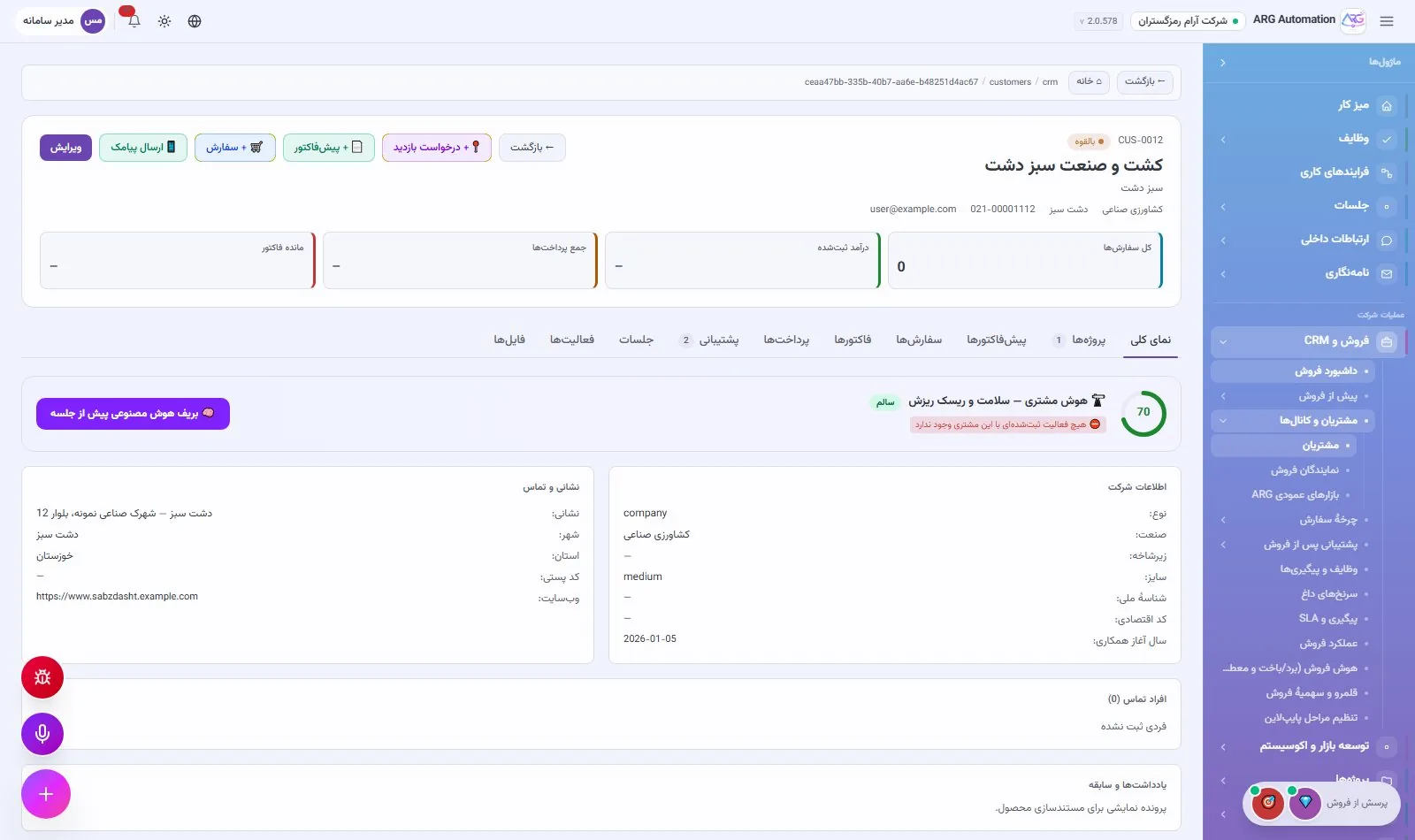
A smart menu
The menu is arranged in five groups: daily work, company operations, specialist areas, knowledge and reports, and setup and administration. Each user sees only the sections their position gives access to; a warehouse officer’s menu is short and focused, the CEO’s is complete.
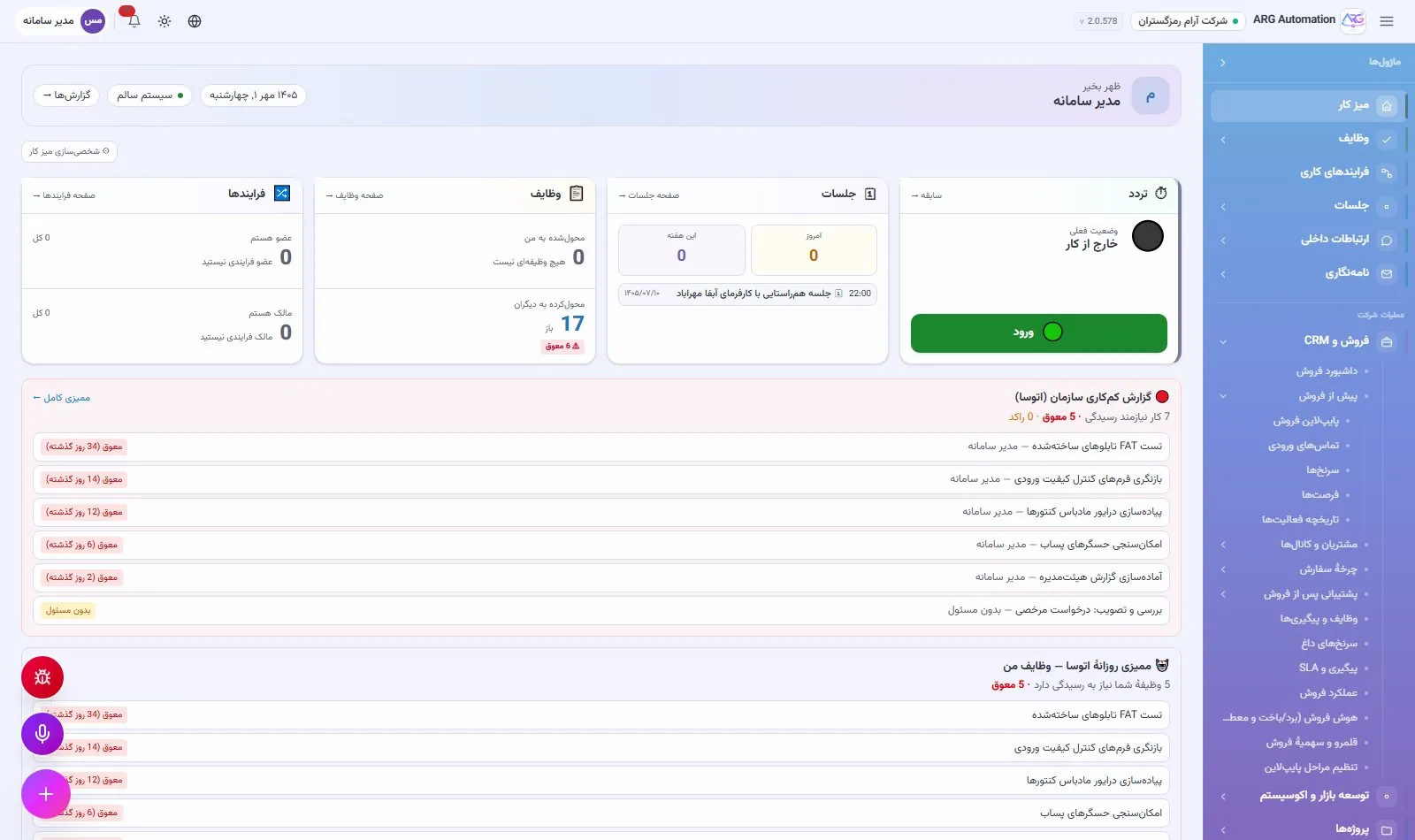
Everyday comfort
Persian and the Persian calendar
A right-to-left layout on every screen, Persian dates and Persian digits.
Light and dark themes
Three theme modes and twelve background images, chosen by each user.
Mobile and tablet
Every screen works on a small display too, without installing a separate app.
Voice assistant
Users speak in Persian, “go to projects”, “my tasks”, and the system takes them to the right screen.
See ARG ERP for your organisation
Contact us for a walkthrough with sample data from your industry; existing users sign in here.