Backup, Update, and Recovery
Set up a complete backup routine: a scheduled database backup with standard PostgreSQL tools alongside the uploaded-files folder, and use the dashboard and settings export, update, and correct rollback.
بیرون از محصول (ابزار PostgreSQL و زمانبند سیستمعامل)؛ در برنامه: «طراحی سیستم» ← «طراحی داشبورد» ← «داشبوردهای من»، «تنظیمات» ← «تنظیمات پروژه»؛ کنسول سرور ← «Settings» — بیرون از محصول (ابزار PostgreSQL و زمانبند سیستمعامل)؛ در برنامه: «طراحی سیستم» ← «طراحی داشبورد» ← «داشبوردهای من»، «تنظیمات» ← «تنظیمات پروژه»؛ کنسول سرور ← «Settings» — بیرون از محصول (ابزار PostgreSQL و زمانبند سیستمعامل)؛ در برنامه: «طراحی سیستم» ← «طراحی داشبورد» ← «داشبوردهای من»، «تنظیمات» ← «تنظیمات پروژه»؛ کنسول سرور ← «Settings» — Outside the product (PostgreSQL tools and the operating system's scheduler); in the app: System Design → Dashboard Design → My Dashboards, Settings → Project Settings; server console → Settings
All of the digital twin's operational data (structures, equipment, points, dashboards, users, and value history) is kept in PostgreSQL, and images and media in the uploads folder. The product does not take scheduled, automatic backups of the database; the system administrator sets up that routine with standard PostgreSQL tools and the operating system's scheduler. The product's built-in export features complement this routine — they do not replace it.
What to back up
| Item | Where it lives | Method |
|---|---|---|
| Main database | PostgreSQL | Scheduled pg_dump |
| Each project's history database | The same PostgreSQL server (one database per project) | A separate pg_dump, or pg_dumpall for the whole cluster |
| Uploaded files and maps | The uploads and maps folders | Copy the files alongside the database backup |
| The production settings file, config folder, and license file | The install folder | Copy after every change |
Small media items may live inside the database while the rest sit on disk; so the database and the files folder together make a complete backup.
Step by step: database backup
- Prepare a secure account and destination. Store the backup on a different disk or server, not just the same machine. Restrict access to the backup folder; a database backup carries user information in it.
- Dump the main database. Use a compressed format with a date in the filename, for example
pg_dump -Fc -d database_name -f twin-main-2026-09-22.dump. Read the password from an environment variable or a PostgreSQL password file, not from the command line. - Don't forget the history databases. Repeat this for each project's history database, or dump the whole cluster with
pg_dumpall. - Copy the files folder. At the same time, copy the uploaded-files, maps, and config folders (for example with robocopy or rsync) to the backup destination.
- Schedule it. Put these steps in a script and run it at least daily with Task Scheduler (Windows) or cron (Linux). Decide how many versions to keep and delete the oldest ones. Monitor whether the run succeeded.
- Practice restoring. Periodically build an empty database on a test server, restore it with
pg_restore, bring back the files folder, and start the server. A backup whose restore has never been tested is not a reliable backup.
A few notes on capacity and retention
Most of the database's size comes from value history. The default retention is one year for value history and three months for protocol query history; these values are visible in the server settings and should be counted when estimating backup space. Measure the backup size monthly and track its growth so the backup destination disk does not fill up unexpectedly. Schedule the backup for a low-load hour, and take an extra manual backup after any large change (adding a building, a bulk device import, a version upgrade).
Step by step: built-in exports
- Export a dashboard. Under «طراحی سیستم» ← «طراحی داشبورد» ← «داشبوردهای من» (System Design → Dashboard Design → My Dashboards), click صدور (Export) from a dashboard's card menu. Under فرمت خروجی (Export Format), ZIP (پیشنهادی) (ZIP (recommended)) includes every image and media file and is for moving between servers; JSON is settings only. Click دانلود (Download).
- Import a dashboard. Click وارد کردن داشبورد (Import Dashboard), drag in the JSON or ZIP file, review the preview, then click تأیید و جایگزینی (Confirm and Replace). This page does not overwrite an existing dashboard; it always creates a new one, and a duplicate name gets an "(imported 1)" suffix.
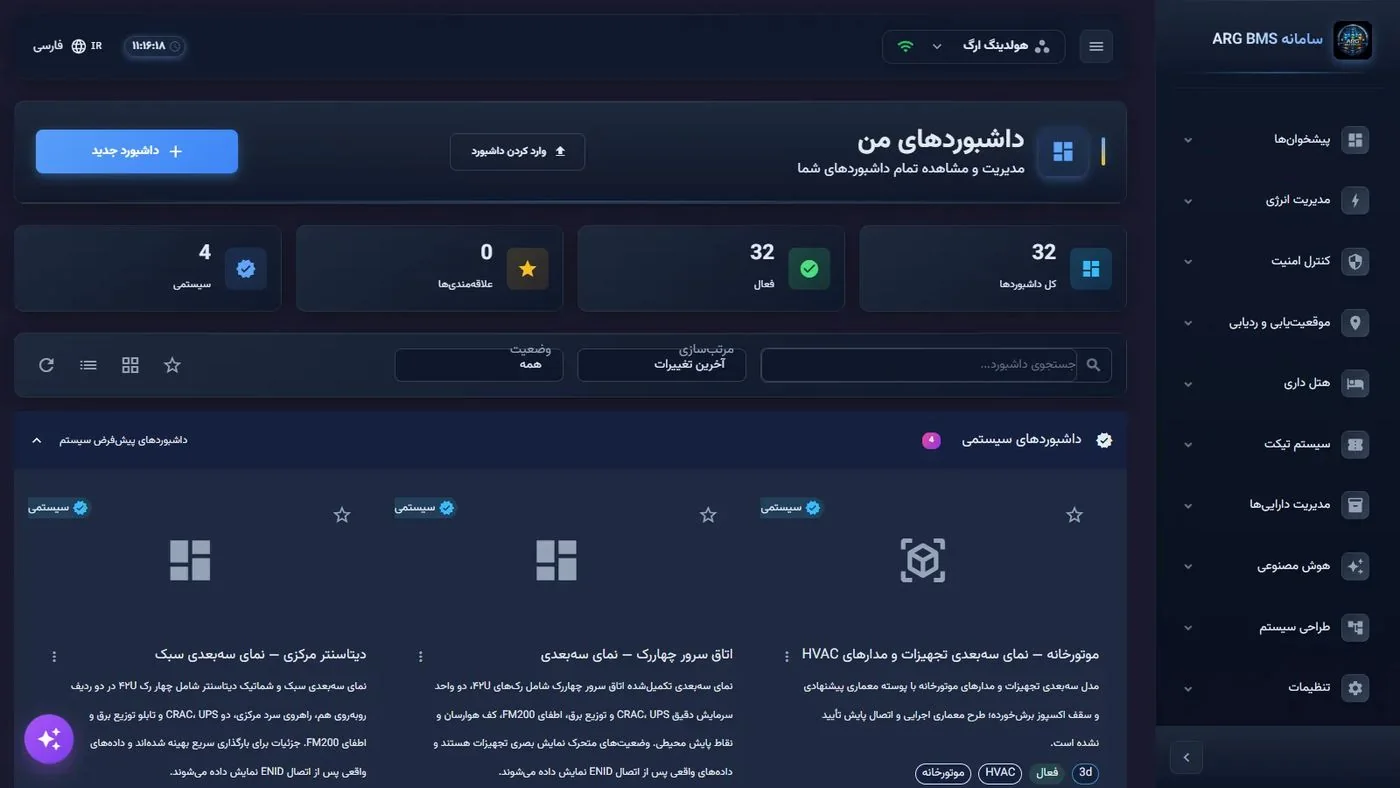
My Dashboards · the "Import Dashboard" button beside "New Dashboard" - Export the interface configuration. On «تنظیمات» ← «تنظیمات پروژه» (Settings → Project Settings), the خروجی (Export) button outputs the whole interface configuration as JSON (lesson C3).
- Export server settings. In the server console, on the Settings tab, the Export button outputs every server setting as JSON; Import overwrites values with the same key and asks for confirmation before running.
Updating and rolling back (the Windows package)
- Back up the database before any update. Rolling back the app version does not roll back the database structure.
- Update the server. Run the same
Install-Backendscript without the settings parameters. The service stops, the current application file is kept in a timestamped backup folder, the new version is installed and waits for a health check to pass; if it does not come up, the previous version is restored automatically. The production settings file is left untouched. Downtime is roughly 30 to 60 seconds. - Update the web app.
Install-Frontendbacks up the site's current folder with a timestamp and replaces it with the new version. Users who have the page open see a "A new system version is ready" banner with بهروزرسانی (Update) and بعداً (Later) buttons. - Manual rollback. The
Rollback-Backendscript restores the last backed-up application file and restarts the service; for the web app, copy the site's backup folder over the site folder.
Tips and common mistakes
- A dashboard's JSON export is not enough for moving between servers; it does not carry images. Take a ZIP.
- Exporting dashboards and settings does not replace a database backup; equipment, points, users, and history live only in the database backup.
- The web install script deletes files you placed manually inside the site folder.
- If a new version needs a new setting, add it to the production settings file manually; the update does not change it.
- Some structural database changes ship alongside a version as manual SQL scripts; run them only after a backup, and only after testing on a staging server.
Summary
- A real backup = a scheduled pg_dump of the main and history databases, plus a copy of the files and settings folders.
- Scheduling with Task Scheduler or cron is the administrator's job; the product does not do it.
- Practice restoring periodically on a test server.
- ZIP is for moving a dashboard; the Windows package keeps the previous version automatically and rolls back on failure.
Hands-on exercise on the live demo
On the public demo (bms.argsrv.com, project "ARG Holding"), do not edit or delete existing dashboards.
- Open «طراحی سیستم» ← «طراحی داشبورد» ← «داشبوردهای من».
- From a dashboard's menu, click صدور; download once as JSON and once as ZIP (پیشنهادی), and compare the two file sizes.
- Click وارد کردن داشبورد and pick the JSON file; read the preview (element count, version). If the demo account does not allow saving, go only as far as the preview and click انصراف (Cancel); if it does, rename the imported dashboard to "Exercise — your name" and delete it after reviewing it.
- On paper, design a daily backup script: which databases, which folders, what time it runs, the destination, how many versions to keep, and how often you would test a restore.
Lesson check
Answer at least 3 of 4 correctly to pass.
- 1. Who schedules the automatic backup of the PostgreSQL database?
- 2. Which export is right for moving a dashboard, with all its images, to another server?
- 3. If the server service fails to come up after a Windows update, what happens?
- 4. Alongside the database backup, which folder must also be backed up?