Project Settings, Profiles, and Languages
View, change, and export the project's general configuration on the "Project Settings" page; switch between project profiles, learn the product profile, and change the interface language among six options.
«تنظیمات» ← «تنظیمات پروژه» ← «تنظیمات عمومی»؛ دکمهٔ زبان در نوار بالای صفحه — «تنظیمات» ← «تنظیمات پروژه» ← «تنظیمات عمومی»؛ دکمهٔ زبان در نوار بالای صفحه — «تنظیمات» ← «تنظیمات پروژه» ← «تنظیمات عمومی»؛ دکمهٔ زبان در نوار بالای صفحه — Settings → Project Settings → General Settings; the language button in the top bar
The "Project Settings" page is the web interface's configuration hub: project name, timezone and calendar, features, notifications, the default dashboard, and project profiles. Alongside it, the "Product Profile" determines which menu groups are shown, and the language button changes the interface's language and direction.
Get to know the screen
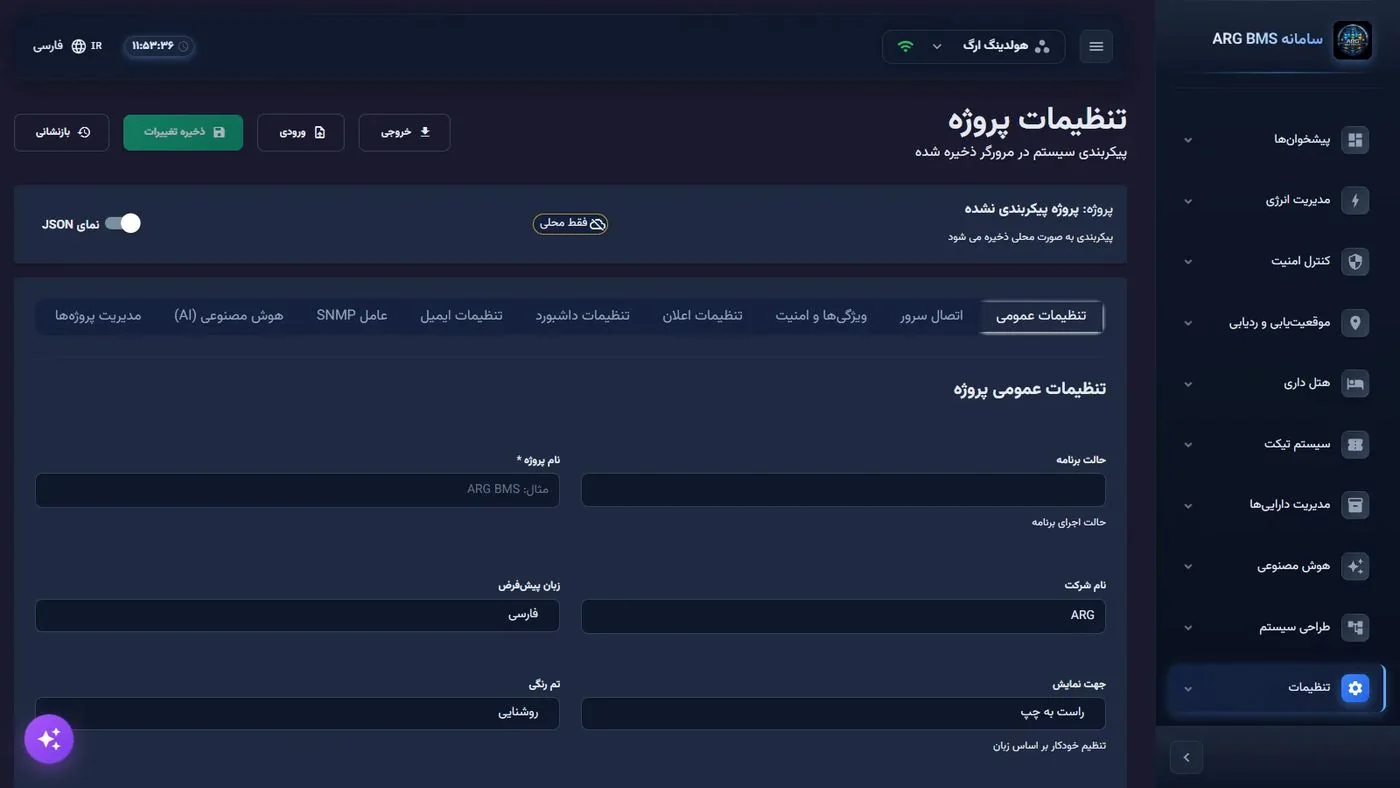
The page header has four buttons: خروجی (Export) (download the whole configuration as JSON), ورودی (Import) (load a JSON file), ذخیره تغییرات (Save Changes) (disabled while nothing has changed), and بازنشانی (Reset). A status card shows whether the configuration is synced with the server (همگام سازی سرور (Server Sync)) or only stored in this browser (فقط محلی (Local Only)), and a نمای JSON (JSON View) toggle opens a direct editor.
| Tab | Most important fields |
|---|---|
| تنظیمات عمومی (General Settings) | حالت برنامه (App Mode), نام پروژه * (Project Name *), نام شرکت (Company Name), زبان پیشفرض (Default Language), جهت نمایش (Display Direction), تم رنگی (Color Theme), منطقه زمانی (Timezone), نوع تقویم (Calendar Type) (Gregorian / Jalali) |
| اتصال سرور (Server Connection) | Project code, key, server addresses, and تست اتصال (Test Connection) (lesson C2) |
| ویژگیها و امنیت (Features and Security) | سیستم اعلان (Notification System), بهروزرسانیهای بلادرنگ (Real-time Updates), هشدارهای صوتی (Sound Alerts), حالت آفلاین (Offline Mode), and زمان انقضای جلسه (Session Timeout) (in seconds, default 3600) |
| تنظیمات اعلان (Notification Settings) | Showing notifications, Telegram, SMS, SMPP, and "Notification types to send" |
| تنظیمات داشبورد (Dashboard Settings) | داشبورد پیشفرض (Default Dashboard), refresh interval, active widgets, quick-access buttons |
| تنظیمات ایمیل (Email Settings), عامل SNMP (SNMP Agent), هوش مصنوعی (AI) (Artificial Intelligence (AI)) | Email channel setup, SNMP agent, and assistant connection |
| مدیریت پروژهها (Project Management) | Project profiles for switching between several projects on one server; moving dashboards, device groups, and spaces between projects |
Step by step
- Read the sync status. Open «تنظیمات» ← «تنظیمات پروژه» ← «تنظیمات عمومی» (Settings → Project Settings → General Settings). If the status card shows فقط محلی, changes stay in this browser only and do not reach other users.
- Export before any change. Click خروجی and keep the JSON file; it is your point of return.
- Fill in the general settings. On the تنظیمات عمومی tab, enter نام پروژه * and نام شرکت, and pick منطقه زمانی (for example, Asia/Tehran (+3:30)) and نوع تقویم ("Jalali"). An "Unsaved changes" badge appears; click ذخیره تغییرات. After the message "Configuration saved successfully", the system offers to download a backup file; accept it.
- Configure features and session timing. In ویژگیها و امنیت, turn the four feature toggles on or off as the site needs. زمان انقضای جلسه is in seconds: 3600 means one hour.
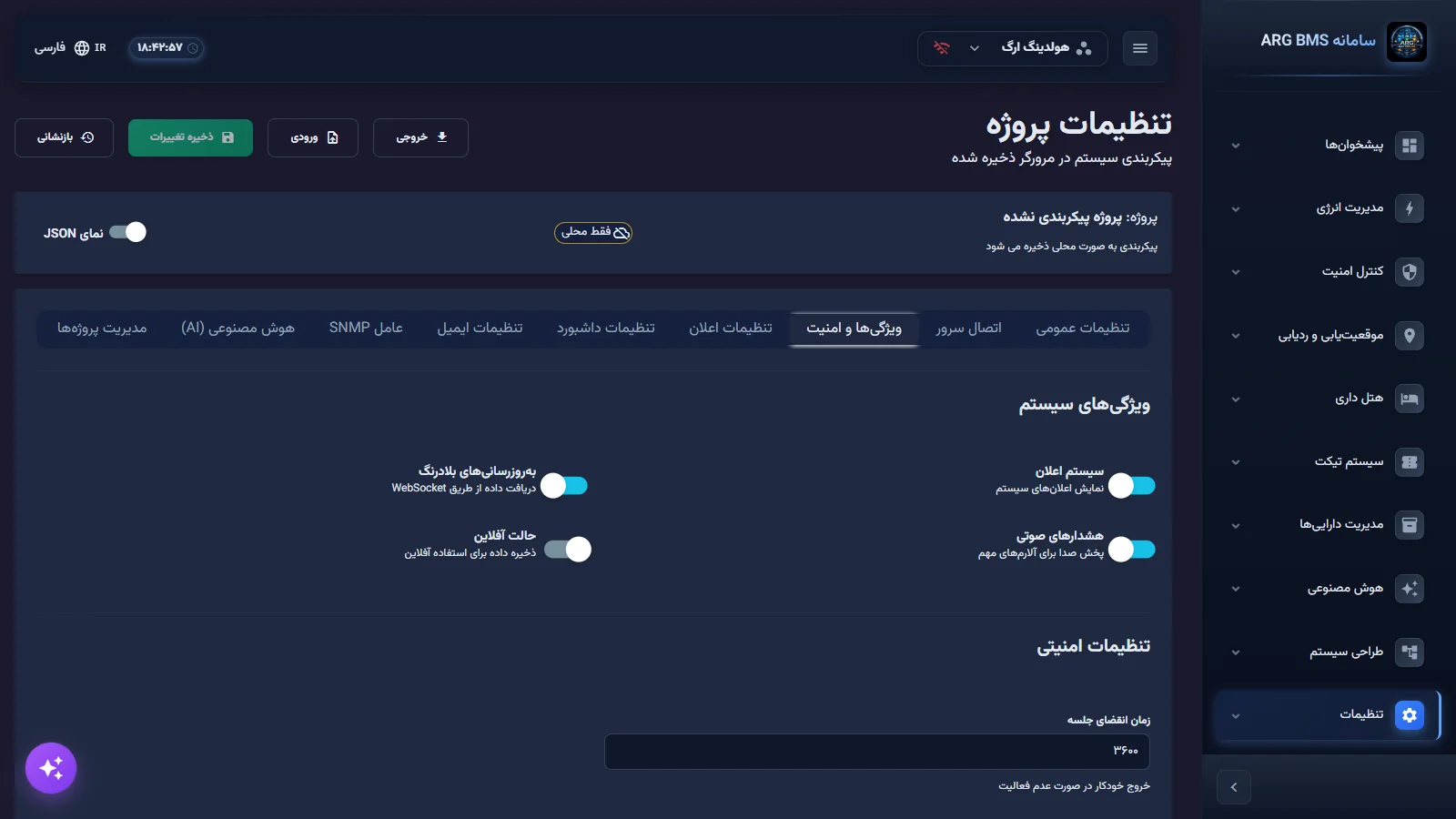
Features and Security · four system-feature toggles and the session-timeout field, in seconds - Switch between projects. In مدیریت پروژهها, click افزودن پروفایل (Add Profile) and enter نام پروفایل (نمایش داخل سویچر) (Profile Name (shown in the switcher)), کد پروژه (Project Code), and that project's Master key, then click ذخیره (Save); the system verifies the key with the server. To switch, click انتخاب (Select) on the profile's row; the app reloads and data comes from the new project. The active profile cannot be deleted; the message "Switch to another profile first" appears.
- Change the interface language. In the top bar, click the language button (flag, globe icon, and language name) and pick one of six options from the زبان (Language) menu: فارسی (Persian), انگلیسی (English), آلمانی (German), روسی (Russian), فرانسوی (French), عربی (Arabic). The page reloads once and its direction is set automatically: Persian and Arabic are right-to-left, the rest left-to-right. The choice is remembered in this browser.
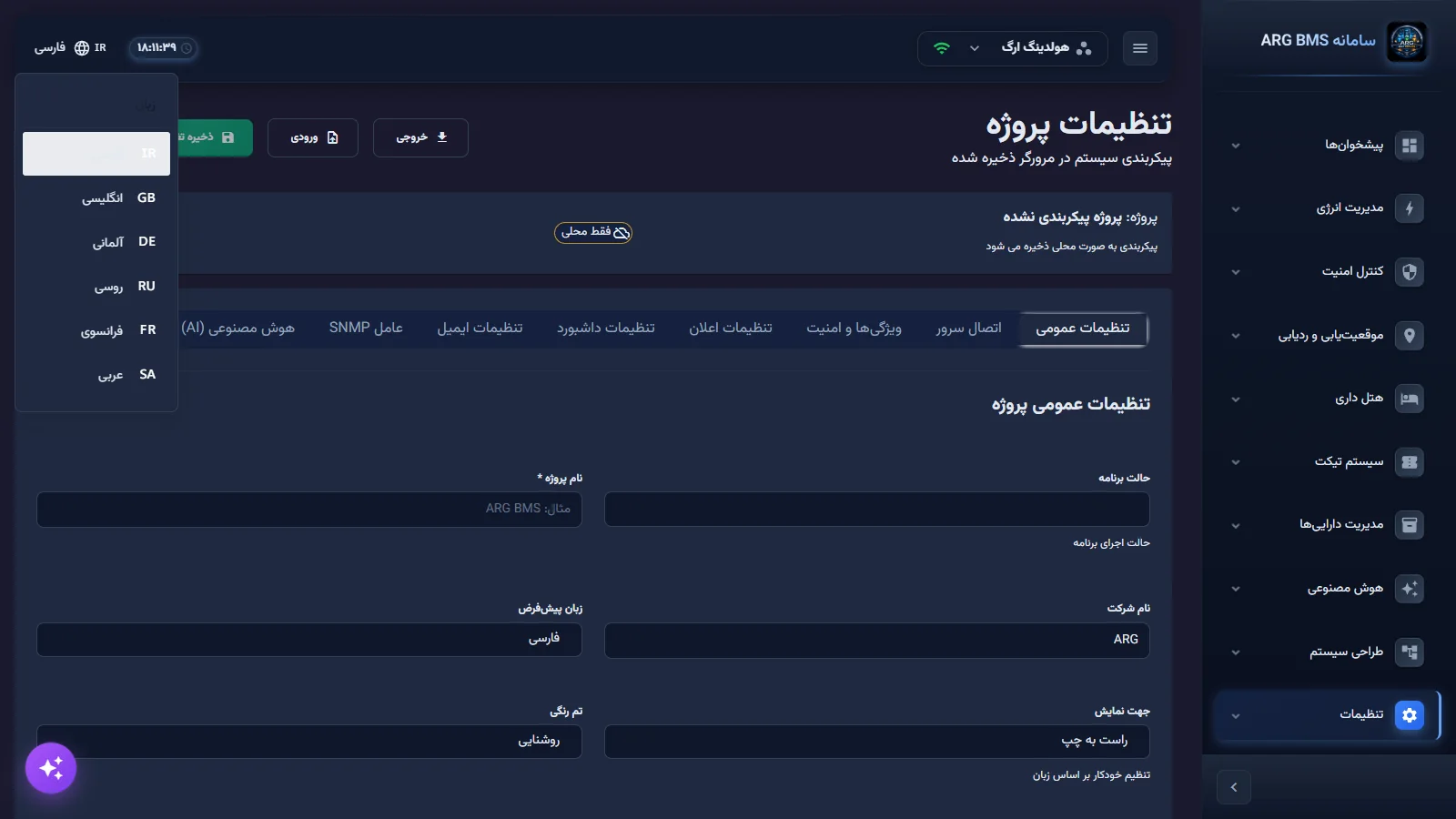
Language menu · six languages; the current one is highlighted
Product profile
A single digital twin installation can run under one of ten product profiles; the profile sets the brand name above the menu and the side menu's groups.
| Profile | Use | Key menu groups |
|---|---|---|
| ARG BMS (default) | Smart building management | Energy, security, tracking, hospitality, ticketing, assets |
| ARG DCIM | Data center infrastructure | Energy, security, ticketing, assets |
| ARG Energy | Energy and general utilities | Energy, ticketing, assets |
| ARG IoT | Internet of things and tracking | Energy, security, positioning, assets |
| ARG Phoenix | Very large facilities | Every BMS group plus production management |
| ARG Agro, ARG Greenhouse, ARG Field, ARG Research | Agriculture, greenhouse, open field, and research | Climate control, irrigation, crop, harvest, and more |
| ARG Combined | Building and greenhouse together | Every group |
Choosing a profile and turning modules on or off happens in the "ARG Admin Panel", available only to the system super-admin account, and is set up by the ARG team or the super-admin at deployment. Its settings are saved on the server and apply across every browser.
Tips and common mistakes
- ورودی and بازنشانی save immediately and do not wait for "Save Changes"; use خروجی before either one.
- Do not treat the success message as sufficient confirmation; if the status card says "Local Only", open the page in another browser to check whether the change arrived.
- Change the interface's actual language from the language button in the top bar; the زبان پیشفرض field only offers Persian and English.
- The login page has no language button; the language changes from the top bar after login, or is read from the browser's earlier choice.
- The تست پیکربندی SNMP (Test SNMP Configuration) button sends nothing over the network; it only checks that the form is complete.
- SMS and SMPP numbers must match the local mobile format (starting with +98 or 0, then 9); otherwise "Invalid number" appears.
Summary
- Export before any change; Import and Reset save immediately.
- "Server Sync" means a change reaches everyone; "Local Only" means this browser alone.
- The "Project Management" tab is for switching between projects on one server.
- Six interface languages; Persian and Arabic are right-to-left.
Hands-on exercise on the live demo
Only observe on the public demo (bms.argsrv.com, project "ARG Holding"); do not save, import, or reset anything.
- From the top bar, switch the language to انگلیسی and then عربی, and compare the side menu's direction; return to فارسی at the end.
- Open «تنظیمات» ← «تنظیمات پروژه» ← «تنظیمات عمومی», browse all nine tabs, and note their names. Write down whether the status card says "Server Sync" or "Local Only".
- Click خروجی and open the JSON file; find the sections for general settings, notifications, and dashboards.
- From the brand name above the menu and the side-menu groups, say which product profile the demo runs under.
Lesson check
Answer at least 3 of 4 correctly to pass.
- 1. Which button saves the configuration immediately without clicking "Save Changes"?
- 2. Which profile shows the "Production Management" group?
- 3. Which two languages are displayed right-to-left?
- 4. What does a value of 3600 in "Session Timeout" mean?