Troubleshooting
Diagnose the three common complaints — "the equipment is offline", "the number is not moving", and "the alarm never came" — using a fixed checklist and the right screens.
«طراحی سیستم» ← «مدیریت ساختار» ← «دستگاهها» و «مدیریت ACVها»؛ «تنظیمات» ← «تنظیمات پروژه» ← «تستر پروتکل»؛ «طراحی سیستم» ← «طراحی منطقی» ← «موتور قوانین و اتوماسیون»؛ کنسول سرور ← «Connections» و «ACV Monitor» — «طراحی سیستم» ← «مدیریت ساختار» ← «دستگاهها» و «مدیریت ACVها»؛ «تنظیمات» ← «تنظیمات پروژه» ← «تستر پروتکل»؛ «طراحی سیستم» ← «طراحی منطقی» ← «موتور قوانین و اتوماسیون»؛ کنسول سرور ← «Connections» و «ACV Monitor» — «طراحی سیستم» ← «مدیریت ساختار» ← «دستگاهها» و «مدیریت ACVها»؛ «تنظیمات» ← «تنظیمات پروژه» ← «تستر پروتکل»؛ «طراحی سیستم» ← «طراحی منطقی» ← «موتور قوانین و اتوماسیون»؛ کنسول سرور ← «Connections» و «ACV Monitor» — System Design → Structure Management → Devices and ACV Management; Settings → Project Settings → Protocol Tester; System Design → Logic Design → Rules and Automation Engine; server console → Connections and ACV Monitor
Most support calls take one of three shapes: a piece of equipment is offline, a number on a dashboard is not moving, or an expected alarm never arrived. This lesson gives a step-by-step checklist for all three and shows which screen answers each question. Always start with scenario 1; the other two often trace back to it.
Get to know the troubleshooting screens
| Page | Question it answers |
|---|---|
| دستگاهها (Devices) | Which equipment is online or offline; the فیلتر وضعیت (Status Filter) (all, online, offline, active, inactive, under maintenance) |
| تستر پروتکل (Protocol Tester) (titled "Device Protocol Tester") | Does an SNMP or Modbus TCP device respond right now to a real read? |
| مدیریت متغیرهای کنترلی (Control Variable Management) | A point's definition and its alarm limits (the "Limits and Alarms" step) |
| موتور قوانین و اتوماسیون (Rules and Automation Engine) | Is the expected rule active, and is it outside its cooldown period? |
| Server console: Connections and ACV Monitor | Each protocol's polling-service status, Last Poll and Errors per device; each point's live value and status on the server |
Scenario 1 — "The equipment is offline"
- Read the status from the right source. In دستگاهها, set فیلتر وضعیت to "Offline". If the device shows up here, the server has declared it offline. Also check the STATUS column: "Inactive" or "Under Maintenance" means the status was changed on purpose.
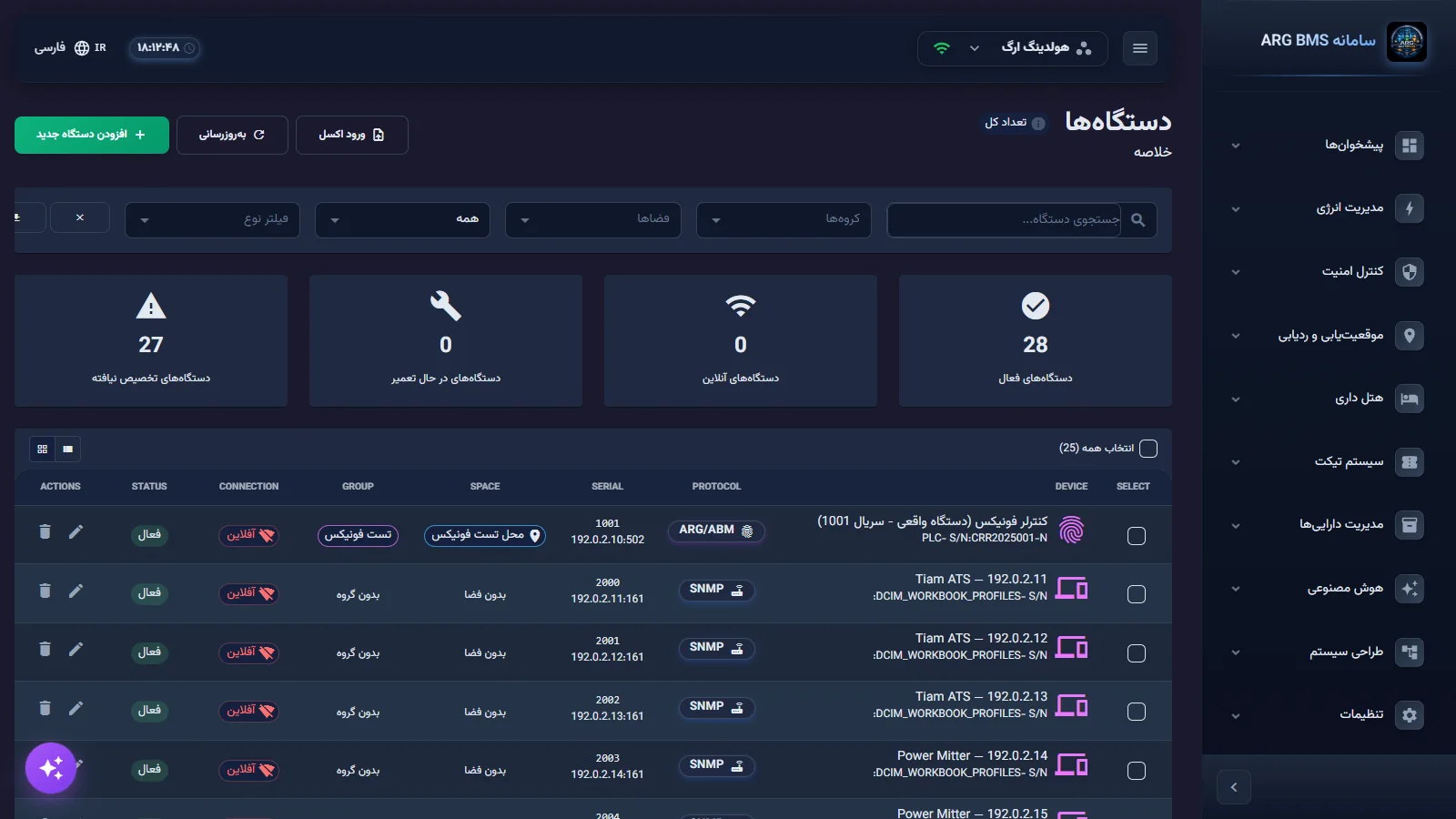
Status Filter · the All, Online, Offline, Active, Inactive, and Under Maintenance options - Check the protocol service. In the server console, under Connections → Protocol Polling Services: if this device's protocol service is STOPPED, nothing on that protocol is being read; start it with coordination.
- See the device's errors. In the same tab, the Device Connection Status table: read the device's Last Poll and Errors columns, and click Test (Connection OK or Connection FAILED).
- Send a real read. In تستر پروتکل, select the device in the دستگاه (Device) field and click اجرای تست (Run Test). A "failed" result with "error" values means a problem in the network, address, port, community string, or slave ID. The message "No OID/Register mapping registered for this device" means point mapping has not been defined.
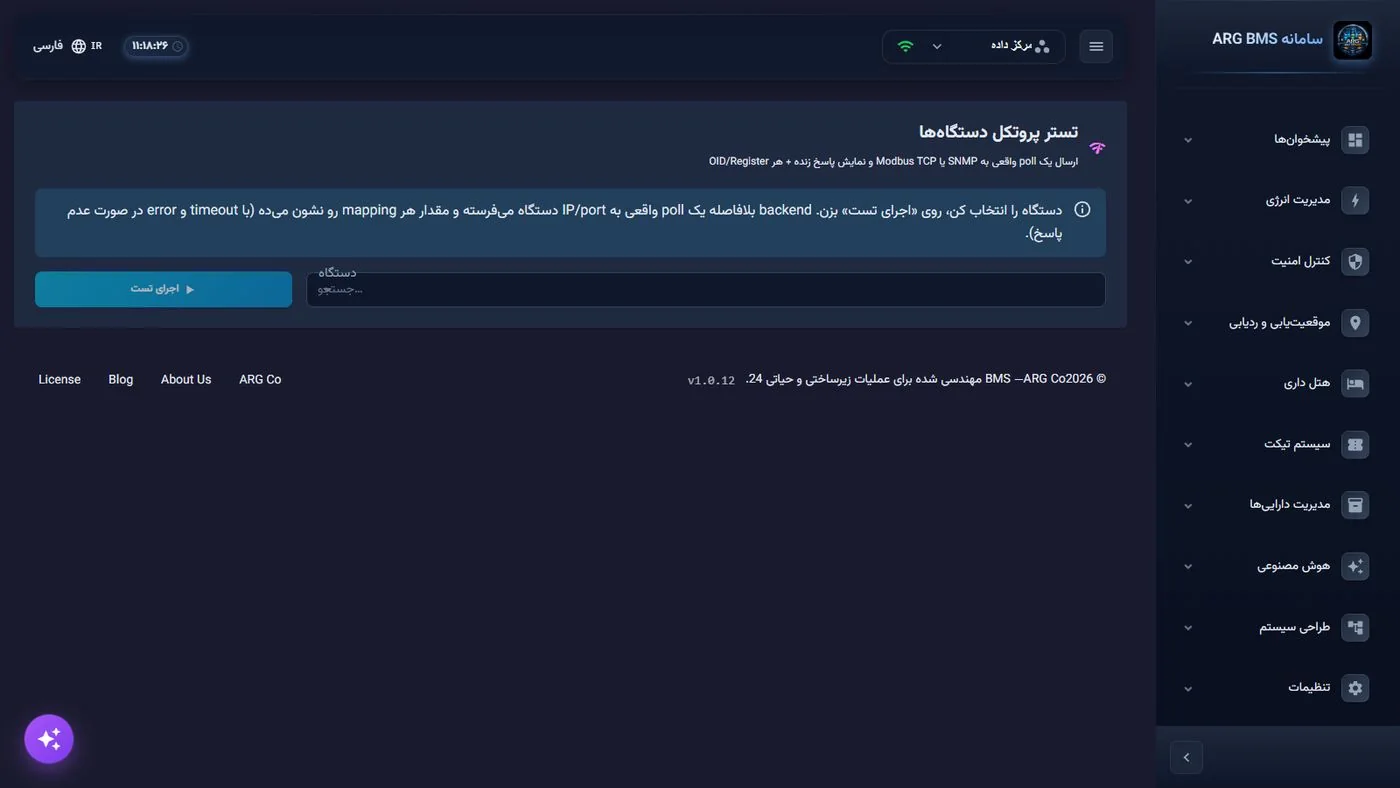
Protocol Tester · the device field and Run Test button; a result is shown for each OID or register - Check the device's polling. On the device edit page, SNMP tab, if the polling toggle is "disabled", turn it on with فعالسازی Polling (Enable Polling) and click تست اتصال (Test Connection).
- Wait after fixing it. For a device that has errored repeatedly, the SNMP retry interval backs off gradually; returning to "online" may show up with a delay. Confirm faster with تست اتصال.
Scenario 2 — "The number is not moving"
- Start with the parent device. Run scenario 1 for the parent device. Points on an offline device keep their last healthy value and are not marked "stale" or "error"; so a frozen number is often a sign the connection is down.
- The value on the server. In the console, under ACV Monitor, search the ENID's identifier. If the raw value (Value Init) changes but the final value (Value Final) does not, the problem is in the point's scale or calculation expression.
- The value on the device. In تستر پروتکل, check the "last update" column of the relevant mapping. If the device is providing fresh values but the dashboard is not, check that the dashboard element is bound to the correct ENID.
- Rule out a naturally stable value. The "Control Variable Management" page has no last-update-time column; do not rely on it to detect staleness. A genuinely stable value (like a constant room temperature) is not staleness; the system only processes a point when its value changes.
Scenario 3 — "The alarm never came"
- Is limit checking on? Open the point in the variable wizard and go to the محدودیتها و هشدارها (Limits and Alarms) step. کنترل حد (Limit Control) must be "Yes", and مقدار حد (Limit Value) for the level you expect (for example, "High limit") must be filled in; an empty level is ignored.
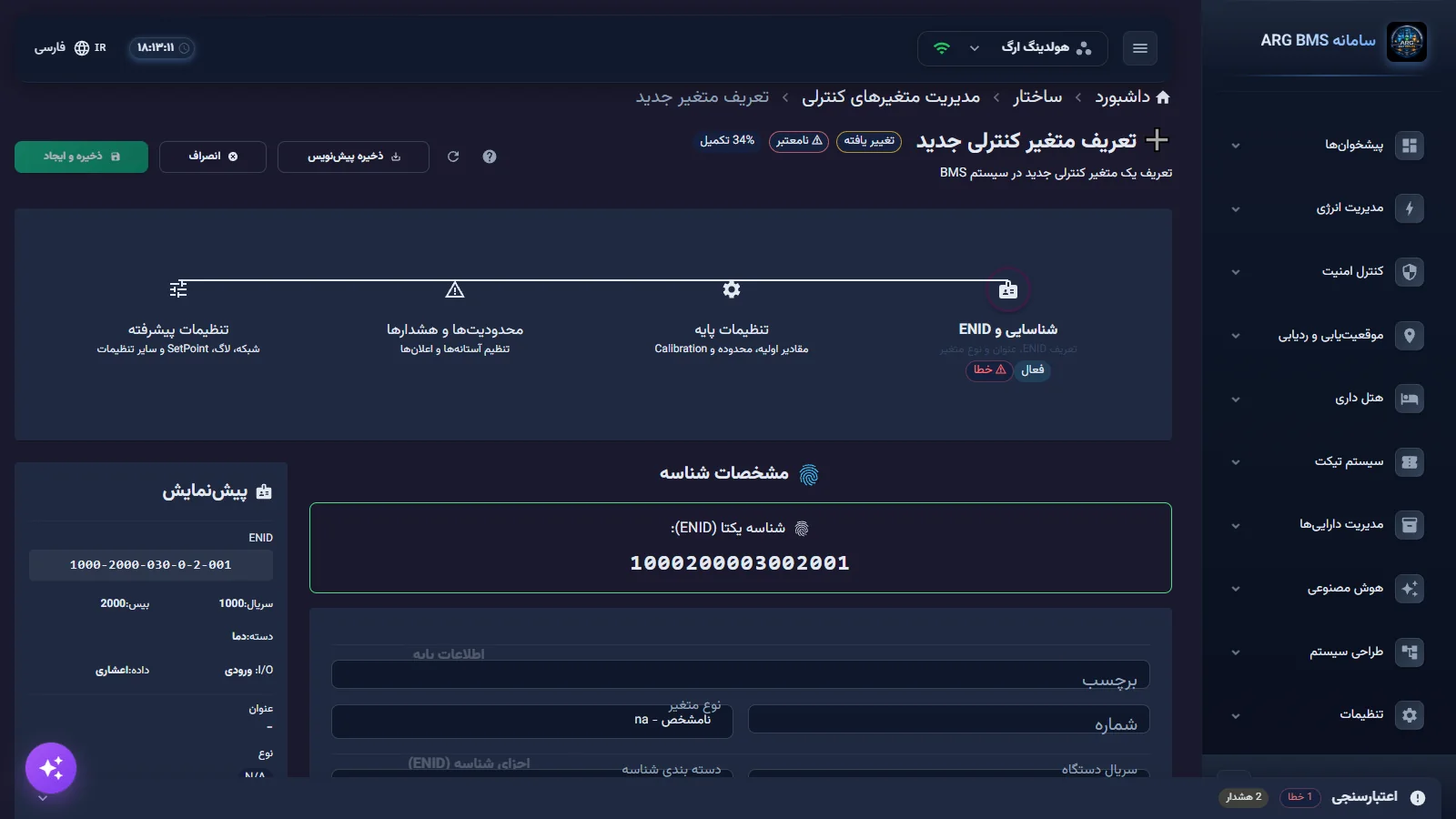
Limits and Alarms · general settings (limit control, alert type) and limit groups with value, status, and alert text - Set that level's status manually. Set وضعیت (Status) for that same level to "2 - Warning" or "3 - Danger". If it is left at its default, crossing the limit leaves the point's status "normal", and it will not show up in the console's Active Alarms.
- Understand the comparison. For a high limit, the value must be greater than the limit; being equal is not enough. The limit is only evaluated when a new, different value arrives; a disconnected device or a frozen value does not generate an alarm (go back to scenarios 1 and 2).
- The notification channel. نوع اعلام (Alert Type) must not be "Do not alert", and the project must have at least one active notification recipient. A repeat alert is not resent until "Minimum time between alerts" has passed and the value has changed by at least "Minimum value change between alerts"; identical repeat text is also not resent. In the current version, the "Telegram" and "all" options may not reach the expected channel; for critical alarms, choose SMS or Email and confirm with a real test.
- Separate evaluation from delivery. In the console, under ACV Monitor, set the status filter to Caution or Danger. If the point shows up here but no SMS or email arrived, the problem is in the notification channel, not in the limit evaluation.
- If the alarm was expected from a rule. In موتور قوانین و اتوماسیون, on the قوانین (Rules) tab, check the rule's "status" toggle and read the cooldown column; a rule does not re-fire during its cooldown period. Test it with the row's test button or the آزمایشگاه تست (Test Lab).
Tips and common mistakes
- A few minutes' difference between the CONNECTION column and the online/offline filter is normal; the two sources use different thresholds.
- "Active" in the STATUS column means administratively active, not connected.
- In "Control Variable Management", "Active/Inactive" is only the point's display setting, not its data quality.
- Do not expect an automatic alarm for critical equipment going offline; cover it with a daily "Offline" filter check or a separate rule.
- If the AI assistant reports an "offline devices" list, cross-check it against the Devices page's "Offline" filter.
Summary
- Always start from the device's status: the "Offline" filter, the protocol service, Test, and the protocol tester.
- A frozen number often means the device is offline; compare the raw and final value in ACV Monitor.
- For an alarm: Limit Control "Yes", a filled-in limit value, that level's status set to "Warning" or "Danger", and an active recipient.
- Separate limit evaluation, in ACV Monitor, from message delivery.
Hands-on exercise on the live demo
On the public demo (bms.argsrv.com, project "ARG Holding"), do not save or delete any device or point.
- In دستگاهها, click the "Offline" filter and compare the count against the "Online Devices" counter; for one offline device, note the CONNECTION and STATUS columns and explain any discrepancy.
- In تستر پروتکل, select an SNMP or Modbus device and click اجرای تست; record the result and the "last update" column.
- Open a point's wizard and go to the محدودیتها و هشدارها step; read the کنترل حد, نوع اعلام, and each level's وضعیت value, and write down whether this point can generate an alarm. If the demo account does not allow saving, or the point belongs to the shared demo, click انصراف (Cancel) without saving.
- In موتور قوانین و اتوماسیون, note a rule's status and cooldown.
Lesson check
Answer at least 3 of 4 correctly to pass.
- 1. After how long of silence does the server mark a device offline by default?
- 2. A device has been disconnected for 10 minutes. Which statement is correct?
- 3. The high limit is 30 and the value reaches exactly 30. What happens?
- 4. Limit Control is "Yes", the limit value is filled in, and the value has crossed it, but the point is not in Active Alarms. Most likely cause?