Working with the smart assistant
Open the smart assistant, ask about alarms and equipment status in Persian, deliberately confirm or cancel action cards, and use the assistant's memory and knowledge base.
دکمهٔ گرد بنفش با آیکن ستاره در پایین همهٔ صفحهها («دستیار هوشمند ARG») — دکمهٔ گرد بنفش با آیکن ستاره در پایین همهٔ صفحهها («دستیار هوشمند ARG») — Round purple button with a star icon at the bottom of every page (“ARG smart assistant”)
The smart assistant is a conversational colleague that reads the system's live data and replies in Persian: active alarms, device health, energy consumption, scenarios, and how to do things. If it needs to change something, it only shows a suggestion on a card, and nothing changes until you confirm it.
Get to know the page
The round purple button with a star icon in the bottom corner of the page (on the left in the Persian layout) opens the chat drawer. The drawer's title is دستیار هوشمند ARG (ARG smart assistant).
| Element | Purpose |
|---|---|
| پایگاه دانش (Knowledge base) | Project documents and procedures the assistant draws on for its answers. |
| حافظه (Memory) | Aliases, preferences and routines remembered across conversations. |
| گفتگوهای قبلی (Previous conversations) | A list of conversations with message counts and a "Delete conversation" option. |
| گفتگوی جدید (New conversation) | Starts a fresh topic. |
| Message box | "Type your question… (Enter to send)"; "Thinking…" while it's answering. |
In an empty conversation you'll see three ready-made suggestions: "Show me the active alarms", "What's the current PUE?" and "How do I build a new dashboard?"
Note that "AI Chat" in the "Artificial intelligence" menu group is a different tool and is not this assistant.
Step by step
- Open the assistant. Click the purple star button; the chat drawer opens.
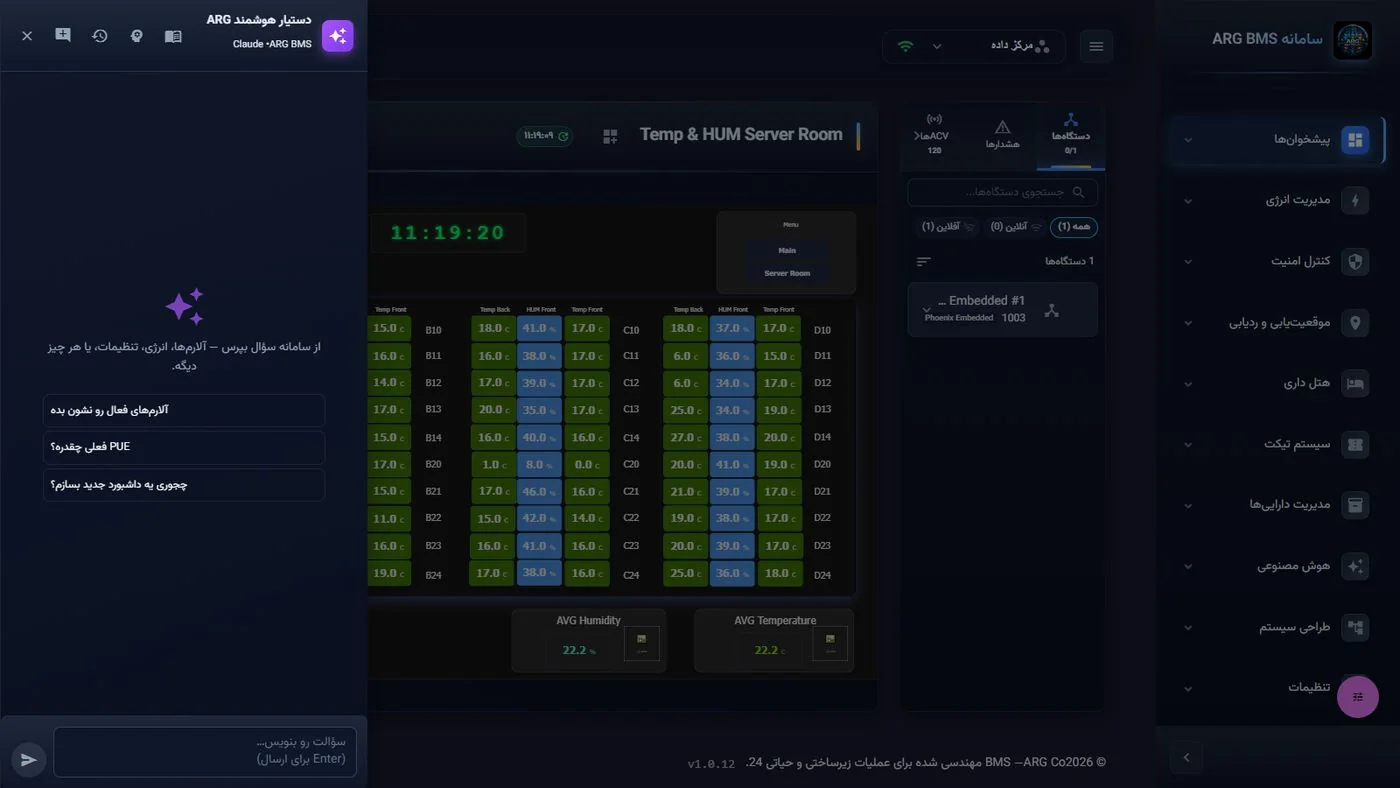
"ARG smart assistant" drawer · Knowledge-base, memory, previous-conversations and new-conversation buttons in the header; three ready-made suggestions and a message box - Ask. Click "Show me the active alarms" or type your own question and press Enter. Follow-up questions like "What's the server room's UPS status?" or "How many critical alarms did we have in the last 24 hours?" are also answered. Under some answers you'll see "N items used from memory".
- Create an alias. Tell it in the conversation "Remember that the server-room UPS means device …", or click the حافظه button, type the text, choose the "Personal" or "Project" scope, and click افزودن (Add). You can pin, disable or delete any entry.
- Read an action card in full. If the assistant suggests a change (for example, creating a dashboard, activating a scenario, or setting a point's threshold), it shows a card with a summary of the action, the تأیید (Confirm) and لغو (Cancel) buttons, and the reminder "Nothing changes until you confirm." Only click "Confirm" if every detail is correct; otherwise click "Cancel".
- Read the result. After you decide, one of these messages appears: "Done." (sometimes with the id of a created item and a link such as "Open logic management"), "Cancelled; nothing changed.", "Failed.", or "Confirmation window expired; nothing changed."
- Use the knowledge base. The پایگاه دانش button shows project documents. If you're authorized, add your organization's procedures (for example, "server-room emergency shutdown procedure") with a title and text so the assistant can reference them in its answers.
- Manage conversations. For a new topic click گفتگوی جدید, and to return to a previous topic click گفتگوهای قبلی.
What a good question looks like
| Instead of | Ask |
|---|---|
| "What's wrong?" | "Show me the server room's active alarms with their severity." |
| "How's energy doing?" | "Compare today's energy consumption with yesterday's." |
| "Is this device broken?" | "What's the health status and last-data time of the server-room UPS?" |
| "Fix it." | "What scenario is defined for reducing consumption during peak hours?" |
Include the equipment's exact name, the time range and the location in your question; if you've saved an alias in "Memory", the assistant will understand it.
Memory and knowledge base: what goes where
- Memory is for short, durable statements: "the server-room UPS means device …", "we take the shift report at 7 o'clock", "the server room's allowed temperature is up to 27 degrees". The "Personal" scope is for you alone, and "Project" is for teammates in the same project.
- Knowledge base is for longer text: operating procedures, equipment instructions, commissioning notes. Each document has a title and text and is only visible within that project; after adding several documents, check the indexing status and click "Re-index" if needed.
- Neither replaces your organization's official record-keeping (shift log and documentation); they only help the assistant answer more precisely.
Common pitfalls
- A card that has waited more than 30 minutes will no longer execute; ask again if it's still needed.
- Don't store instantaneous values (current temperature, today's PUE) or passwords in memory; memory is for names, preferences and routines.
- If you see the message "Server memory is unavailable; this conversation will not be saved.", the conversation is lost once the drawer closes.
- Some actions (like creating a role or deleting a dashboard) are only allowed for an administrator; the message "Failed." may be for this reason.
- Cross-check the assistant's answer against the dashboard and the "Alerts" tab for sensitive decisions.
Summary
- The assistant opens with the purple star button and replies in Persian.
- Every change only runs after "Confirm" on the card; "Cancel" means no change.
- Suggestions are valid for 30 minutes.
- The assistant does not send commands to equipment directly.
- Memory is for aliases and routines; the knowledge base is for project documents.
Hands-on exercise on the live demo
In the public demo ("ARG Holding" project):
- Open the assistant and ask "Show me the active alarms"; compare the answer with the "Alerts" tab.
- Ask the assistant to suggest a simple 2D dashboard named "Exercise — your name" for a space. Read the action card in full and click لغو; see the message "Cancelled; nothing changed."
- Open the حافظه and پایگاه دانش panels and look at their contents without adding or deleting anything.
If the assistant service isn't available in the demo, just identify the drawer's elements.
Lesson check
Answer at least 3 of 4 correctly to pass.
- 1. Where do you open the ARG smart assistant from?
- 2. The assistant has suggested creating a dashboard. When is the dashboard actually created?
- 3. You confirm an action card 40 minutes later. What happens?
- 4. Which of these is not something the assistant can do?