Signing in and getting familiar with the environment
Sign in, read the active project and live connection status from the header, switch project and language, learn the ten sidebar menu groups, and know where to sign out.
صفحهٔ «ورود به سیستم» ← «پیشخوانها» ← «دیدکلی»؛ خروج: «تنظیمات» ← «تنظیمات پروژه» ← «امنیت کاربر» — صفحهٔ «ورود به سیستم» ← «پیشخوانها» ← «دیدکلی»؛ خروج: «تنظیمات» ← «تنظیمات پروژه» ← «امنیت کاربر» — «Sign-in» page ← «Dashboards» ← «Overview»; sign out at: «Settings» ← «Project settings» ← «User security»
The first thing every operator needs to know is where they stand in the system: which project, in which language, whether the live connection is up or down, and which menu group each page belongs to. This lesson builds exactly that mental map; every later lesson builds on it.
Get to know the sign-in page
Any user who is not signed in is redirected to the sign-in page no matter what address in the system they open. This page is a dark card titled ورود به سیستم (Sign in) with the subtitle "Enter your details to continue", and it has only these elements:
| Element | Purpose |
|---|---|
| نام کاربری (Username) | The username your system administrator gave you; at least 3 characters. |
| رمز عبور (Password) | At least 6 characters. The eye icon next to the field shows or hides the password. |
| مرا به خاطر بسپار (Remember me) | Keeps you signed in on this browser. Personal computers only. |
| ورود به سیستم | Submits the form; changes to "Signing in..." while it is checked. |
The sign-in page has no project-selection or language-selection field. The project is determined from your account after you sign in, and you change the language from the header after signing in.
The header: four things you should always see
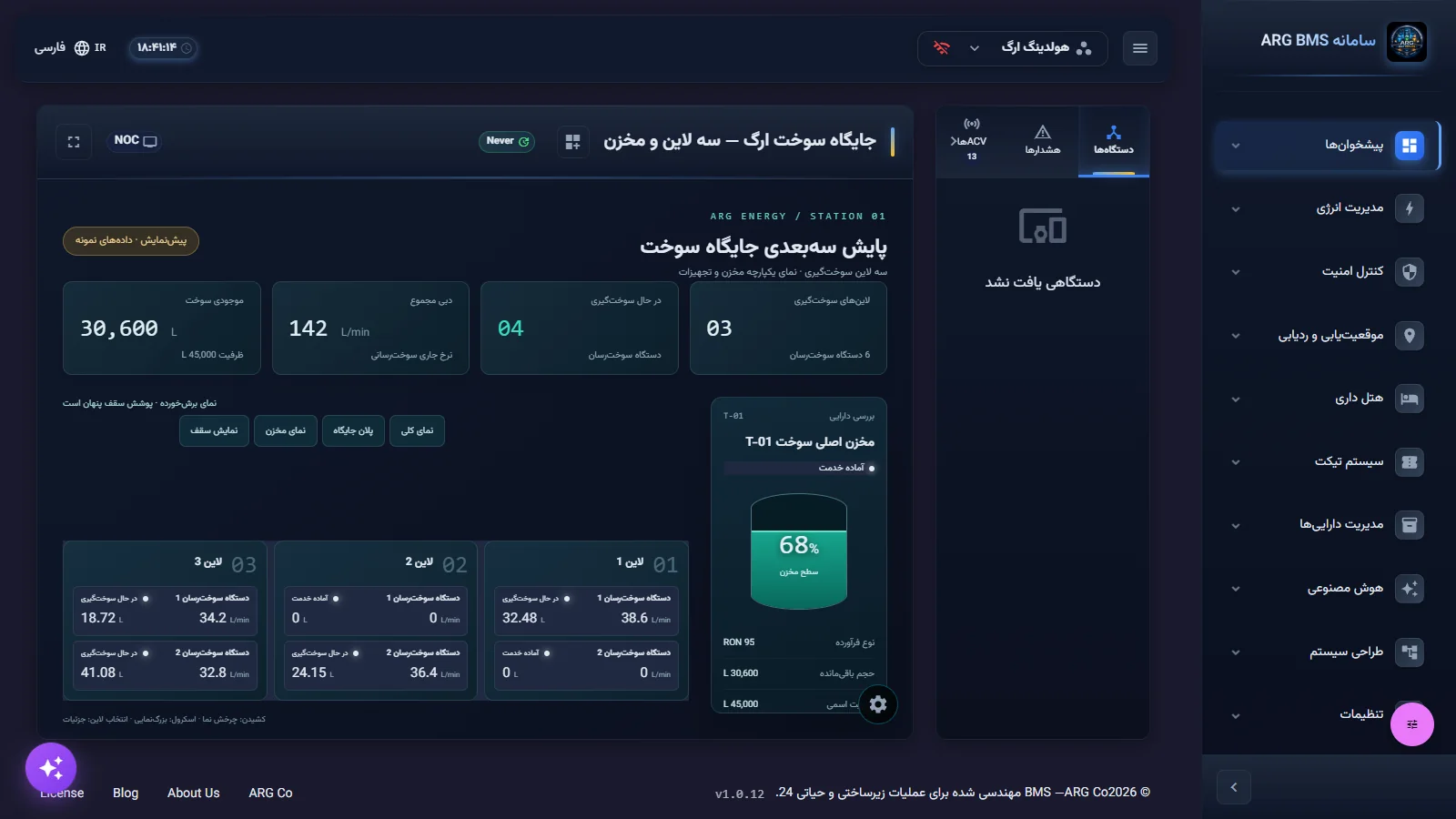
Once you are signed in, the header stays fixed at the top of every page. In the Persian right-to-left layout, from right to left:
| Element | Meaning |
|---|---|
| Three-line button | Tooltip "Open menu" / "Close menu"; expands and collapses the sidebar. |
| Active project name | Shown with an icon and an arrow; clicking it opens the تعویض پروژه (Switch project) menu. |
| Live connection icon (Wi-Fi) | Green: "Live WebSocket connection is up." Blinking orange: "Connecting to server…" Blinking red: "Live connection is down — retrying." |
| دسترسی دستورات فعال است (Command access is active) | Only visible while the 60-second command session is open (Lesson A4). |
| Live clock | Hours, minutes and seconds, in Western digits. |
| Language selector | Globe icon and the current language name; tooltip "Change language". |
In this version, the header has no notification bell and no user menu. Alerts are shown in the dashboard's side column (Lesson A3), and signing out is done from the "User security" page.
The sidebar: ten main groups
At the top of the sidebar is the logo and "ARG BMS system"; at the bottom is the "Collapse menu" / "Open menu" button. In collapsed mode, only the group icons are visible. The groups, in this order, are:
| # | Group | What's in it |
|---|---|---|
| 1 | پیشخوانها (Dashboards) | "Overview" and "List dashboards"; the operator's main working area. |
| 2 | مدیریت انرژی (Energy management) | Energy monitoring, UPS management, solar power, EV charging, water management, chillers, air handling units, the boiler room, fan coils, pumps and electric motors. |
| 3 | کنترل امنیت (Security control) | Access control, CCTV, fire safety. |
| 4 | موقعیتیابی و ردیابی (Positioning and tracking) | Indoor positioning, asset tracking, fleet management. |
| 5 | هتل داری (Hospitality) | Rooms, reservations, guests, housekeeping and reports. |
| 6 | سیستم تیکت (Ticketing system) | The pages in this group are not connected to the server in the current version; report faults through your organization's official channel. |
| 7 | مدیریت داراییها (Asset management) | Asset list, maintenance schedule, cost, documents and warranty, waste management. |
| 8 | هوش مصنوعی (Artificial intelligence) | Insights, anomaly detection, consumption forecasting, optimization and "AI Chat". |
| 9 | طراحی سیستم (System design) | Device simulator, structure management, dashboard design and logic design (including the "Rules and automation engine"). |
| 10 | تنظیمات (Settings) | Users and permissions, project settings (including "User security"), the equipment catalog. |
The system administrator can turn off any item, so your organization's menu may be shorter. You will also see two floating round buttons at the bottom of pages: the purple button with a star icon, "ARG smart assistant" (Lesson A7), and on the "Overview" page the pink button, "Dashboard controls" (Lesson A2).
Step by step
- Open the sign-in page. Open the system address your organization gave you in the browser; the ورود به سیستم page is displayed.
Sign-in page · Only username, password and "Remember me"; project and language selection are not here - Enter your username and password. Type into نام کاربری and رمز عبور. To confirm the password is correct, click the eye icon and hide it again. On a shared control-room computer, do not check مرا به خاطر بسپار.
- Sign in. Click ورود به سیستم. If the input doesn't meet the rules, one of these messages appears: "Username must be at least 3 characters", "Password must be at least 6 characters", or "Invalid characters in username or password". If the username or password is wrong, a sign-in error message is shown.
- Read the active project and connection. After signing in, the "Overview" page opens. Read the project name in the header and check the color of the connection icon. If it is red, the values on the page are not current and you should not make decisions based on them.
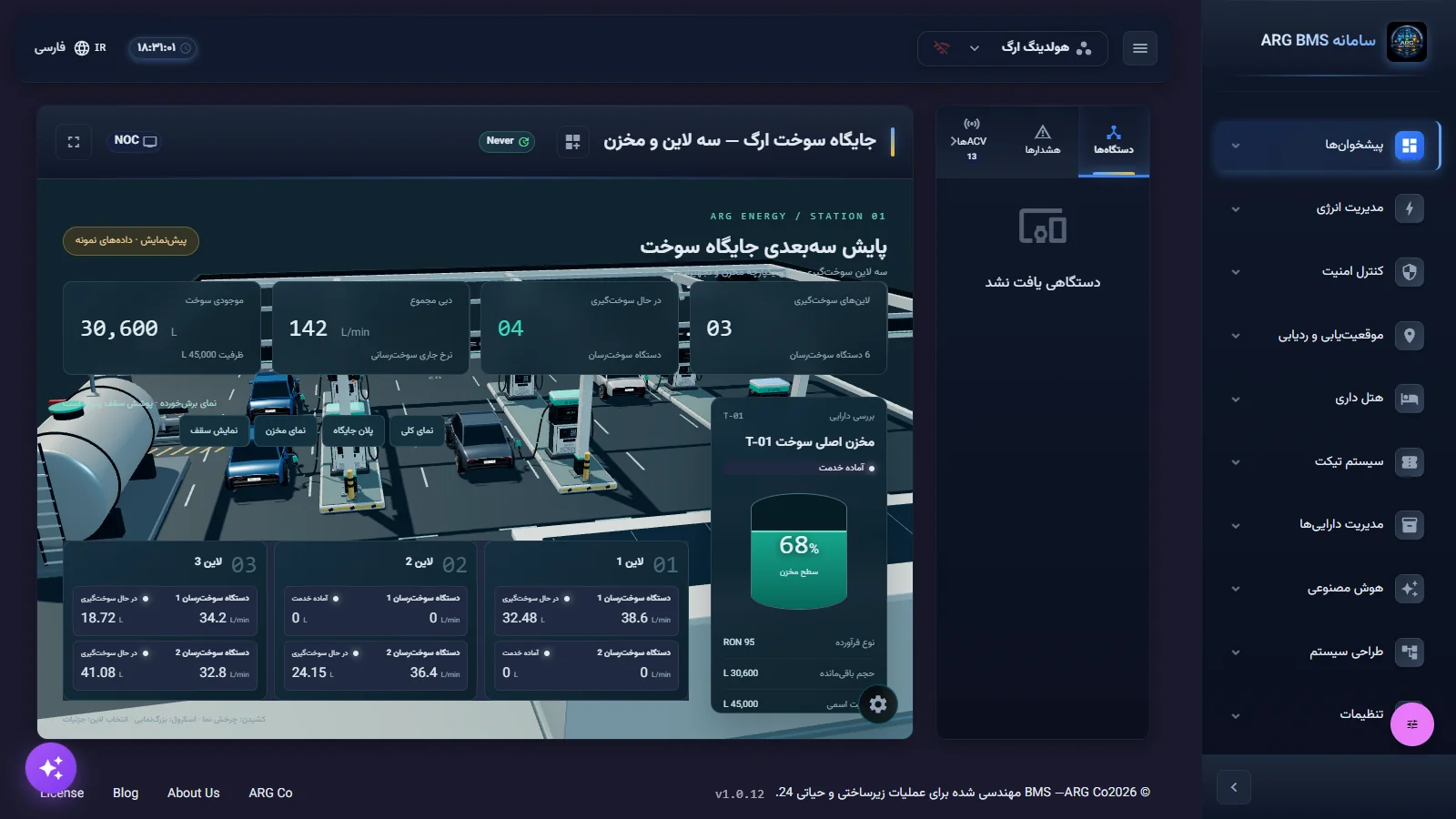
- Switch the project if needed. Click the project name. The تعویض پروژه menu shows the number of "saved profiles"; each project is listed with its name and the subtitle "Project #id", and the current project carries the فعال (Active) chip. Pick another project; the page reloads and the new project's "Overview" opens. If your account only has access to one project, the list has a single entry.
"Switch project" menu · Current project with the "Active" chip; bottom of the menu "Manage profiles…" - Change the language. Click the globe icon in the header and pick one of Persian, English, German, Russian, French or Arabic from the زبان (Language) menu. The page reloads automatically and its direction (right-to-left or left-to-right) changes. Save any unfinished form before doing this.
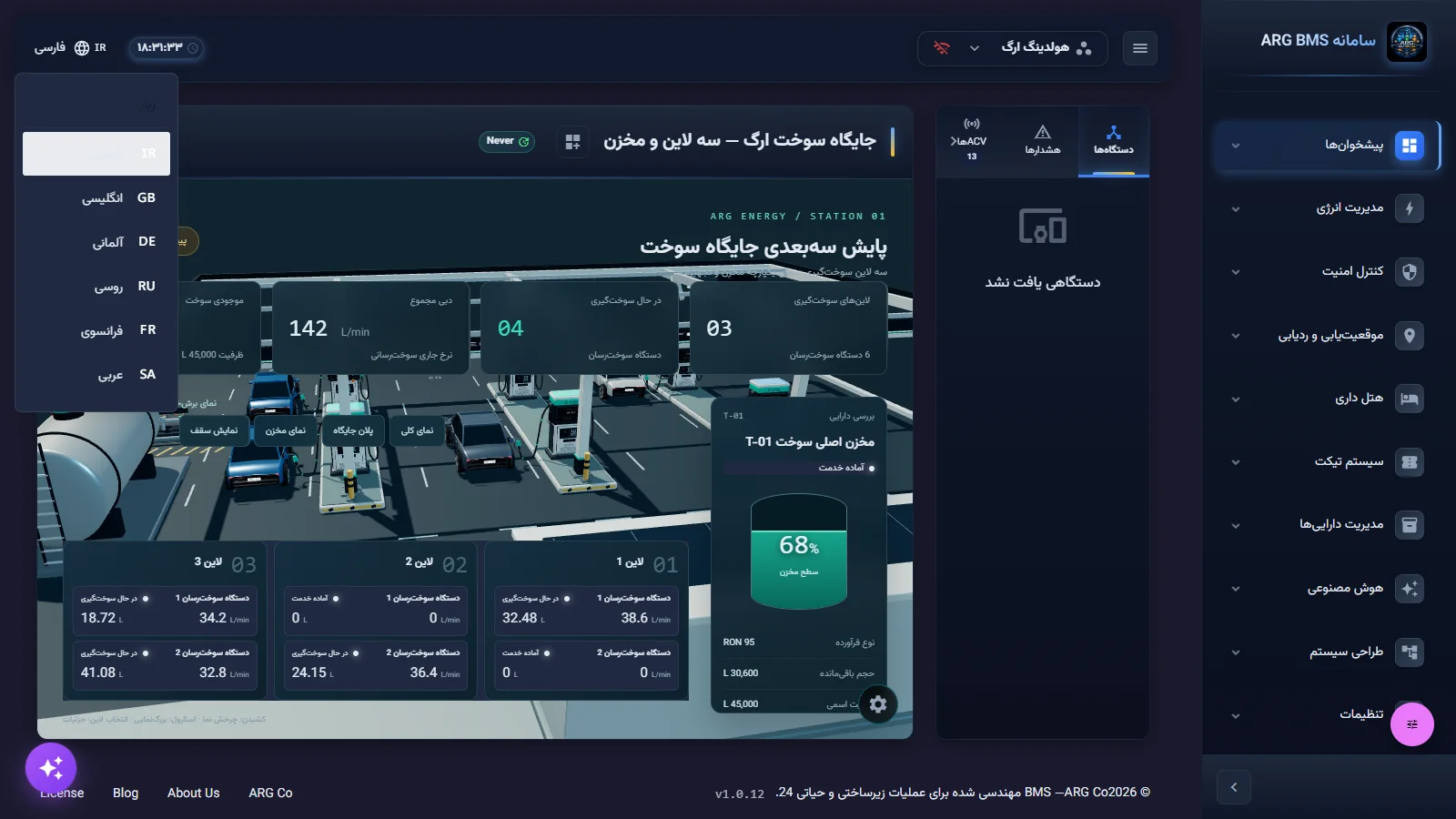
"Language" menu · Six languages; Persian and Arabic are right-to-left - Collapse and expand the menu. Use the header's three-line button or the button at the bottom of the sidebar to collapse the menu and leave more room for the dashboard; in this state only the group icons are shown.
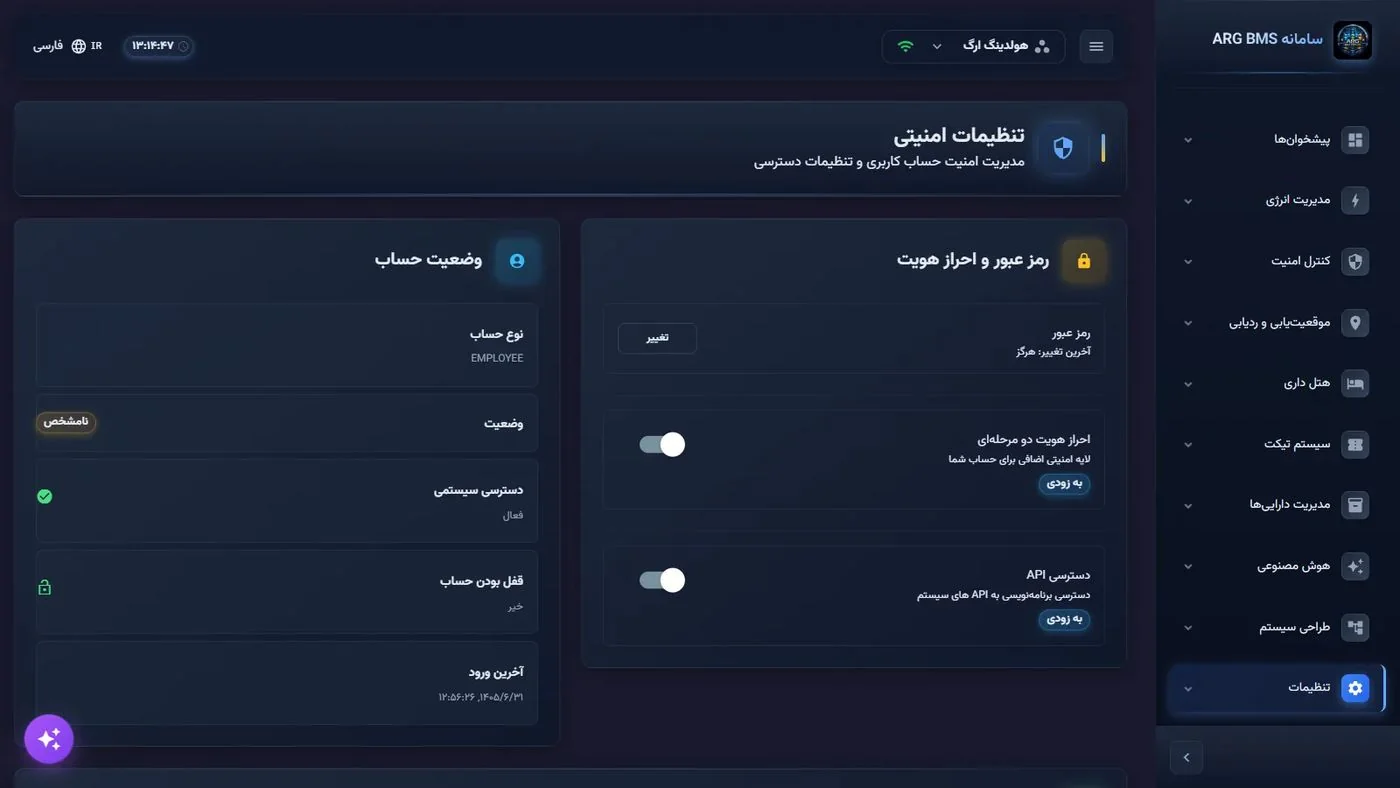
- Sign out at the end of your shift. Open «تنظیمات» ← «تنظیمات پروژه» ← «امنیت کاربر» (Settings ← Project settings ← User security), go to the جلسات فعال (Active sessions) section and click خروج از همه دستگاهها (Sign out of all devices). Confirm the prompt "Are you sure you want to sign out of all devices?"
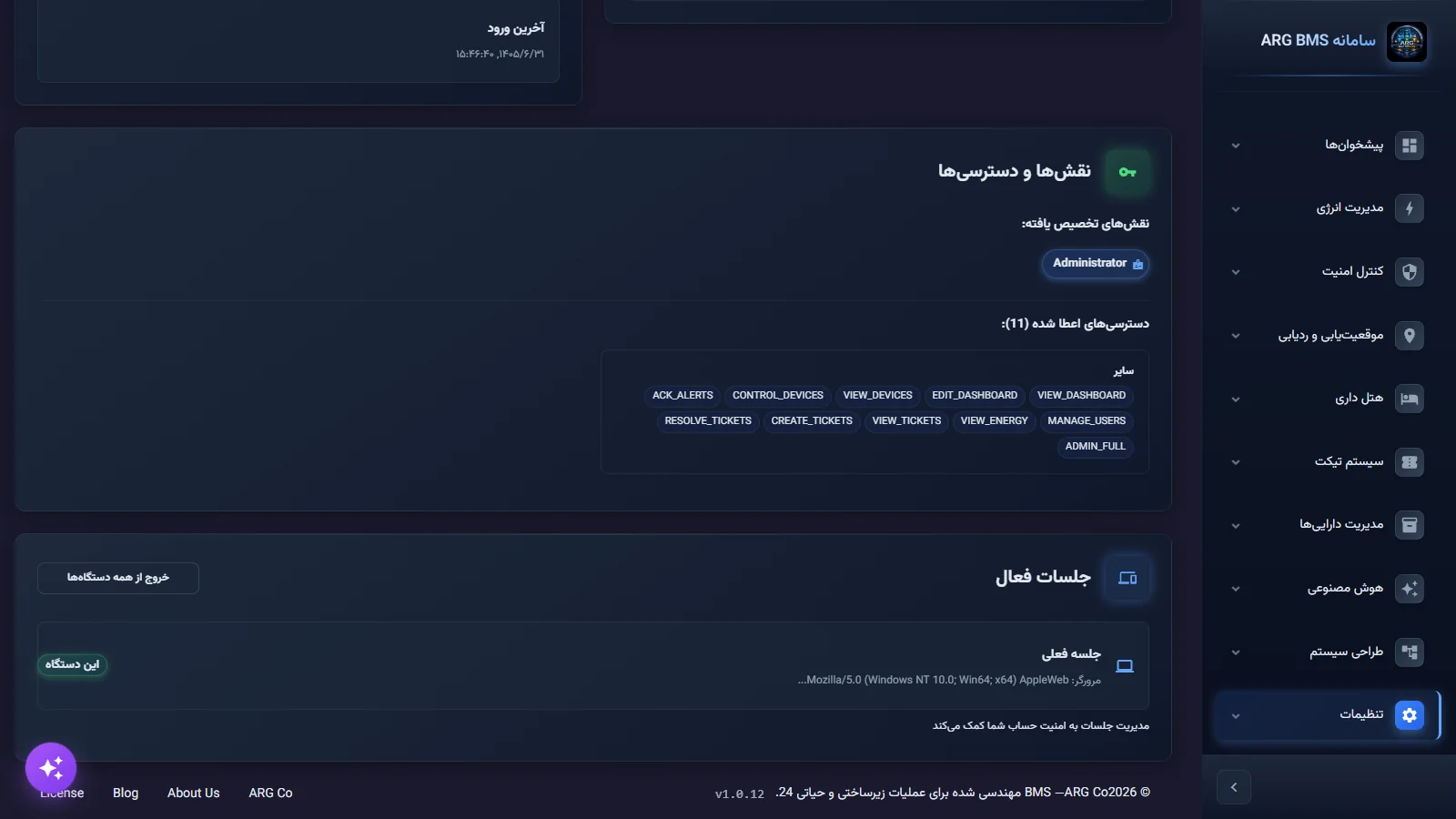
"Active sessions" section · "Sign out of all devices" button at the bottom of the "Security settings" page
Common pitfalls
- "Remember me" on a shared computer means the next person works under your account.
- After switching projects, bookmarked addresses from the previous project may show no data; the system deliberately takes you to the new project's "Overview".
- Seeing a group in the menu doesn't mean you have permission for every page in it. A page you're not authorized for shows "Access restricted" and "You do not have permission to access this page."
- Take the red connection icon seriously: values on the page won't update until the connection is restored.
Summary
- The sign-in page only has username, password and "Remember me".
- Project and language are changed from the header after signing in.
- The color of the connection icon (green, orange, red) shows how fresh the data is.
- The sidebar has ten groups; the operator's daily work starts from "Dashboards".
- Signing out is done from "User security" ← "Active sessions" ← "Sign out of all devices".
Hands-on exercise on the live demo
Work in the public demo with the demo account and the "ARG Holding" project. This exercise is observation only and changes nothing.
- Sign in and note the active project name and the color of the connection icon.
- Switch the language to English and back to Persian and watch the page direction change.
- Collapse and re-expand the sidebar and write down its ten groups in order.
- Open the تعویض پروژه menu, find the project with the فعال chip, and close the menu without picking another project.
- Open the "User security" page and find the جلسات فعال section; do not click the sign-out button on the demo account so you don't disrupt other people's work.
Lesson check
Answer at least 3 of 4 correctly to pass.
- 1. Which of these exists on the sign-in page?
- 2. Where do you switch the active project?
- 3. The connection icon next to the project name is red and blinking. What does that mean?
- 4. In this version, where do you sign out of the system?