Running scenarios
Find a ready-made scenario (such as “Building sleep mode”), read its status, activate or deactivate it, and check its effect.
«طراحی سیستم» ← «طراحی منطقی» ← «موتور قوانین و اتوماسیون» ← زبانهٔ «سناریوها» — «طراحی سیستم» ← «طراحی منطقی» ← «موتور قوانین و اتوماسیون» ← زبانهٔ «سناریوها» — «System design» ← «Logic design» ← «Rules and automation engine» ← «Scenarios» tab
A scenario is a set of actions executed on several pieces of equipment with a single command; for example, "Building sleep mode" turns off unnecessary lighting and reduces ventilation, and deactivating it restores everything. Defining and editing scenarios is an engineer's job; the senior operator or shift lead runs it at the right time.
A scenario alongside other tools
| Tool | What it does | Operator's role |
|---|---|---|
| Manual dashboard command | Changes a single point right now. | Execute with a password (Lesson A4). |
| Scenario | Executes and, if needed, reverts a set of actions together. | Run and revert at the right time. |
| Rule or state machine | Runs automatically and continuously on the server's engine. | Observe only; changes are an engineer's job. |
Common examples: "Building sleep mode" at the end of the work day, "Workday mode" in the mornings, "Peak-demand reduction mode" during peak hours, "Morning pre-cooling" before staff arrive, and "Emergency evacuation mode" during a drill or emergency, on the safety officer's order.
Get to know the page
The موتور قوانین و اتوماسیون (Rules and automation engine) page has the tabs "Rules", "Visual editor", "Scripts", "Scenarios", "State machines" and "Test lab". The سناریوها (Scenarios) tab shows the title "Scenarios" and the project's scenario count.
| Scenario card element | Meaning |
|---|---|
| Name and description | What the scenario does; if there's no description, "No description". |
| On/off toggle | Permission to run: a disabled scenario won't run. Message "“name” activated" or "“name” deactivated". |
| ID n chip | The scenario's id. |
| Status chip | فعالشده (Activated) (green) means the scenario is currently applied; "Deactivated" means it isn't. |
| فعالسازی (Activate) / غیرفعالسازی (Deactivate) | Run right now, or revert. |
| Pencil and trash icons | Edit and delete; for engineers only. |
Step by step
- Open the page. From the sidebar, «طراحی سیستم» ← «طراحی منطقی» ← «موتور قوانین و اتوماسیون» (System design ← Logic design ← Rules and automation engine), then the سناریوها tab.
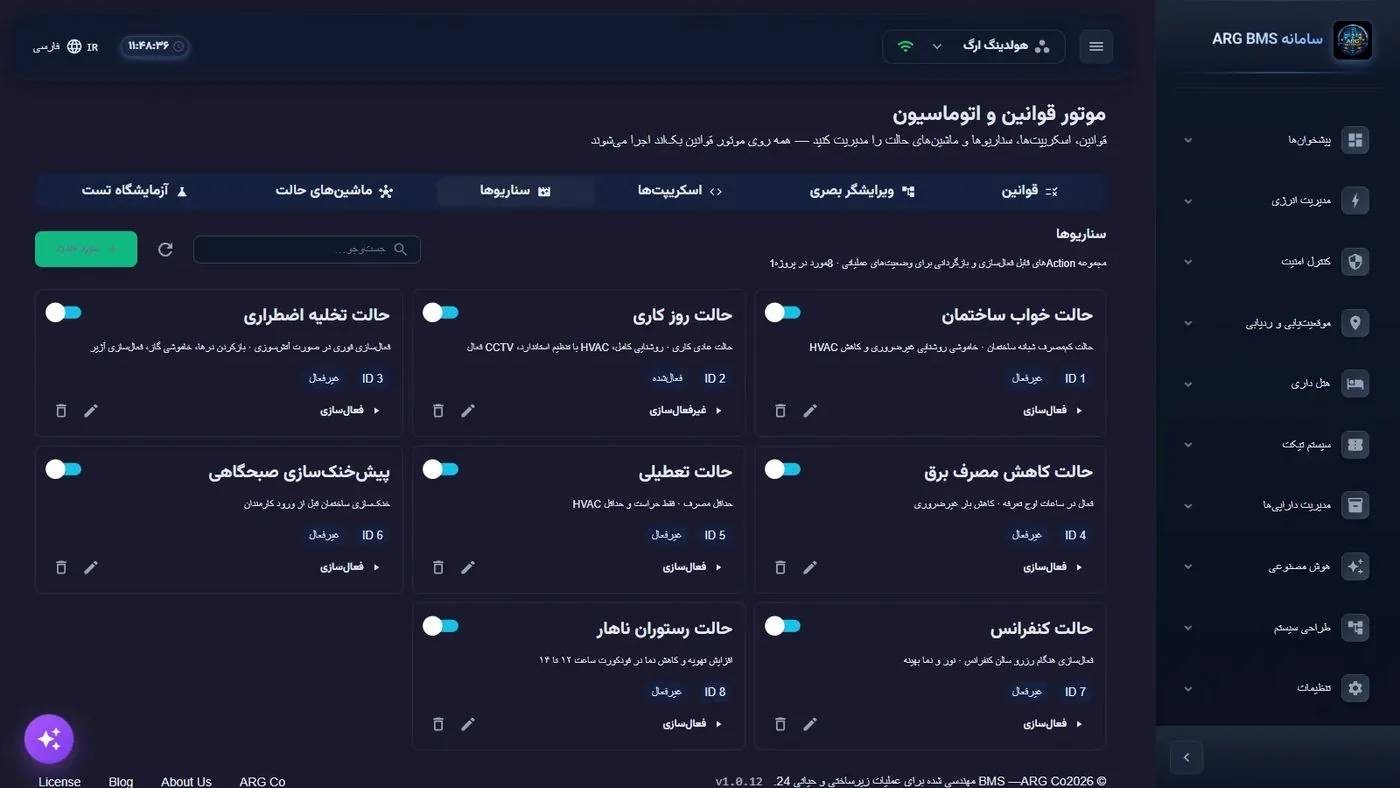
"Scenarios" tab · Each card has a run-permission toggle, an ID chip, a status chip and an "Activate" or "Deactivate" button - Find the scenario. Type part of the name in "Search…". If the list looks stale, click بارگذاری مجدد (Reload).
- Check the precondition. The card's toggle must be on. Read the status chip to know whether the scenario is currently active or not.
- Activate. Click فعالسازی. Confirm the prompt "Activate scenario “name”? The scenario's actions will run." with OK. The message "Scenario activated" and the فعالشده chip appear.
- Check the effect. Open the related dashboard and see that the equipment has moved to the expected state.
- Revert if needed. Click غیرفعالسازی, confirm the prompt, and see the message "Scenario deactivated".
- Report an error. If a red bar appears, its text gives the reason (for example, the scenario isn't ready to run). Write down the text and notify an engineer.
Before and after running
- Before running: Read the scenario's name and description, make sure running it is allowed at that hour, and notify the shift supervisor; safety-related scenarios only run on the safety officer's order.
- While running: After the success message, wait a few minutes; some actions have defined delays and don't all apply at the same time.
- After running: Check the related dashboard and the "Alerts" tab; a scenario that turns off equipment may create expected alerts that should be logged in the shift log.
- At the end of its use: Don't forget to "Deactivate", unless the scenario has a "timeout" and reverts on its own.
Common pitfalls
- Unlike a manual dashboard command, running a scenario doesn't need the 60-second password — only a confirmation prompt; re-read the scenario's name before clicking OK.
- The trash icon deletes a scenario permanently; an operator should never use it.
- If a scenario has a "timeout", it deactivates automatically after that time; don't be surprised by a sudden status change.
- The "Scenarios" pages under SCADA, Phoenix, SuperPLC and ABM aren't connected to the execution engine in the current version; only run scenarios from "Rules and automation engine".
Where operator work ends and engineering work begins
Only three actions on this page are within the operator's scope: searching and reading cards, "Activate" and "Deactivate". Changing the run-permission toggle, editing with the pencil, deleting with the trash, and creating a "new item" are an engineer's job; the "Rules", "Scripts", "State machines" and "Test lab" tabs are also engineering-course material. If you need a scenario that doesn't exist, request it from an engineer with a precise description (which equipment, at what time, with what value, and how it should revert); building a half-finished scenario during working hours leaves the facility in an unwanted state.
Summary
- Scenarios run from "Rules and automation engine" ← "Scenarios".
- Toggle = permission to run; "Activate" = run right now.
- The green "Activated" chip means the scenario is currently applied.
- Check the effect on the dashboard and report errors with the full text.
Hands-on exercise on the live demo
In the public demo ("ARG Holding" project) and without changing demo data:
- Go to the سناریوها tab and build a table of name, id, toggle state and status (activated/deactivated) for each scenario.
- For a deactivated scenario, click فعالسازی, note the confirmation prompt text, and click Cancel so nothing runs.
- Only if your instructor designated a harmless scenario, activate and immediately deactivate it and write down the exact message text. Don't touch the toggle, pencil or trash icons.
Lesson check
Answer at least 3 of 4 correctly to pass.
- 1. Where are scenarios run from?
- 2. What's the difference between the card's toggle and the “Activate” button?
- 3. What does the green “Activated” chip mean?
- 4. A 30-minute “timeout” on a scenario means: