Sending a secure command from the dashboard
Send a command to equipment from a dashboard, fill out the “Confirm command” window correctly, read the command receipt, and close the command session on time.
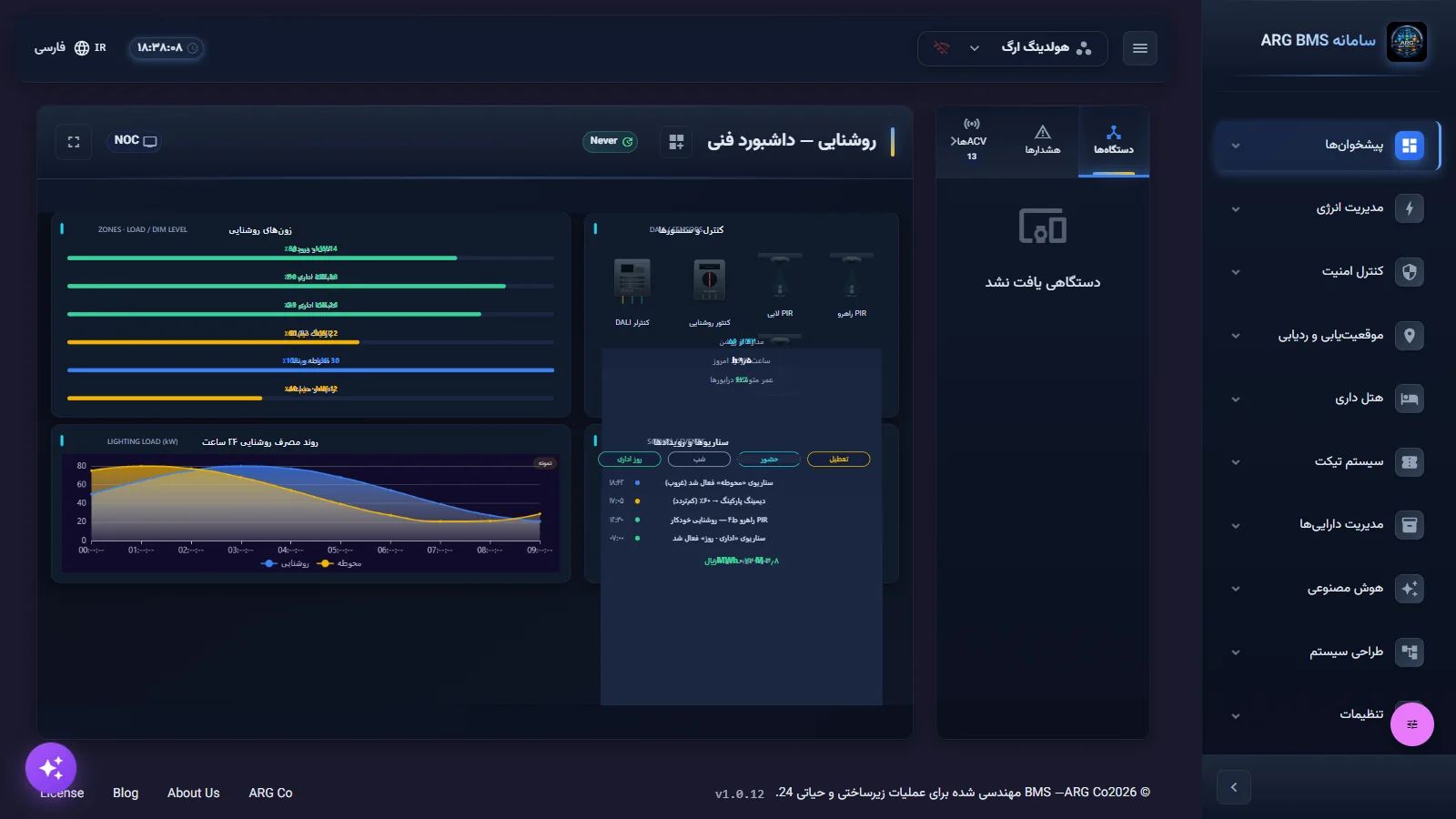
«پیشخوانها» ← «دیدکلی» ← المان کنترلی داشبورد — «پیشخوانها» ← «دیدکلی» ← المان کنترلی داشبورد — «Dashboards» ← «Overview» ← a dashboard control element
Commanding equipment (turning a pump on or off, changing a temperature setpoint, opening or closing a relay) is the operator's most sensitive task. For every command, the system asks for your password again, logs the command, and shows step by step whether the equipment actually executed it.
Who can command, and from where
- Commands are sent only from dashboards: control elements on a 2D dashboard, command-enabled objects in a 3D scene, and the "Operations center" view. The device page in "Structure management" has no command button.
- Only the
MASTER,SYSTEMandUSER_LEVEL1access levels are allowed to control equipment. Other levels get the message Command failed: Project key cannot control devices.
Get to know the page
| 2D dashboard element | Behavior |
|---|---|
| "Button" | Momentary, two-state, or sends a fixed value (a button that only navigates to another dashboard sends no command). |
| "Switch" | On and off. |
| "Slider" and "Knob (Volume)" | A numeric value within a range. |
| "Thermostat" | Temperature setpoint. |
A disabled element is dimmed and shows a "not allowed" cursor.
The "Confirm command" window has the text "Enter your password to send the command", a رمز عبور (Password) field, the reminder "Access stays active for 60 seconds after confirmation", and the انصراف (Cancel) and تایید و ارسال (Confirm and send) buttons.
Check five things before every command
- Correct equipment: the element's name and the point it's connected to; in a 3D scene, hover to see the object's name.
- Current status: what the value is right now, and whether the equipment is in manual/maintenance mode.
- Live connection: the header icon should be green, otherwise the value on screen is stale.
- Coordination: whether someone else is working on the same equipment, or a scenario is running (Lesson A5).
- Command effect: know what should change after the command so you can verify the result.
Step by step
- Check the connection. Open the dashboard (Lesson A2) and make sure the header's connection icon is green. Don't send a command while the connection is down.
- Click the control element. For example, a pump switch. The switch's appearance changes immediately, but the command hasn't been sent yet. In a 3D scene, if the designer set "confirmation required" on the object, you'll first see "Are you sure you want to run this command?"
- Enter the password. In the تایید دستور (Confirm command) window, type your sign-in password and click تایید و ارسال. If you change your mind, click انصراف; the switch returns to its previous state and nothing is sent.
"Confirm command" window · "Password" field, 60-second reminder, and the "Cancel" and "Confirm and send" buttons - Read the receipt. The message bar at the bottom of the page reports the command's stage (the text is in English):
Message Color Meaning Accepted by edge; device confirmation pending Yellow The server accepted it; the device hasn't confirmed yet. Accepted by device queue; node acknowledgement pending Yellow It's in the device's queue. Device acknowledged / Physical node acknowledged; readback pending Green The device confirmed receipt; reading back the new value is underway. Observed and confirmed Green The new value has been read back from the device itself and confirmed. Device rejected command / Command failed Red The command did not execute; the reason follows in the message. - See the real change. Look at the point's value on the dashboard or in the "ACVs" tab. The final measure of whether a command executed is the value read back from the equipment.
- Close the session. After the password is confirmed, the header shows دسترسی دستورات فعال است with a countdown, and for up to 60 seconds further commands are sent without a password. Finished? Click پایان دسترسی (End access).
The "Operations center" view has a separate "Confirm output change" window for relays, showing the logical state before and after, and reaching the same password window via تأیید و احراز هویت (Confirm and authenticate). After sending, the message "Request … sent; physical execution not yet confirmed. Check the output status." is shown. In this view, only relays with fresh data and a live connection can be commanded.
When you see a red message
| Message text | Meaning and action |
|---|---|
| Project key cannot control devices | Your account has no control level; ask the system administrator. |
| ENID is not owned by authenticated project | The point doesn't belong to your active project; select the right project (Lesson A1). |
| Command value must be a finite number | The command value isn't a valid number; fix the slider or thermostat value. |
| WebSocket authentication required | The live connection is down; refresh the page and contact support if it continues. |
| Device rejected command | The equipment itself didn't accept the command; check its local status and notify maintenance. |
In every one of these cases, don't repeat the command over and over; write down the message text and report it.
Common pitfalls
- Don't guess the password; 5 wrong attempts in a row locks the account.
- The 60-second session is only for this browser tab, but anyone at the computer during that time can send commands without a password. Click "End access" when done.
- A yellow message means it isn't yet known whether the equipment executed it; don't repeat the command until you see the new value or a green message.
- Always check the real value after a command; the server's acceptance message alone doesn't prove execution.
- The command value must be a number; otherwise you get "Command value must be a finite number".
- If your account has no control level, ask the system administrator; don't send commands under someone else's account.
Summary
- Commands only come from a dashboard, and only for the MASTER, SYSTEM and USER_LEVEL1 levels.
- The "Confirm command" password is your sign-in password; 5 wrong attempts in a row locks the account.
- After confirmation, 60 seconds without a password; close it sooner with "End access".
- Yellow means accepted; green "Observed and confirmed" means executed and verified.
Hands-on exercise on the live demo
In the public demo ("ARG Holding" project) find a dashboard with a switch or command button. The goal is only to learn the window, not to change demo equipment:
- Click the element to open the تایید دستور window.
- Read the window text and the 60-second reminder, then click انصراف; watch the switch return to its previous state.
- Do not enter a wrong password; every mistake counts toward the account-lock tally.
- If your instructor designated a simulated point for practice, send the command only on that point, write down the receipt message text, then click پایان دسترسی. If the demo account has no control permission, note the message "Project key cannot control devices".
Lesson check
Answer at least 3 of 4 correctly to pass.
- 1. After entering the password in “Confirm command”, how long does command access stay active?
- 2. What does the message “Accepted by edge; device confirmation pending” mean?
- 3. Which access level cannot send a command to equipment?
- 4. Why shouldn't you guess the password in the “Confirm command” window?